
If you have bought an iPhone 7 Plus or iPhone 7 for AT&T, you’ll find the device does not come unlocked. Fortunately, if you paid in full for the iPhone 7 you can easily unlock it with AT&T by using a simple iTunes process.
The best time to attempt to unlock an iPhone on AT&T is when it is brand new and hasn’t been set up yet, since the unlock process is incorporated into the setup procedure. If you already setup the iPhone 7 and want to unlock it, you’ll need to restore it with iTunes, but otherwise the process is the same.
To be clear, we are talking about cellular carrier unlocks here, not the lock screen. A carrier lock means the device is locked to use a specific carrier, say AT&T, T-Mobile, Verizon, etc, and can not use a different network even with a different SIM card from a different service. By unlocking the iPhone 7, you gain the ability to use a different mobile network assuming you have a compatible SIM card. This is great for travelers and it helps the resale value of an iPhone too.
How to Unlock AT&T iPhone 7 or iPhone 7 Plus
You must have paid full price for the iPhone 7 or iPhone 7 Plus to use this particular method to unlock your iPhone. If you did not pay in full, are on contract, or are you using an upgrade program, this will not work. The walkthrough here is for an AT&T model iPhone 7 that was bought from Apple for full price.
- When you first get the iPhone 7, turn it on and immediately plug it into a computer with iTunes
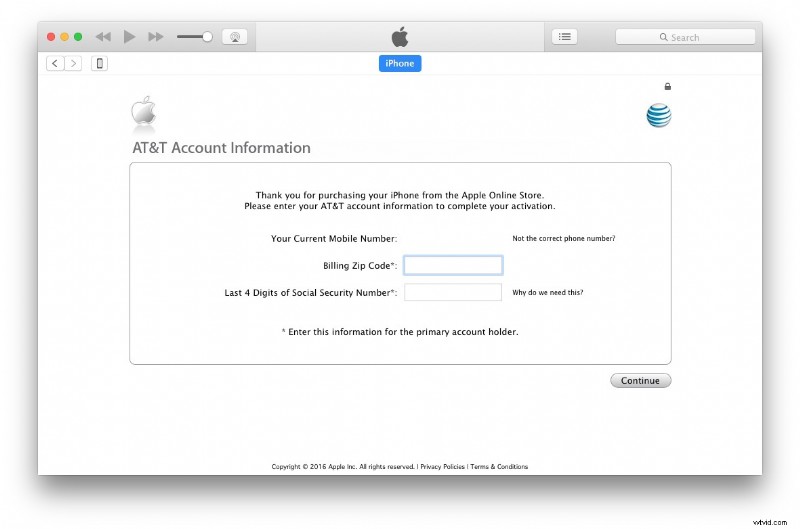
- Let iTunes load the account setup screen, enter your account zip code and the last four of the account social and proceed with the activation process
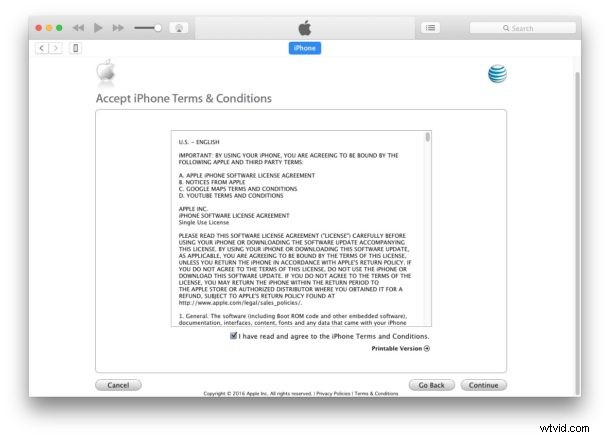
- Agree to the terms of service for both Apple and AT&T, I’m sure you’ll carefully read every detail
- You’ll see a screen saying “AT&T is currently activating your iPhone. Congratulations”, go ahead and click Continue here and wait another few moments
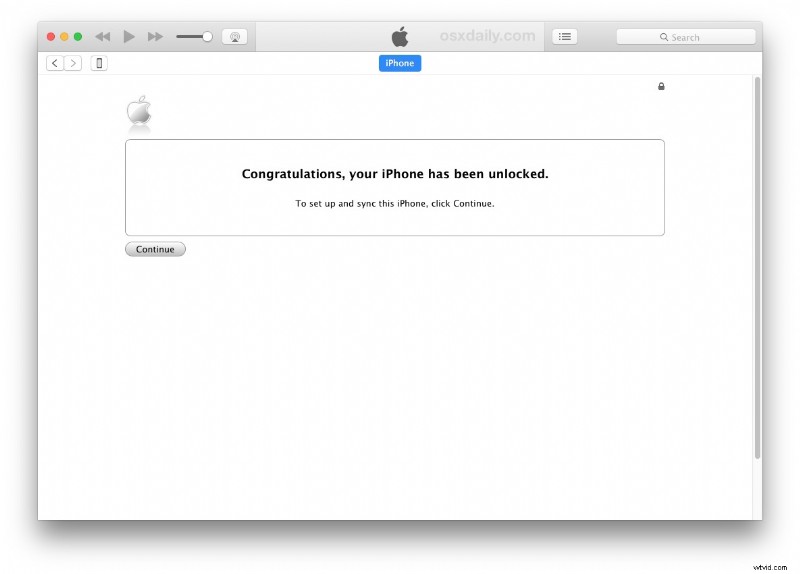
- After AT&T has activated the iPhone 7 it will be unlocked with a message stating “Congratulations, your iPhone has been unlocked” at the next screen
That’s all there is to it. Now that the iPhone 7 or iPhone 7 Plus is unlocked it can be used with any GSM carrier with a compatible SIM card.
I Already Setup The iPhone 7, How Do I Unlock It?
You will need to backup the iPhone (to iCloud or iTunes), reset it, then connect to iTunes and set it up again.
You must use iTunes to unlock the iPhone.
My iPhone 7 Is Still Locked, How Do I Unlock It?
If for some reason the above setup process did not work and you know for certain that you paid for the iPhone 7 or iPhone 7 Plus in full, you will want to contact AT&T.
Optionally, you can use this AT&T Device Unlock Request website here to submit an unlock request online. It has a quick turnaround and you can often unlock an iPhone that is paid in full in under an hour.