
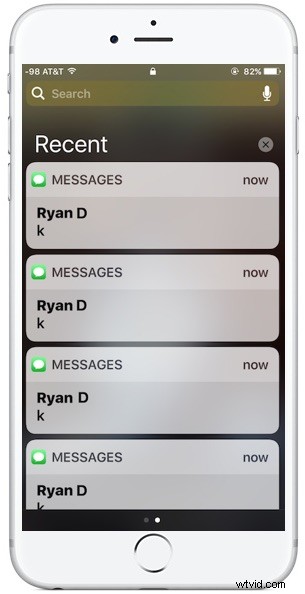
Having an iPhone screen full of notifications from messages, calls, and apps can be a little obnoxious. Fortunately the latest versions of iOS on the newest iPhone models support a great little hidden feature which allows you to immediately clear all notifications from an iPhone.
The ability to clear all notifications on iPhone requires a device with a 3D Touch display, the feature will not work quite the same without 3D Touch. That means you’ll need a 6s, 7, or a better device with iOS 10, since earlier models do not have 3D Touch equipped displays, and neither do iPad or iPod touch.
Here’s how this handy feature works for iPhone.
Clear All Notifications from iPhone
- Slide down from the top of the iPhone screen to reveal the Notifications panel
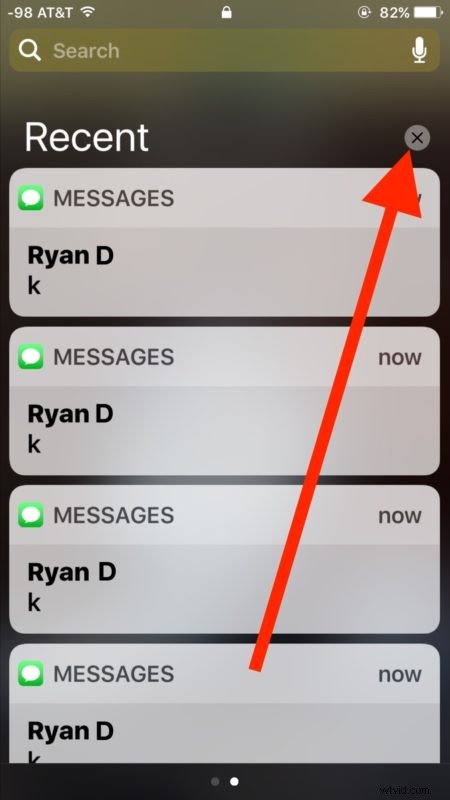
- Use 3D Touch on the little (X) button next to “Recent”
- Choose “Clear All Notifications”

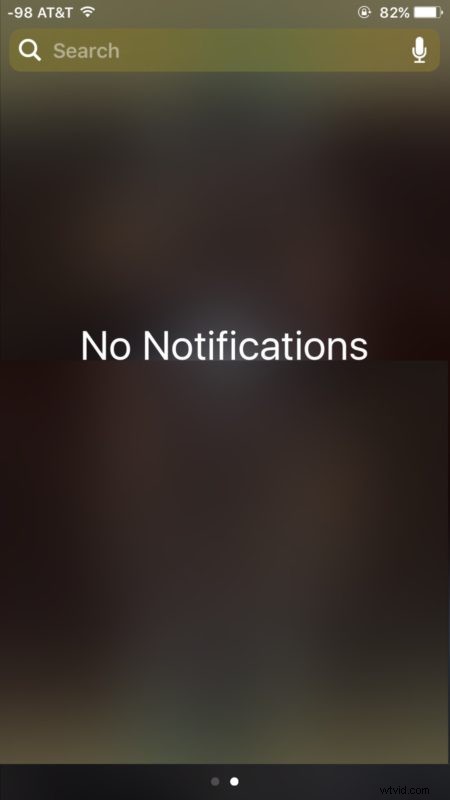
All notifications are instantly cleared, hooray!
This feature actually originated on the Apple Watch where you can clear all notifications with a hard press, but it’s obviously useful enough that Apple brought it to the iPhone as well. It’s possible it will arrive on other devices down the road as well if they become equipped with 3D Touch screens.
For iPhones without 3D Touch, you have a “clear” option rather than a “Clear All” button option. It clears the set of notifications but you’d have to repeat the process for each day or section. And yes the sectional “Clear” button is also available on new iPhone models too if you just tap the X without using 3D Touch.
Remember this actually dismisses the notifications, making it different from using the older swipe down and up method to hide them.
Enjoy this? Check out some more 3D Touch tricks here, my personal favorite is the ability to use 3D Touch as a trackpad to select and navigate in text.