

The iOS Messages app defaults to sending what is called a “read receipt” when an iMessage is opened and read within the application. That Read Receipt feature can be helpful for some conversations but it’s not always desired for every message, and though disabling Read Receipts for Messages in iOS is certainly one option that many iPhone users choose, another trick is available to those with 3D Touch equipped iPhone screens, thanks to the ‘peek’ and ‘pop’ features of such devices.
Here is exactly how you can read an iMessage on iPhone without sending a Read Receipt to the sender – and without turning the feature off entirely. Like some other 3D Touch tricks, it may be helpful for some users to adjust the 3D Touch pressure sensitivity settings to get the most out of this.
- Open the Messages app as usual when a new message arrives – do not open the message thread, however
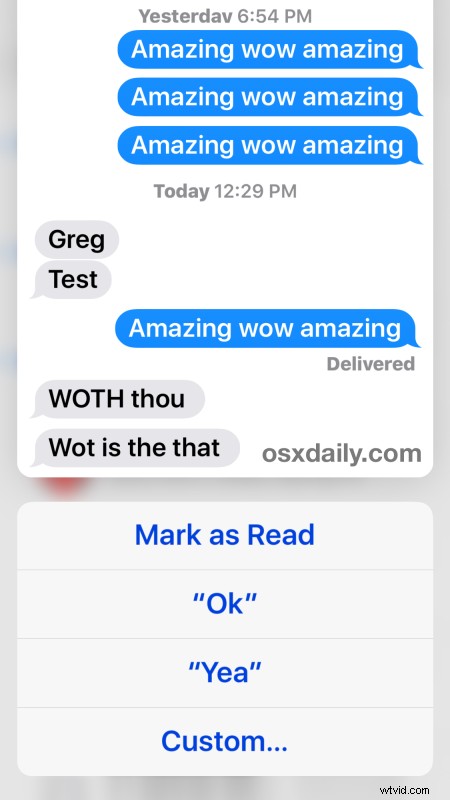
- At the Messages overview screen in iOS with all available message threads, press to activate 3D Touch ‘peek’ on the message you wish to read but without sending the receipt to the sender
- As long as you continue to 3D Touch the messages screen, you’ll be able to read the new iMessage without sending a read receipt – if you do want to send a read receipt from this screen you can either hard press to ‘pop’ the iMessage which instantly sends a read receipt, otherwise swipe up while in ‘peek’ mode and choose “Mark as read” from the 3D Touch options

Nice trick, isn’t it? You’ll obviously need a device with a 3D Touch display for this to work, like an iPhone 6s or iPhone 6s Plus, as the standard screens do not offer peek and pop or touch-pressure detection.
This is really helpful if you wish to leave the read receipts feature enabled, which can be great for close friends and family, but is often less than desirable to keep enabled for some other contacts. Since there is currently no method of selectively enabling or disabling the sending of those read receipts to individual contacts, this 3D Touch approach offers an alternative to iPhone users who want to read a message without actually sending the “Read Receipt” to the sender, and also without turning off the feature entirely which results in the “Delivered” message sent to senders instead. Basically this means you can keep the feature on but maintain a bit of privacy for reading messages in situations that call for it.
Thanks to MacTrast for discovering the handy trick.