
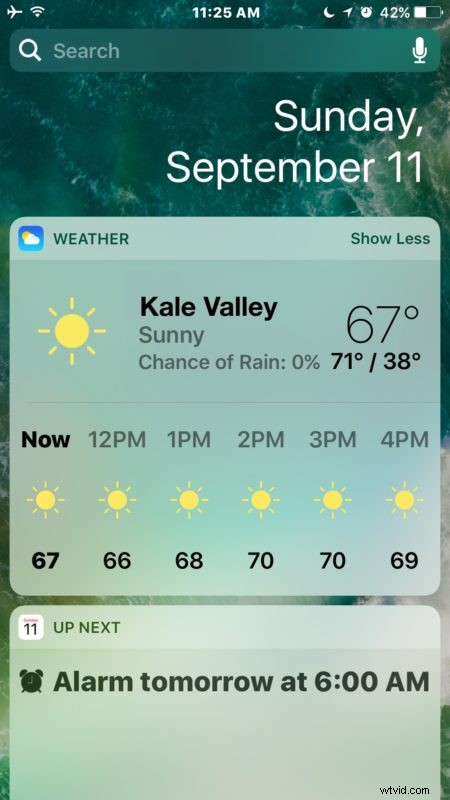
You can easily add new widgets to the iOS Widget by using 3D Touch on the iPhone. This offers what might be the quickest way to add a widget to your iOS Widget panel.
For the less familiar, the widget screen in iOS is accessible from the lock screen by swiping over (what used to be the slide-to-unlock gesture is now swipe-to-see-widgets), and also from the Home Screen by swiping over right from where the icons are. At the top is a clock, and underneath that clock are various widgets associated with apps and functions, like weather, calendar, maps, stocks, etc.
Adding Widgets to iOS Widget Panel with 3D Touch on iPhone
Of course not all apps support widgets, and not all apps support 3D Touch, but for those that do you can quickly add those apps widgets to the widget screen with a simple trick. This is only available on iPhone currently because only newer iPhone has a 3D Touch display:
- Hard press on an app icon to reveal possible 3D Touch options associated with it
- Tap on “Add Widget” to add that apps widget to your iOS Widget screen
- Swipe to access the widget screen to see your newly added widget
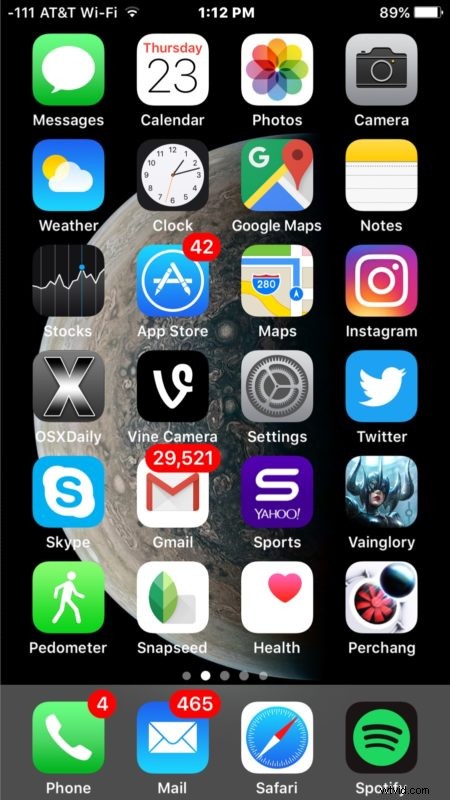
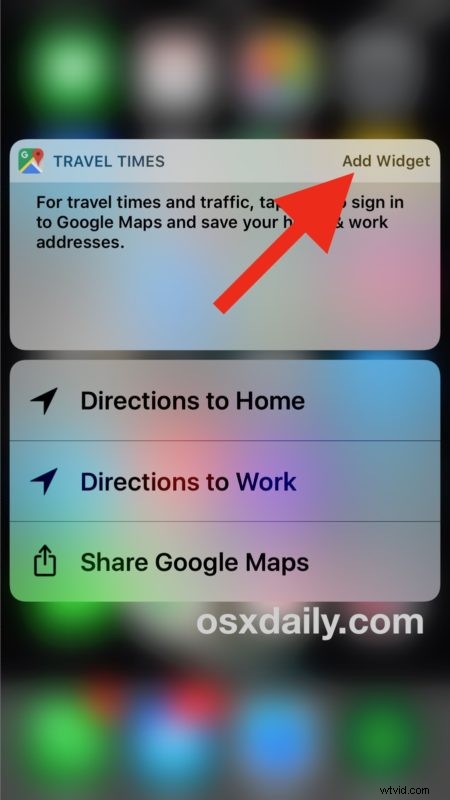
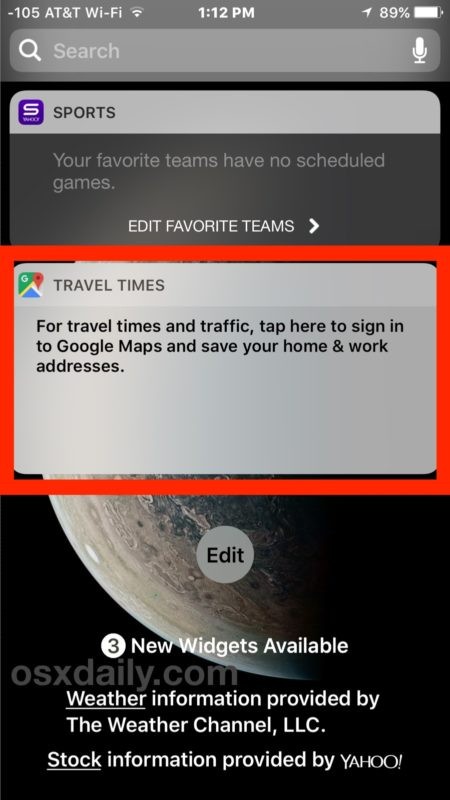
This is demonstrated with the Google Maps app and widget, but it works with other supported apps as well.
As usual you can also edit, add, and remove widgets from the widget screen in iOS by tapping the “Edit” button from the bottom of the widget panel.
Obviously if you disabled the widget screen in iOS and the Today View screen then you won’t see any of the newly added widgets until you unlock your iPhone first and then access the widget screen from there.