
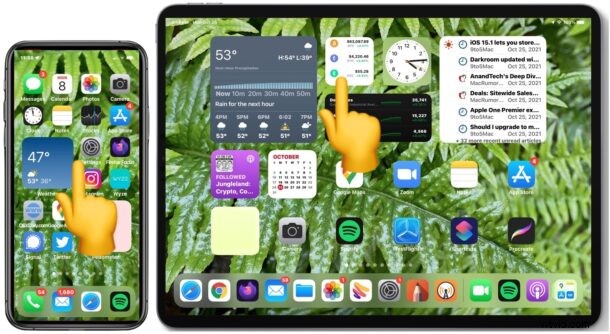
Some iPhone and iPad users have discovered that their devices touch screens are having random problems with response to touch input, particularly since updating to iOS 15 or iPadOS 15 or later, including iOS 15.1 and iPadOS 15.1.
The touch screen issue can be everything unregistered taps, unresponsive to touch input, a seeming delay to touch input, erroneous touch input, or even just completely ignoring touch input.
Some common examples of issues with iPhone or iPad touch input, or an unresponsive touch screen, include the following:
- Swiping on the screen to scroll up on a webpage or document may not register initial touch inputs
- Swiping from left to right on the Home Screen may not register the swipes thus requiring repeat attempts
- Attempting to swipe up to quit out of apps in multitasking view may also fail even with repeated attempts
- Attempting to swipe left or right on the Home Screen or perform other Home Screen gestures results in Spotlight appearing instead of the desired action
- Accessing Control Center can be a challenge, or attempting to adjust brightness or volume in Control Center may be unresponsive or delayed
- Trying to tap to close a browser tab in Safari or Chrome may take repeated attempts after a variety of tap failures
- Scrolling up or down in documents, Safari, Notes, etc may be very slow or suddenly unresponsive
- Some apps also may be very slow to respond to touch input if it is registered at all, like scrolling up and down in a webpage in Chrome may become inordinately slow or unresponsive
Just about any scenario that involves touch input, but particularly anything involving swiping or gesturing, can be intermittently problematic, unreliable, or unresponsive if you are experiencing this issue.
The problem is very obvious, so if you are experiencing the issue you will know it: your touch input is basically ignored or not reliably interpreted.
Update iOS / iPadOS
Some users have reported that updating to the latest iOS or iPadOS release resolves the issue for them. This is good practice anyway, so be sure to check for an update in Settings > General > Software Update.
Make Sure the Screen is Not Dirty
Some iPhone and iPad users may think the touch screen is not responding correctly because there is debris, grease, grime, or some other junk on the screen. Take a moment to wipe off the devices display and make sure it is clear of any obvious goo.
This is a generic troubleshooting tip for any touch screen issues, and it’s important to rule this out since it’s an easy fix; simply cleaning the display resolves the issue.
If the screen is clean and everything works perfectly, great, you’re good to go.
If the screen is clean and the touch issues persist, go ahead and read on.
Temporary Solution to iPhone/iPad Touch Screen Issues: Hard Restarting
Hard rebooting the iPhone or iPad seems to temporarily resolve the issue, but the touch issues may come back after the device continues to be used for a while.
- On any iPhone / iPad with Face ID, including iPhone X and newer, iPad Pro, or the newest iPad Air and iPad Mini devices without Home buttons, hard restarting is done as follows: Press volume up, press volume down, press and hold the power / lock button until you see an Apple log on screen.
- For any iPad model with a Home button, press and hold the Home button and the power/lock button until you see an Apple logo to hard restart the device.
When the iPhone or iPad boots back up, touch input should work again as expected, at least for a little while.
It appears that the more apps you use, the quicker the unresponsive touch screen issue will resurface. For example, I can reliably reproduce the issue after some duration has passed with a common workflow involving a lot of open tabs in both Safari and Chrome, and the Notes app.
I personally have encountered the unresponsive touch screen issue on an iPad Pro 2018 model with iPadOS 15.1, and in my personal experience the problem did not exist in prior versions of iPadOS system software.
Because the issue is (temporarily) resolved after the device has a hard reboot suggests it is either a bug, memory leak, or some other software issue that should be resolved in a future iOS/iPadOS software update. Accordingly, be sure to install any future iOS/iPadOS software update when it comes available, as it is likely to resolve the problem.
We mentioned the touch screen issue in a broader article on troubleshooting iOS 15 and iPadOS 15 problems.
It’s worth remembering that many issues with an unresponsive touch screen on iPad Pro and iPhone are often simply the result of a dirty screen, or software related, and while it’s annoying, it’s not totally unheard of.
For what it’s worth, some users have reported touch screen issues with iOS 15 on iPhone 13, iPhone 14 Pro, iPhone 12, iPhone 12 Pro, iPhone 11 Pro, and iPhone 11 that were resolved after updating to iOS 15.1, so if you haven’t updated to iOS 15.1 yet then it’s worth doing so in the chance it resolves any touch screen issues for you.
If you’re having any particular problems with the touch screen on iPhone or iPad since updating to iOS 15 or iPadOS 15 or newer, let us know your experiences and solutions in the comments.