
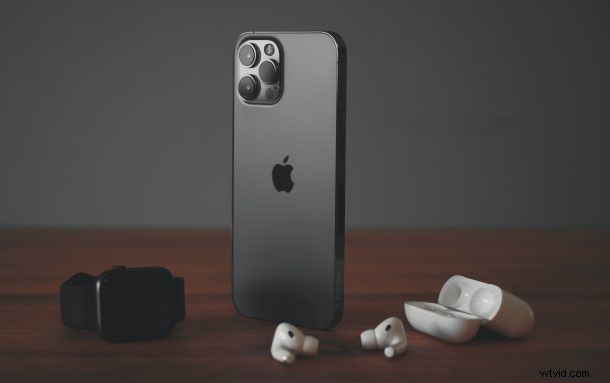
Are your AirPods or AirPods Pro connecting to a different device on its own? This is an issue that several users have reported in the past year, but it’s actually a feature that Apple introduced alongside newer iOS and iPadOS versions. If you don’t like AirPods switching between devices automatically, it can be turned off.
For some background, Apple introduced a feature for its H1 chip-enabled wireless headphones that allows them to automatically switch between your iPhone, iPad, or Mac, depending on the device you want to listen to. Although it seems like the most convenient feature to have at first glance, it can be annoying at times, realistically speaking. For example, let’s say a friend or family member borrows your iPad or Mac and starts watching a video on it, the audio will be streamed to your AirPods.
To get this addressed, you’ll need to disable this feature that Apple has added. Let’s take a look at how you can stop AirPods from automatically switching to other devices, if you don’t like this behavior.
How to Stop AirPods From Automatically Switching to Other Devices
Note this is only a feature if you’re using a device that’s running iOS 14/iPadOS 14, macOS Big Sur, or later. Make sure your AirPods are connected to your iPhone or iPad as well.
- Launch the Settings app from the home screen of your iPhone or iPad.

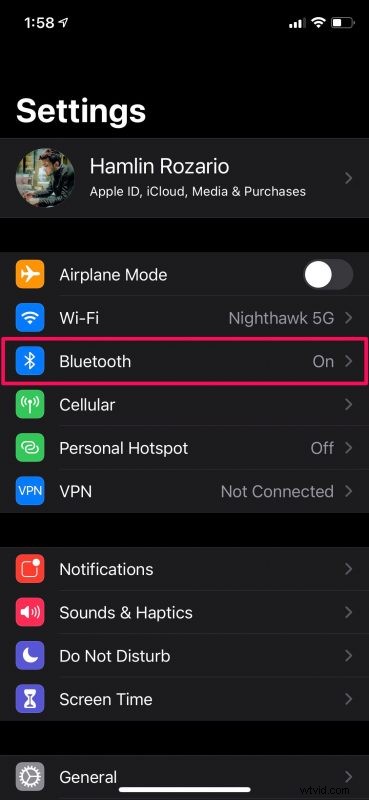
- In the settings menu, tap on “Bluetooth” to view the list of all your Bluetooth devices.
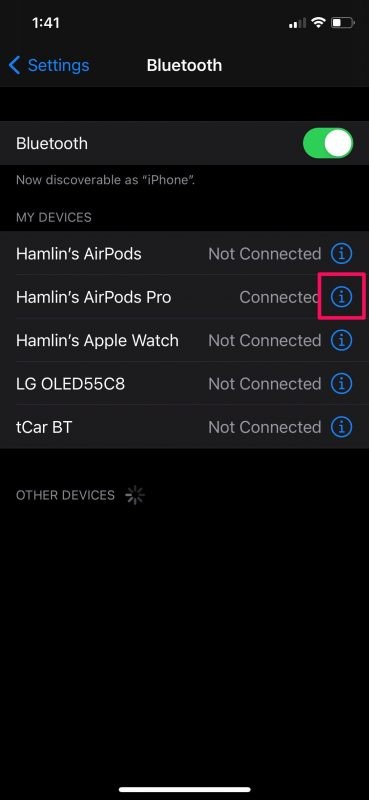
- Now, tap on the “i” icon next to the connected AirPods as indicated in the screenshot below to configure the Bluetooth settings for the device.
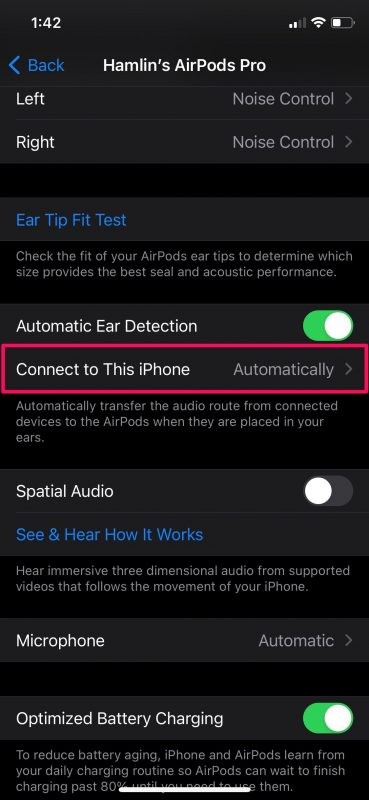
- Here, scroll down and select the “Connect to This iPhone” option to continue. You’ll see that it’s set to automatically switch by default.
- Now, just select the option “When Last Connected to this iPhone” instead of Automatic and you’re good to go.

That’s pretty much all you have to do. Your AirPods will no longer switch to this particular iPhone automatically.
You’ll need to repeat these steps on your other devices like iPhones and iPads to make sure your AirPods won’t connect automatically to them too when you start watching videos or listening to music on them.
If you’re on a Mac, you’ll need to go to System Preferences -> Bluetooth in macOS to configure the settings for your AirPods.
The default automatic option that Apple has set will allow your AirPods to search for active playback on a device and connect to it. This means that when you want to just watch videos on your MacBook with its internal speakers, the audio will start playing through your AirPods instead which could be frustrating to some users.
On the other hand, when you choose the alternate option that you have, your AirPods will always try to connect to the last connected device regardless of which device is actively playing audio.
Did you stop your AirPods from automatically switching between your Apple devices? What do you think of this feature? Share your thoughts in the comments.