

The popular messaging app WhatsApp has a default media saving setting which will automatically download and save every received picture and video to the iPhone Photos apps Camera Roll. While some users may like this feature, others may wish to change the auto-saving media behavior so that images and movies sent and received in WhatsApp are not automatically saved to their iPhones.
If you want to disable the automatic picture and video saving feature in WhatsApp, the best way to make this change is through the WhatsApp application on the iPhone directly:
- Launch WhatsApp if you haven’t done so already, then tap on the “Settings” tab at the bottom of the app
- In the Settings screen, choose “Chat Settings”
- Locate the toggle switch for “Save Incoming Media” and flip the switch to the OFF position to disable the automatic saving of pictures and videos, or, turn it to the ON position to enable that feature
- Tap back on Settings and then use WhatsApp as usual
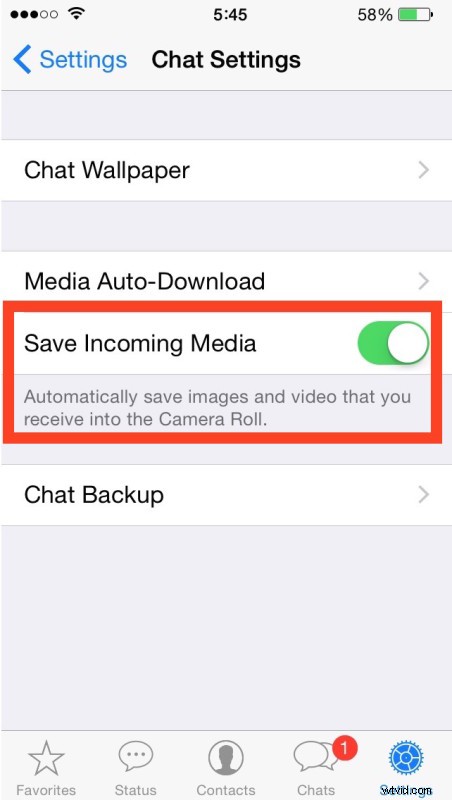
Now images and video will no longer save directly to the iPhone Camera Roll with your other pictures in Photos app.
Note that you can still save pictures and videos from WhatsApp manually, but it no longer happens without your direct action. In this way, with the “Save Incoming Media” setting turned off, WhatsApp behaves more like the Messages app in iOS, where the received pictures and videos are contained within the messaging client per thread, unless they are expressly saved to the local devices storage outside of the app.
Somewhat related, another option is to prevent WhatsApp from downloading media when on a cellular connection. This can help to reduce bandwidth usage of a limited data plan, and you’ll find those settings options a step further under “Chat Settings” > “Media Auto-Download”, setting to “Wi-Fi” will only allow media to save if connected to a local wireless network.
For what it’s worth, the same setting apparently exists on the Android and Windows Phone WhatsApp clients too, where pictures will automatically save to the Android phones general photo library without this setting disabled. Perhaps if you’re a WhatsMac user in OS X, that may be useful to you for your accompanying Android or Windows phone client.