
iPhone has the capability to automatically answer inbound phone calls. Much as this sounds, with the auto-answer feature enabled, the iPhone will answer all phone calls automatically that come to the phone.
Auto-Answer Calls is an excellent accessibility setting that has many obvious uses and a wide range of applications for nearly all sorts of iPhone users, and there are some less-than-obvious uses for this setting too if you use your imagination a bit. If this sounds like an interesting or valuable feature to you, here’s how to turn automatic call answer on with the latest iOS releases.
Before beginning, you’ll need a modern iOS release on an iPhone to have this feature. Any iPhone running any system software release past iOS 11.0 will include the Auto-Answer Calls capability.
How to Enable Auto-Answer Calls on iPhone
- Open the “Settings” app on iPhone and go to “General”, and then go to “Accessibility”
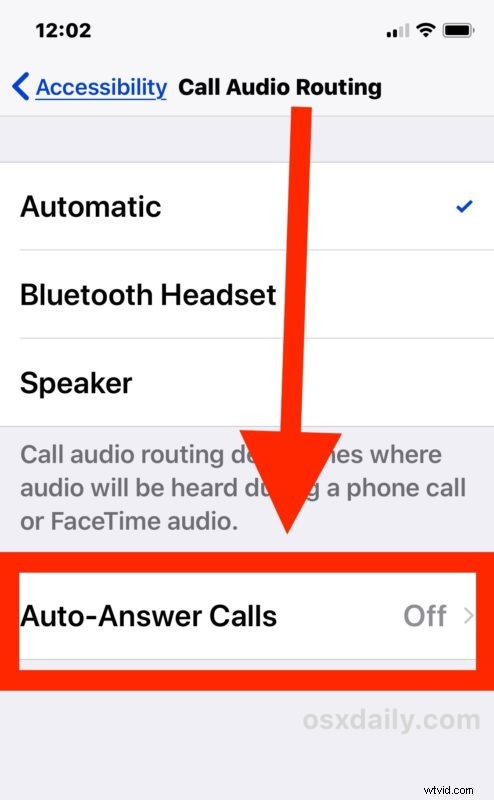
- Tap on “Call Audio Routing”
- Now tap on “Auto-Answer Calls” *
- Flip the toggle switch to the ON position next to “Auto-Answer Calls”, and then adjust the number below the setting to change how long to wait before a call is automatically answered
- Exit Settings as usual
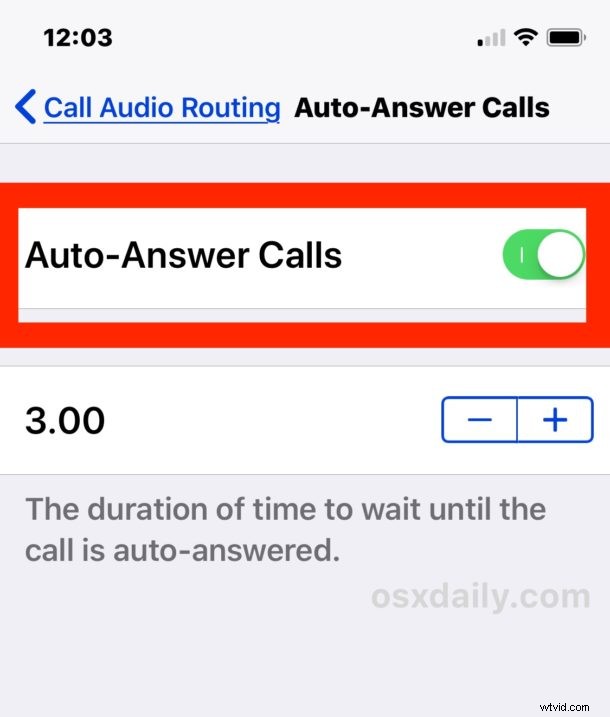
Now the iPhone will automatically answer all inbound phone calls to the device.
The default setting waits 3 seconds before answering the call, which may be reasonable in that it allows the iPhone user to reject a call or send the call to voicemail if the recipient doesn’t want to answer a particular caller.
* You can further configure the Call Audio Routing settings to better suit auto-answering to specific needs. For example, auto-answering in combination with setting iPhone calls to automatically default to Speaker phone when answered or to a Bluetooth headset is probably a bit more useful, unless you regularly have the iPhone up to your ear.
Currently you can not specify which phone numbers to automatically answer calls from, but that’d be a fantastic capability if it were added to this feature. Hopefully a future version of iOS will allow for auto-answer from specific contacts, like a favorites list, similar to how Do Not Disturb bypass works by allowing specific callers to get through regardless of the feature being enabled, but in the meantime it’s auto-answer for all calls, or nothing.