
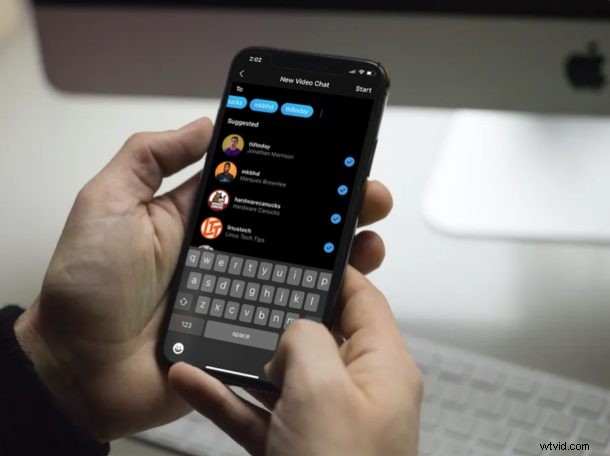
Instagram, the most popular social media platform for sharing photos offers a free and convenient way to make video calls and group video chats. You can make or join these calls directly from an iPhone (or iPad too if you’re running the iPhone app on iPad).
Interested in accessing the video chat feature that Instagram has to offer? Look no further, because today, we’ll walk you through the necessary steps for making video calls with Instagram on both the iPhone.
How to Make Video Calls with Instagram on iPhone or iPad
If you’re one of those people who haven’t used Instagram before, you’ll need to download the official Instagram app from the App Store before you go ahead with the procedure. Now, simply follow the steps below to learn how to make video calls and group video chats.
- Open “Instagram” on your iPhone or iPad.

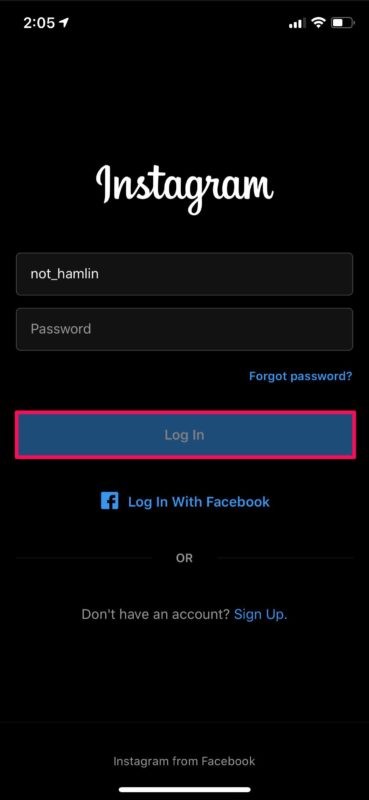
- Log in if you already have an account. You can also use your Facebook account to Sign in. If not, you can sign up in a matter of seconds.
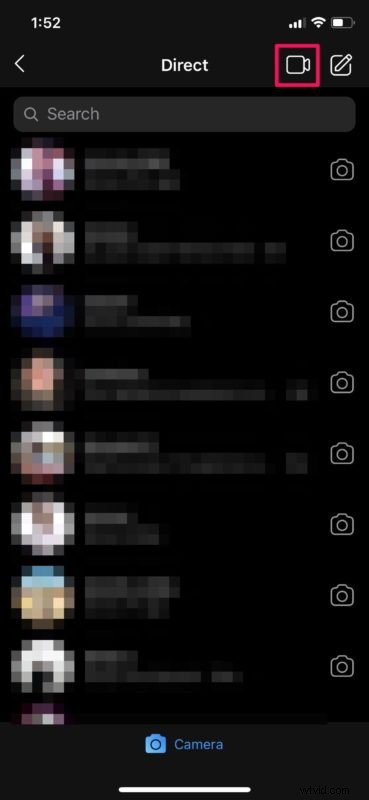
- Now, you’ll be taken to your Instagram feed. Tap on the “Direct” icon located at the top-right corner of the menu, as shown below.

- This is the place where you send direct messages to other Instagram users. Tap on the “video” icon at the top.
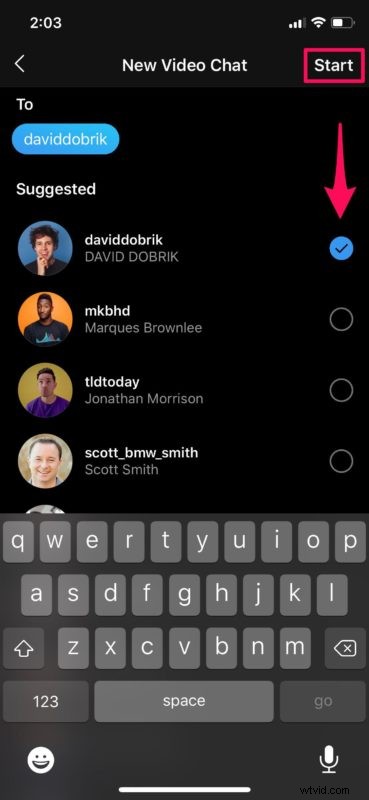
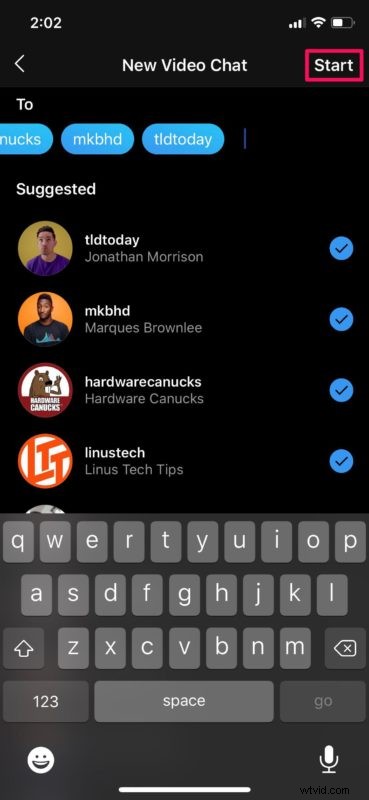
- Now, type the Instagram username of the person you want to video call and select them as shown below. Tap on “Start” to begin the video call.
- However, if you want to video call multiple users, you can type in their usernames and select them in a similar way. Once you’re done, tap “Start” to initiate the group video call.
There you go. Now you know how to make video calls and group video calls using Instagram on your iPhone and iPad.
When you initiate a group video call, Instagram automatically creates in group chat in your list of Direct Messages, which can be used later on for texting. Instagram allows up to 6 users in a group video chat, which may not seem as much, especially in comparison to competitors like Snapchat which allows up to 16 users in a group call.
Unlike Apple’s Group FaceTime, Instagram isn’t limited to Apple devices. Thanks to multi-platform support, you can use Instagram to video call your friends and relatives who use an Android smartphone or tablet.
With many people staying at home during this quarantine period, video calling services have become more relevant and useful than ever before. There are so many services that can be used to video call your friends, family and colleagues, like Skype, Google Duo, Zoom and more. However, Instagram is an application that a lot of people already use, so it’s convenient to use it for video calls rather than having to download another application and starting from scratch.
Is Instagram’s 6-people limit a deal-breaker for you? There are so many alternative options you can try out, like Skype, Snapchat and Google Duo to name a few. All of these services are multi-platform and can be used to stay connected with your loved ones while you’re at home. That being said, if everyone you want to communicate with is within the Apple ecosystem, you can always use FaceTime video chat and Group FaceTime to call up to 32 people.
Looking to video conference with colleagues while you’re working from home? Zoom offers a seamless way to video call up to 100 participants in a 40-minute meeting for free. This service has recently become extremely popular among students, businesses, and even individuals for larger video chat meetings and teleconferencing.
We hope you managed to video chat and get in touch with your family, relatives and friends with Instagram. What other video calling apps have you tried before, and how does Facebook’s offering stack up? Let us know your thoughts and opinions in the comments section down below.