
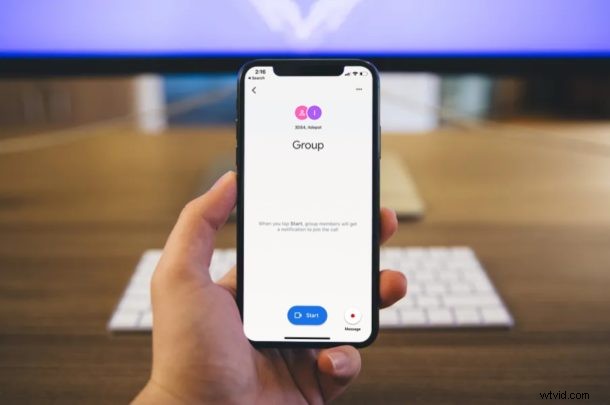
Google Duo is a simple video calling solution that lets you connect with your friends and family in direct video calls and with group video calling, and you can make or join those calls directly from an iPhone and iPad within a matter of seconds – even if the other people are using Android.
While Google Hangouts is considered as a business-oriented solution, Duo is touted to be more of a personal video and voice calling app. With a vast majority of people staying at home to fight the global COVID-19 pandemic, video calling services have become more relevant than ever before to stay in touch with your loved ones. Duo is Google’s answer to services like Microsoft Skype which everyone knows and loves.
Are you trying to have an online family gathering or a get-together with your friends? No worries, we’ll teach you exactly how you can make group video calls with Google Duo on both the iPhone and iPad.
How to Make Group Video Calls with Google Duo on iPhone & iPad
First and foremost, you’ll need to install the official Google Duo app for your iOS device from the Apple App Store. You will need a valid phone number in order to get started with Google Duo on your iPhone and iPad. Google account is optional, however.
- Open the Google Duo app on your iPhone or iPad.

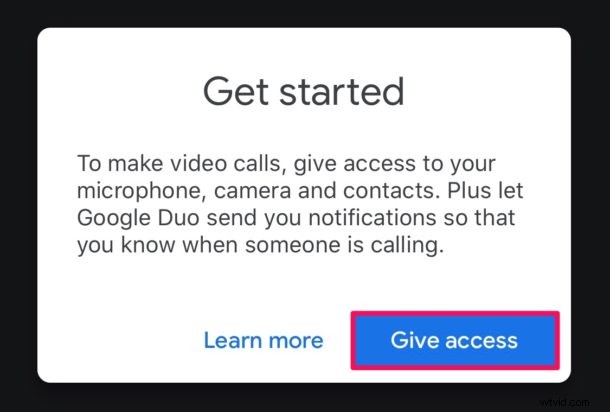
- When you open the app for the first time, you will be asked to give Google Duo access to your camera, microphone and contacts for making video calls. Simply tap on “Give access”.
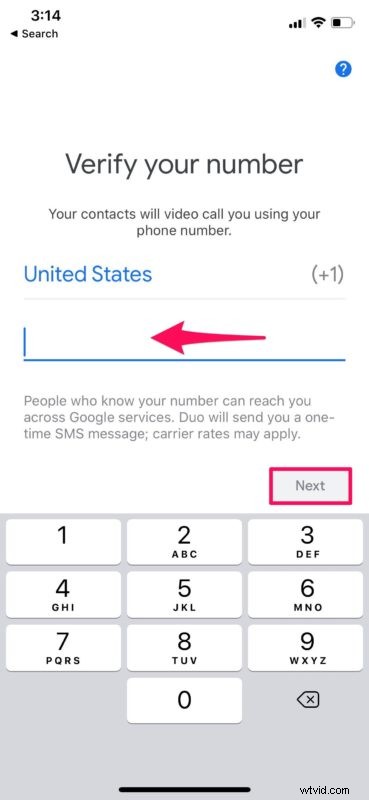
- Now, choose your country and enter a valid phone number. Once you’re done, tap “Next”.
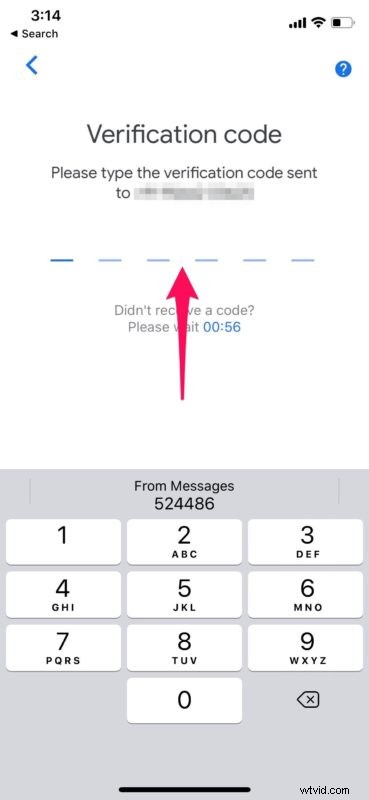
- You will receive a unique six-digit verification code as an SMS. Enter the code as shown below.
- You’ll now be taken to the main menu. Here, swipe up the search menu located at the bottom to access more options.
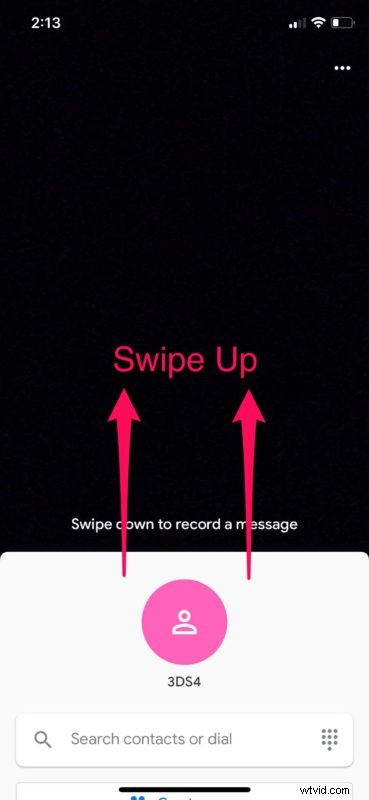
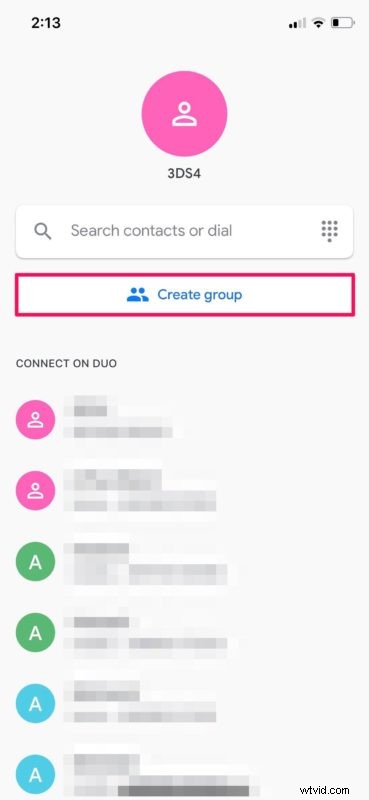
- Now, tap on “Create group” as shown in the screenshot below.
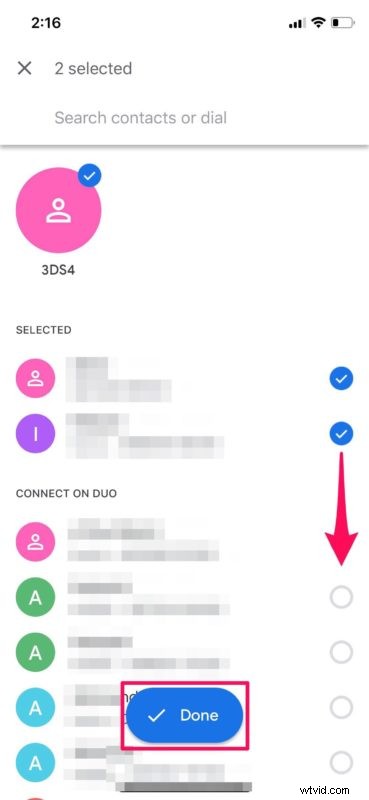
- You can tap on the circles next to the contact names, in order to choose the people you want to add to the group. Once you’ve completed the selection, tap on “Done” to create the new group.
- As for the last step, simply tap on “Start” to begin the group video call.
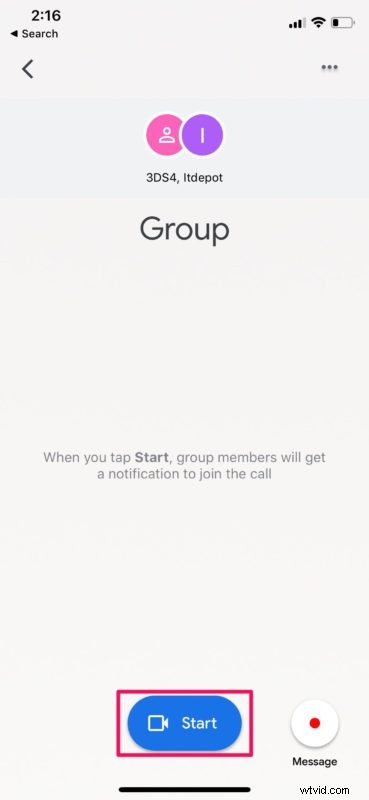
Now you’ve learned how to group video call your contacts using Google Duo on your iOS device. That was pretty simple and straightforward, right?
Duo supports group video calls with up to 12 people, which may not seem as much in comparison to competitors like Skype which allows up to 50 people in a single call. However, Google’s offering is mice like Skype in that it is available on almost every platform that you can think of. Hence why we consider it to be great option other than Group FaceTime for people trying to talk to those without iPhones and in the Apple ecosystem, because obviously not everyone uses Apple products.
If the person you’re trying to contact doesn’t have an iOS or Android device, they can use Google Duo’s web client to make and join video calls from any device that has a web browser. On the web client, users can sign up for Duo with just their Google accounts, which eliminates the need to use a valid phone number.
If you’re not quite content with what Google Duo has to offer, there are so many alternatives to choose from, like Skype, Facebook and WhatsApp to name a few. All of these services are multi-platform and can be used to stay connected with your loved ones while you’re at home.
Looking for a business-oriented solution for video conferencing? You might be interested in trying out Zoom, which allows up to 100 participants in a 40-minute meeting for free. This service has recently become extremely popular among students for taking online classes.
We hope you managed to get in touch with your family, relatives and friends with Google Duo. What other services have you used for group calling before and how does Google’s offering stack up? Share your thoughts and opinions in the comments.