

Do you want to spice up the video clips you shot on your iPhone by adding background music to them? With the iMovie app that’s available for both iOS and iPadOS devices, you can do add an audio track to video in a matter of minutes.
While the built-in video editor in the stock Photos app is adequate for most people, you can’t use it for adding background music to a video. At most, you can only remove or mute the audio from the video clip. This is why you’ll need to use a dedicated video editing application, something most people refrain from doing due to the cost or complexity involved. However, Apple’s free iMovie app makes it quite simple to use, while still having a lot of powerful video editing functions. Read along and we’ll be guiding you through adding background music to a video in iMovie, and it works the same on both the iPhone and iPad.
How to Add Background Music in iMovie on iPhone & iPad
Before you go ahead with the following procedure, you need to install the latest version of iMovie from the App Store, since it doesn’t come pre-installed on iOS devices. Once you’re done, simply follow the steps below.
- Open the “iMovie” app on your iPhone or iPad.

- Tap on “Create Project” to start a new video editing project within the app.

- Next, choose the “Movie” option when you’re asked about the type of project you want to create.
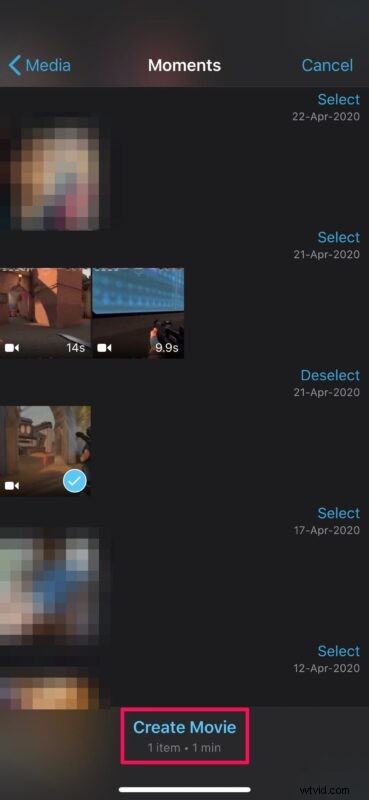
- This will open your Photos library. Here, scroll through your videos and select the clip you want to add to your project. Once you’re done with the selection, tap on “Create Movie” at the bottom of the menu.
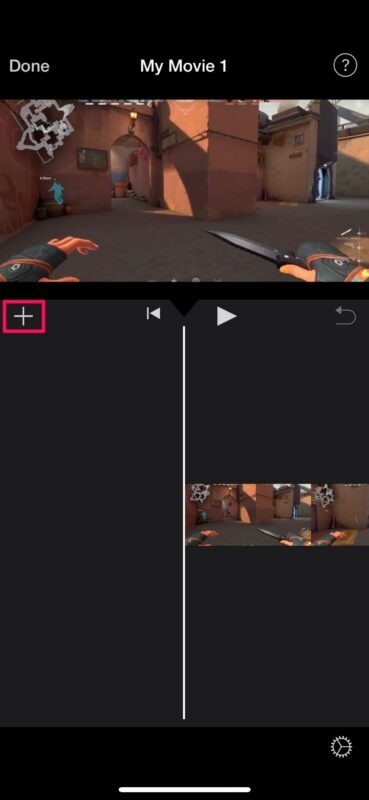
- The video you selected will be added to the iMovie timeline. Now, tap on the “+” option as shown in the screenshot below to add content to the timeline.
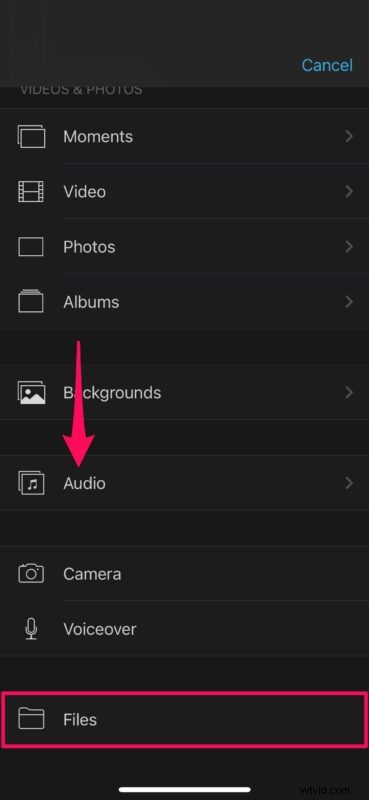
- Here, you can scroll down to the bottom and tap on the “Files” to browse for any music files you’ve downloaded to your iPhone. Alternatively, you can choose “Audio” if you’re rather interested in using a song in your music library.
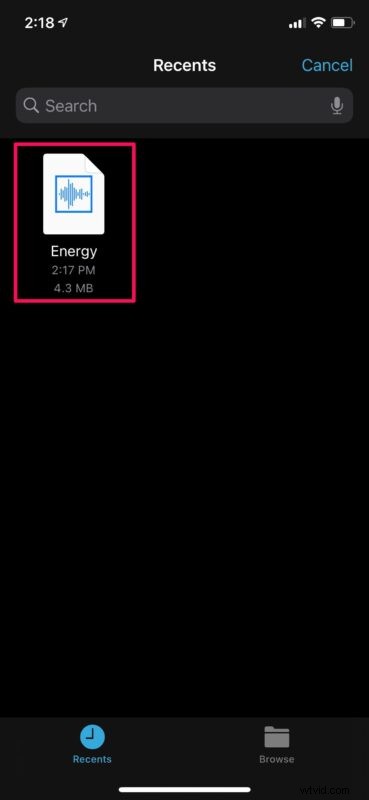
- Choosing “Files” will launch the Files app where you can browse through different locations and find the music file. Tap on the file to add it to your iMovie timeline.
- As you can see in the screenshot below, the music will automatically be added right below the video clip in the timeline. Tap on “Done” when you’re ready to save your project.
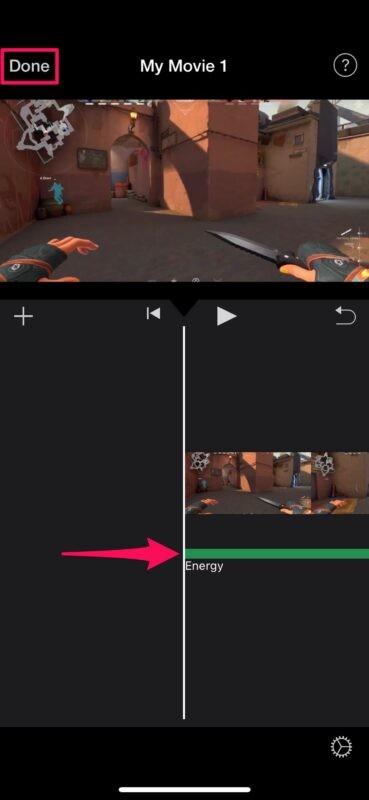
- Here, tap on the “share” icon located at the bottom, as shown in the screenshot below.

- This will bring up the iOS share sheet. Choose “Save Video” to save the final video clip with background music in the Photos app.
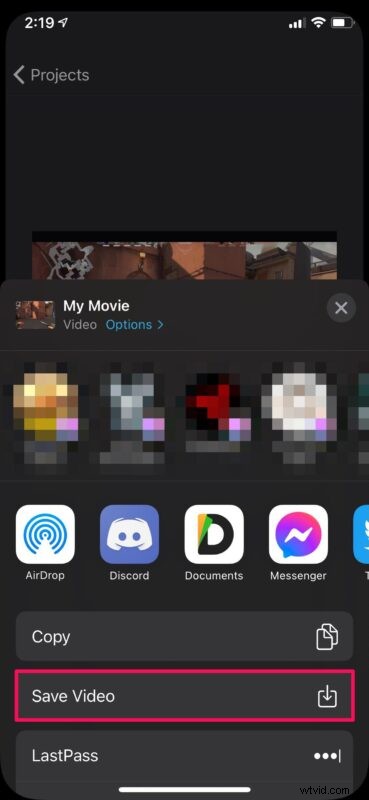
There you go, you have added background music to a video using iMovie on your iPhone and iPad. That was pretty easy, right?
It’s important to note that while the final video is being exported, iMovie must be running in the foreground. Depending on the length of the video, it could take anywhere from a few seconds to several minutes or longer for finishing the export.
Adding background music to a video clip is just one thing, but fine-tuning it to perfection may require some more editing, like cutting and trimming the video, removing the middle section of a clip, or even combining multiple video clips for making that perfect montage. Thankfully, iMovie is able to do all of that and much more without making the process too complicated.
If you’re not happy with iMovie or you’re having trouble getting used to the interface, there are plenty of alternatives on the App Store that you can try out, like Splice, InShot, and VivaVideo to name a few. Or, if you’re already a video editing professional who’s looking for a full-fledged software, you might even be okay with spending $29.99 on LumaFusion.
We hope you were able to learn how to add custom background music to your video clips by using iMovie on your iPhone and iPad. How did it go? What are your thoughts on this process? Let us know in the comments your experiences, tips, and thoughts.