
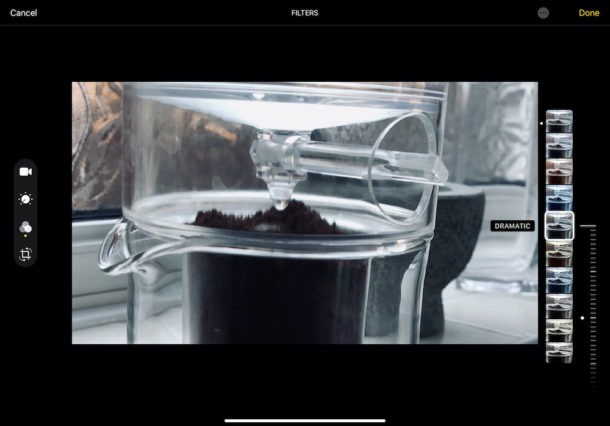
You can easily add filters to your videos captured on iPhone or iPad, a new ability that has been introduced in the latest versions of iOS and iPadOS.
We’ve been able to apply filters to photos via the Photos app for years, but being able to do the same to video via the Photos app is something new. And it looks and works exactly how you would expect it to.
How to Apply Filters to Video on iPhone and iPad
Let’s get started with understanding how filters can be applied to videos:
- Open the Photos app and make sure the video you want to apply a filter to is selected and active on the screen
- Tap the “Edit” button.
- Tap the Filters icon. It looks a little like a Venn diagram but it’s also pointed out in our screenshot, too.
- There are nine different filters to choose from – Vivid, Vivid Warm, Vivid Cool, Dramatic, Dramatic Warm, Dramatic Cool, Mono, Silvertone, and Noir. Swipe through them to select the one you want. You’ll also see the filter previewed.
- A new slider will appear – below the filters on iPhone, beside on iPad. Slide it to change how dramatic the applied filter will be. Again, this is previewed so you can make the selection that’s right for the content you’re editing.
- Tap “Done” when you have everything set as you’d like it.
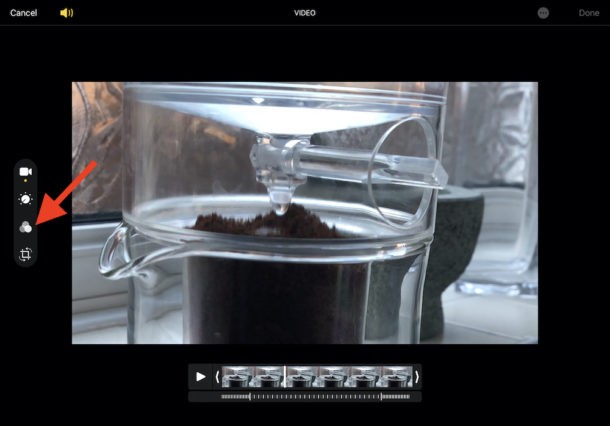
The edits are then made and the video saved. That might take a while depending on the length of the video and the iPhone or iPad you’re using. You can leave the Photos app to do its thing, though. No need to watch it render.
Any changers you make will also be synced via iCloud if you’re using iCloud Photo Library. They’ll be pushed to all of your other devices, too.
The ability to apply filters to videos is new to iOS 13 and iPadOS 13.1 and later, previous versions of the Photos app did not have this capability. Accordingly, if you don’t have the filter options for videos, it’s likely that you’re not running a newer iOS or ipadOS release.
The improved Photos app is great for applying filters and making simple changes but if you want to make more advanced edits, like cropping videos, then iMovie is what you’re looking for. You can download the iMovie app free from the App Store if it isn’t already on your device, too.
Do you edit video on your iPhone or iPad? If so, will you use the new Photos functionality or is a more powerful app like iMovie more your speed? If you use a third-party app for video edits, let us know in the comments below. We’re always on the lookout for great apps.