

Wondering how to save photos, pictures, and videos from Messages in iOS 13, iOS 14, and iPadOS 13 or newer? If you’re perplexed you may not be alone, as some users have discovered the changes to the photo and video saving mechanism in Messages app to be more confusing than before, leading some people to think the ability to save photos and movies from messages is no longer an option. Rest assured you can still easily save pictures and videos from Messages in iOS 13 and iPadOS 13, but it’s a bit different and the ‘save’ option may not be immediately visible to you depending on your device.
This article will show you how to save photos and videos in the Messages app on iPhone and iPad running iOS 13, iPadOS 13, and later.
How to Save Photos & Videos from Messages to iPhone & iPad with iOS 14 / iPadOS 14
- Open the Messages app and navigate to the message conversation with the picture or video you wish to save
- Tap on the photo or video so that it’s in the forefront, then tap on the Share icon (it looks like a box with an arrow flying out of the top of it)
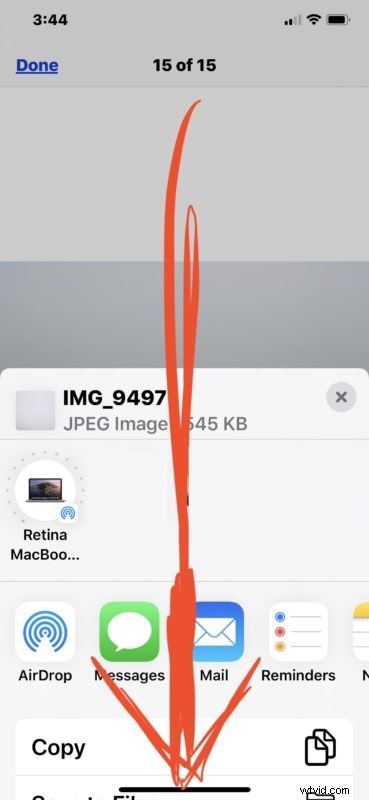
- Scroll down at the Share Sheet screen *
- Choose “Save Image” after scrolling down in the sharing section to save the picture or video to the iPhone or iPad


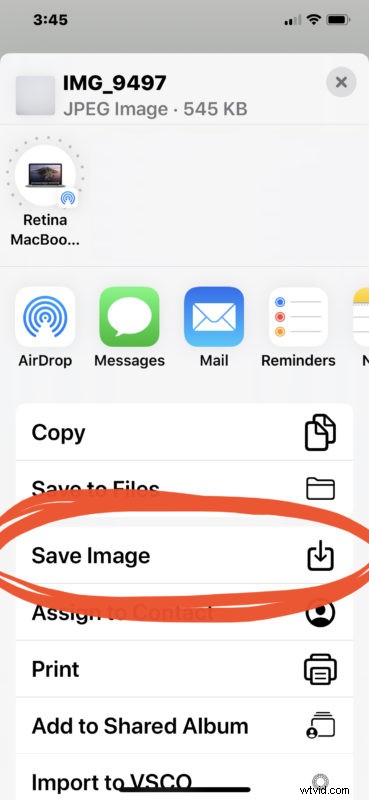
The saved picture or video will appear in the Photos app at the very bottom of the Albums > Recents view (what was called Camera Roll).
* This is where things are typically confusing for users, where on many iPhone models they have to scroll down in the sharing screen to access the “Save Image” and “Save Video” options. In prior versions of iOS, saving a message was a matter of tapping on the share sheet and then choosing the obvious “Save Image” button. Now however with iOS 13 and iPadOS 13 and later, you may need to scroll down to select a different looking “Save Image” button from the sharing menu.
You can also continue to quickly save a photo or video with a tap-and-hold move, similar to how you go about forwarding a picture message on iPhone to another user. That action and behavior has not changed in the latest iOS and iPadOS versions.