
How do you update apps on iPhone with iOS 13 and iPad with iPadOS 13? You might be asking this question if you opened the App Store and discovered there is no longer an “Updates” tab since updating your iPhone, iPad, or iPod touch to iOS 13 and iPadOS 13 or later.
Not to worry, you can still update apps in the App Store on iPhone and iPad with the latest iOS and iPadOS versions, it’s just that the update app function is now located in a different location since iOS 13 and iPadOS 13 onward.
Read on to learn how to update apps in the latest versions of iOS and iPadOS for iPhone, iPad, and iPod touch.
How to Update Apps on iPhone & iPad with iOS 13 or iPadOS 13
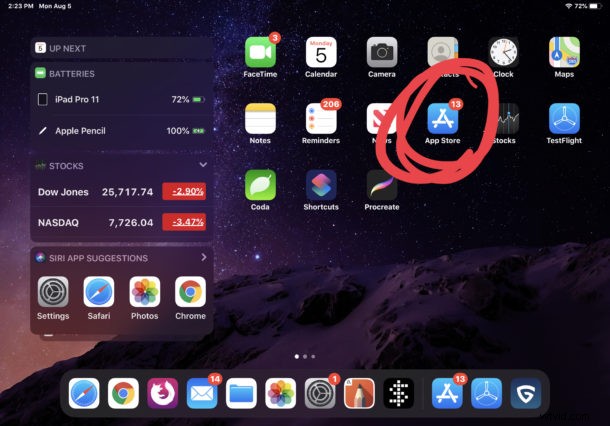
- Open the “App Store” application on their iPhone or iPad
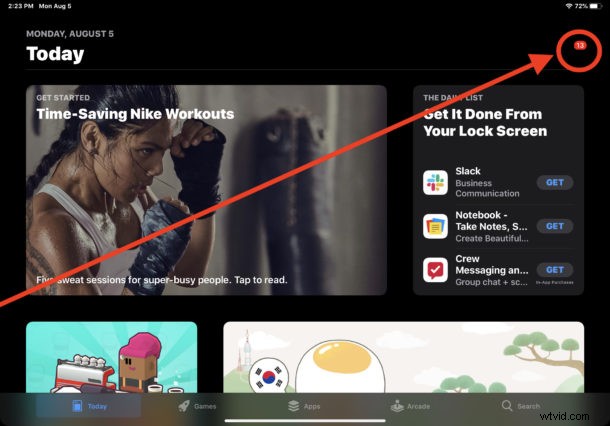
- Tap on your account profile icon in the upper right corner of the App Store, it may have a red badge indicator on it
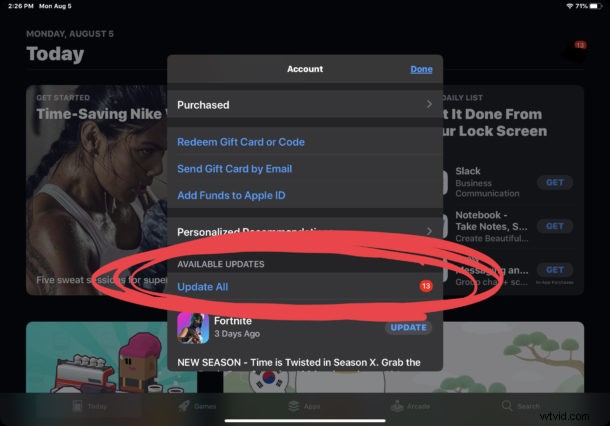
- Scroll down in this Account pop up screen to find the “Available Updates” section
- To update ALL apps installed on the iPhone or iPad, tap on “Update All”
- To update only specific apps, continue to scroll down to find the app(s) you wish to update then tap on “Update”
- When apps are finished updating, exit out of the App Store as usual
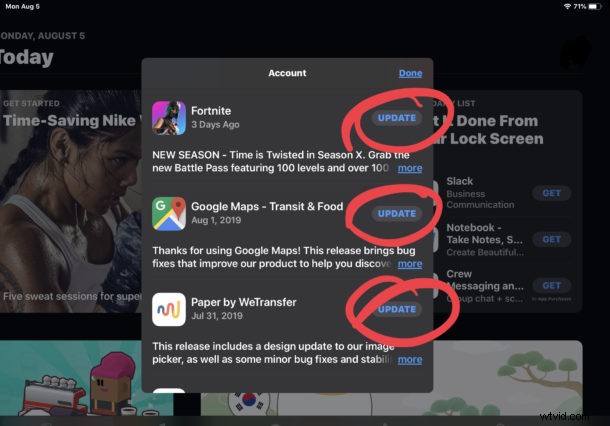
That’s all there is to it, your apps will update just the same as they always have.
Where did the “Updates” tab go in App Store for iOS 13 and iPadOS 13?
The Updates tab has been removed from the App Store in iOS 13 and iPadOS 13. Instead, the Updates are now contained within the App Store account profile section, as shown in the instructions above.
It’s not entirely clear why the App Store no longer has an obvious and easy to access “Updates” tab, but for whatever reason the app updating process is now tucked behind the Accounts section of the app which is delineated by the account profile icon in the upper right corner.
Some speculate the App Store Updates tab was removed to make room to promote the Apple Arcade gaming service instead, but nobody outside Apple nows for sure.
If you find this new approach to updating apps more hidden or to be confusing, or if you forget to update your apps regularly, or perhaps you’d just like to automate the process of updating things from the App Store entirely, you can always turn on automatic app updates on iPhone and iPad with a settings change as well. Using automatic updates will do just as it sounds, update your apps automatically as they are released, and without you having to get involved in the app update process.