

Want to quickly remove an app and uninstall it from your iPhone or iPad? There’s a faster contextual menu-based way to delete apps from iPhone and iPad, and it’s available to any user who has a device running the latest releases of system software at versions iOS 13.3 or iPadOS 13.3 or later.
You may already be familiar with the process or deleting apps in iOS 13 and iPadOS 13, which is basically a variation on the longstanding tap, hold, wait for the apps to wiggle, then Delete trick, but with the latest iOS and iPadOS releases you have an even faster way to delete apps from iPhone and iPad devices that relies on a quick contextual menu action.
This tutorial will show you how this works with easy to follow pictures, and there’s also a short video to follow the process for uninstalling and removing apps from iPad, iPod touch, and iPhone using this menu trick too.
How to Delete Apps on iPad & iPhone by Contextual Menu Quickly
Don’t want to tap and hold long enough for the icons to wiggle and tap the “X” to remove apps? No problem, the latest iOS and iPadOS versions have an even faster option available to remove and uninstall apps from your device thanks to a contextual menu system, here’s how it works:
- On the iPhone or iPad, locate the app you want to delete from the device
- Tap on the app and continue holding the tap until a pop-up contextual menu option appears from that app
- Choose “Delete App” from the menu list options to instantly remove the app from the iPhone or iPad
- Confirm that you want to delete the app by tapping on “Delete”
- Repeat with other apps you want to remove and uninstall from the iPad or iPhone
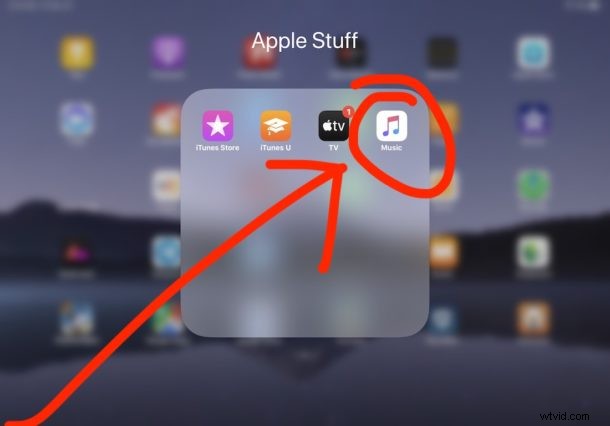
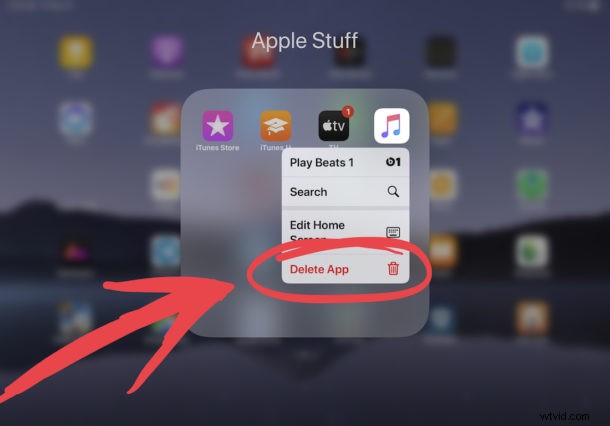
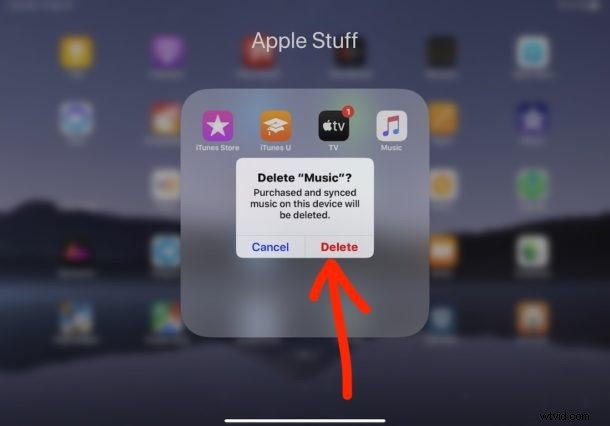
This contextual menu approach was introduced in later iOS 13 and iPadOS 13 builds, so if you don’t find the “Delete App” option available on your device it’s likely it needs to be updated to a later system software version. Earlier versions of the same iOS and iPadOS had the menu, but lacked the “Delete App” contextual menu option.
The brief video below demonstrates this quick app deleting process being performed on iPad with iPadOS, as you can see it’s remarkably quick – just tap and hold on an app icon you want to uninstall from the device and then choose the Deletion option from the contextual menu that appears:
You might notice that in the same contextual menu is a option to arrange app icons on the Home Screen too, so if you feel like rearranging your app icons you can do that too.
Of course you can still delete apps on iOS 13 and iPadOS 13 by tapping and holding, then waiting for the jiggle past the contextual menu as well, so use which works best for you. Some users may end up preferring one way over another.
For many users this will be an even faster method than the old tried and true approach of tapping and holding on an app icon, waiting for the app icons to jiggle and wiggle around, then tapping the (X) on the app icon to delete that app. That tap-and-hold to uninstall apps method has been around for a very long time and still works of course, but if you want speed you may find this contextual menu method of deleting apps to be even faster and better.
Removing Apps from iPad & iPhone via Long-press Menu Options
Here are the steps shown again with removing the Firefox application from iPad, but you can use the same approach to delete any app from the device:
– First find the app to remove, then tap and hold on that app icon:
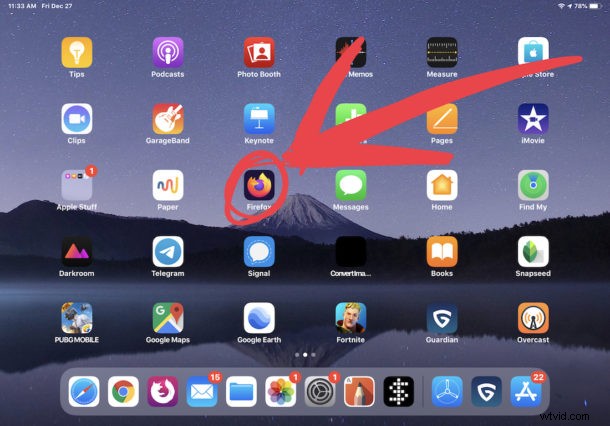
– When the contextual menu appears for that app, choose “Delete”
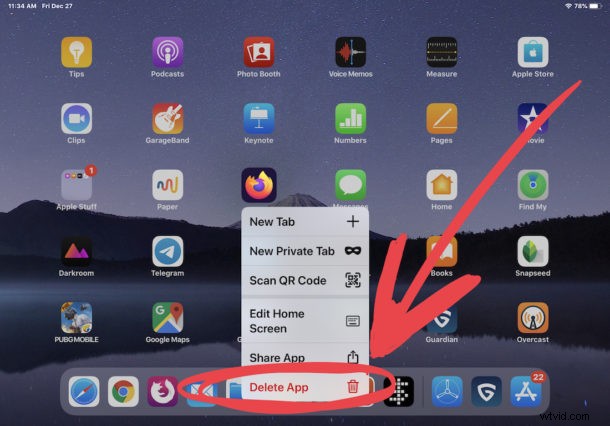
– Finally, confirm that you want to delete and uninstall the app
The contextual method approach to removing apps in iPadOS and iOS is super easy and ultra fast.
Note that if you have an iPhone with 3D Touch you may find the process of deleting apps to feel different, because of the 3D Touch sensor. Nonetheless, the behavior is the same, it’s still a tap and hold, but don’t apply 3D Touch pressure otherwise you’d activate 3D Touch rather than what you might expect.
Do you have any other tips or tricks regarding removing, uninstalling, and deleting apps from an iPad, iPhone, or iPod touch? Share with us in the comments below.