
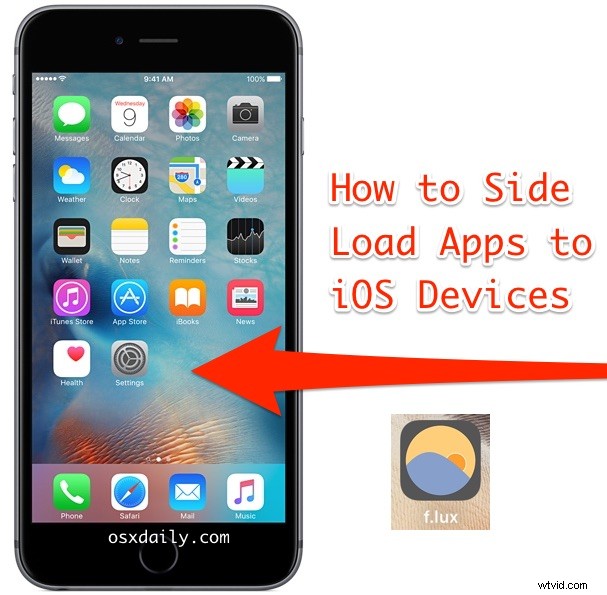
Modern versions of iOS and Xcode support something called sideloading, which essentially allows iPhone and iPad users to install apps and software onto their iPhone, iPad, or iPod touch directly from Xcode on a Mac, without having to go through the iOS App Store. This ability is quite useful as it allows you to install some iOS apps that are not otherwise approved by Apple, but it’s also helpful for beta testing a development version of software, and for using a private app as well.
Sideloading apps was something previously only available to users who used a jailbreak on their iOS devices, so being able to do this directly without any other system modifications is a great improvement for iOS power users. It’s important to only attempt to side load apps from developers you trust, though you can review the source code yourself by the very nature of how this works, whether or not it means anything to you is dependent on your knowledge of programming in Swift and Objective C. Nevertheless, side loading apps is fairly easy and just about any user can do it if they follow along, but you’ll need the latest version of Xcode on a Mac, a USB cable, and at least iOS 9 or later running on the iPhone or iPad itself.
How to Side-load iOS Apps from Xcode onto iPhone, iPad, iPod touch
- Download Xcode from the Mac App Store here if you haven’t done so yet, you need Xcode 7 or later to be able to side load apps onto iOS devices, launch Xcode in OS X when finished
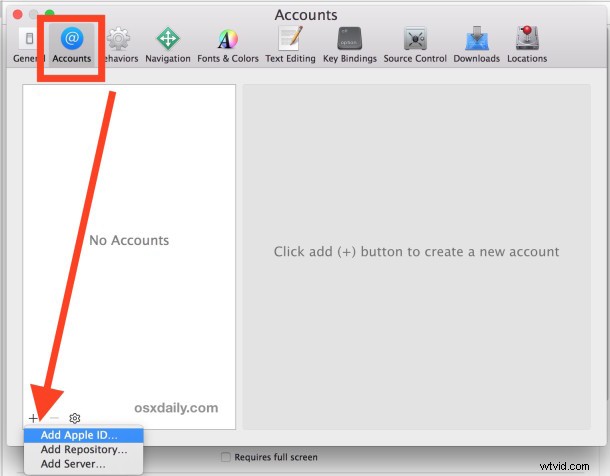
- Launch Xcode and go to the “Preferences” menu followed by “Accounts”, click on the + plus button to add your Apple ID / developer credentials (yes this can be a free Apple ID you do not need to pay for the developer account)
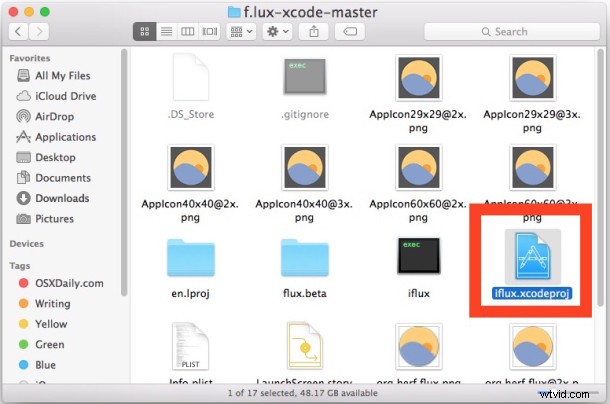
- Open the Xcode project you wish to side load and install onto the iOS device, for the example here we’re using Flux* but you can use whatever you want, interested users can get a similar app to Flux called GammaThingy from here*
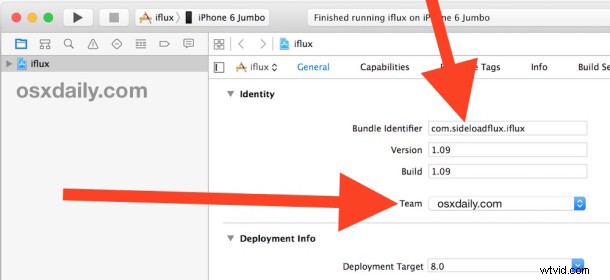
- Select the Xcode project to side load from the left sidebar, then under the “General” and “Identity” section, change the “Bundle Identifier” name slightly so that it’s unique. For example, “com.sideloadflux.iflux”, then change “Team” to your Apple ID you added in the second step
- Connect the iPhone, iPad, or iPod touch to the computer with USB
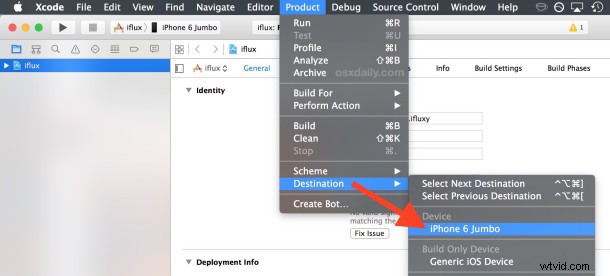
- Back in Xcode, pull down the “Product” menu and choose “Destination”, selecting the iOS device you just connected (in this example, an iPhone 6 Plus)
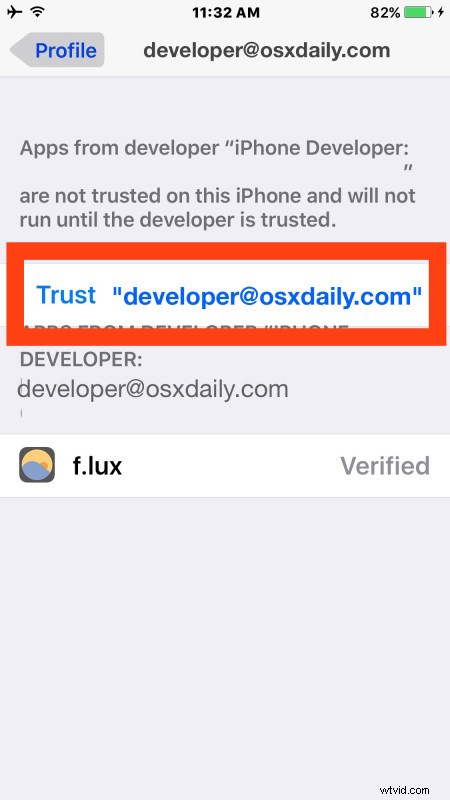
- Unlock the iPhone, iPad, or iPod touch screen by entering the passcode, then go to Settings > General > Profile and tapping on the developer account and choosing “Trust”
- Back in Xcode on the Mac, click on the “Run” button or hit Command+R to build the project to the destination iOS device
- Wait a minute or few for Xcode to side load the iOS app onto the device

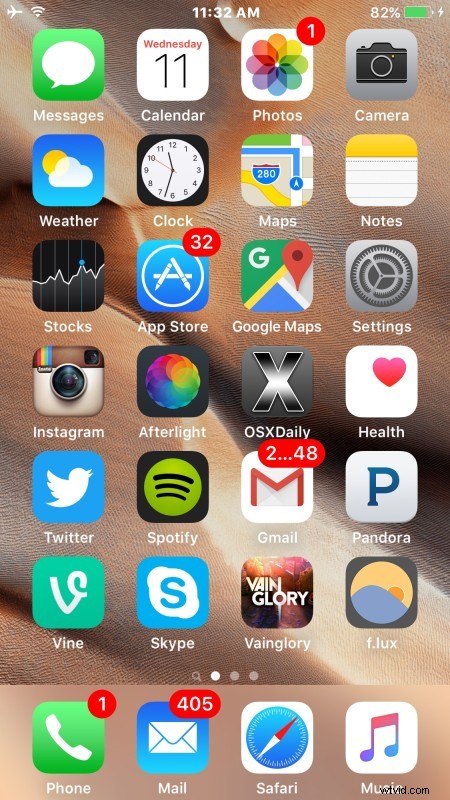
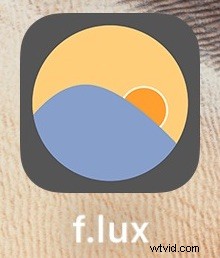
When finished, you should see the app in question on the iOS device home screen. In this example, the Flux app is now visible on the home screen in the bottom right corner, labeled “f.lux”.
You’re now able to use the side loaded app as any other on your iPhone, iPad, or iPod touch. If you want to delete it, you can do so just like uninstalling any other iOS app. If you don’t think you’ll be side loading any more apps in the future, you can delete the developer profile added to the iOS device by going back to Settings > General > Profile and choosing to remove it.
So that’s it, you’ve now sideloaded an app. You can do this with as many apps as you want as long as you have the Xcode project files and the space available on the iOS device. Enjoy.
* GammaThingy is basically the same as Flux. Flux has removed the ability to sideload the app unless you already have the source code downloaded or find it elsewhere. You used to be able to get Flux from here. For the unfamiliar, Flux is a great app that adjusts screen gamma for the time of day, helping to reduce eyestrain and the effects of blue lighting. It’s a great app that’s worthwhile for many iOS users to install onto their devices, and Flux is also available for Mac and other hardware too. Of course, sideloading the app onto iOS is no longer necessary, since later versions of iOS include the Night Shift feature, which is basically the same thing.