
Have you ever found that apps are disappearing from your iPhone or iPad? Maybe you hadn’t used a particular app in a while but you know for certain you downloaded it to your iOS device, but when you go looking for that app, it’s missing.
While it’s certainly possible that you deleted the iOS app and forgot about it (or someone else did, and didn’t inform you), there’s another more likely possibility as to why apps might be seemingly disappearing from an iOS device out of the blue, and it’s actually a feature of iOS system software.
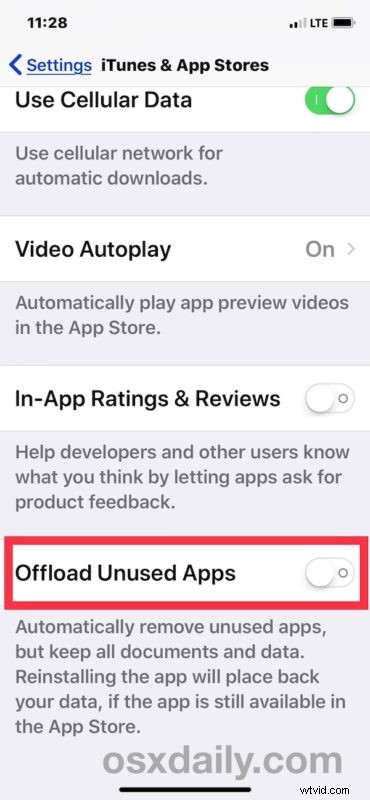
The probable reason why your apps are disappearing from an iPhone or iPad? A feature called Offload Unused Apps.
Many users have enabled Offload Unused Apps on their iPhone or iPad because their iOS device storage settings recommends to enable the feature, or they have turned it on themselves in an effort to free up storage space on their devices. Of course a side effect of this is that it can cause unused (or the least used) apps to be automatically removed from the iPhone or iPad in order to relieve storage space constraints.
How to Stop Apps Disappearing from iPhone or iPad at Random
Here’s how to disable the system setting that may cause apps to vanish from an iOS device seemingly at random, when storage space is tight:
- Open the “Settings” app on the iPhone or iPad
- Go to “iTunes & App Store”
- Scroll down and find “Offload Unused Apps” and toggle that switch to OFF
- Exit out of ASettings
You’ll likely want to now launch the App Store and then restore or re-download whatever the missing app(s) were that you’re looking for. The approach to getting deleted apps back is the same whether they went missing seemingly at random by way of Offload Apps, or if they were deleted directly.
But, going forward, apps will no longer automatically delete themselves. Instead you’ll have to either uninstall apps yourself, or offload apps yourself, or find some other way to free up storage space on the device.
Both of the auto and manual “Offload Unused Apps” features of iOS are incredibly useful, but if you find it to be too aggressive and removing apps that you do need to use – even if those apps are used infrequently – then a better option is perhaps to disable the automatic offload feature, and instead rely on manually using the Offload Apps trick in iOS anytime when you’re in a storage bind, or as mentioned above just looking for an alternate storage management solution.
Of course there are other reason why apps may appear to vanish or disappear from an iPhone or iPad too, but for most users of modern iPhone and iPad devices with new iOS system software, Offload Apps is the cause. The next most likely reason usually happens after a system restore or a device migration, where sometimes apps are not moved over to the new device, or not automatically restored and reinstalled on the device during that process.
Anyway, try disabling automatic offloading of unused apps, it very well may resolve your vanishing app problem, and hopefully your apps will no longer disappear from the iPhone or iPad now that it’s disabled. If you have another solution, or any relevant experience with disappearing apps in iOS, share your experienced and solutions in the comments below!