
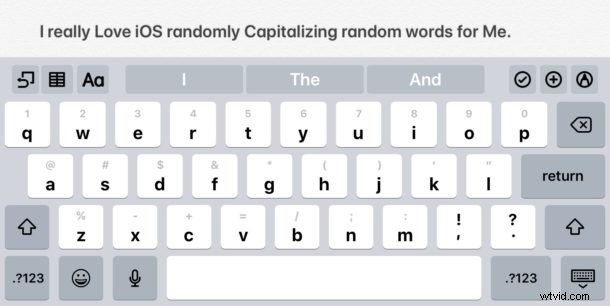
Many users with iOS 11 are noticing that their iPad and iPhone will randomly capitalize words that were typed in the middle of sentences. For example, a sentence May look Like This with Randomly capitalized Words for No apparent reason, requiring Many manual Corrections Of what you have Typed.
The random capitalization issue has been around since iOS 11 debuted and has yet to be resolved, but there are a few workarounds that may be of assistance if you’re deeply annoyed by having typed words capitalize themselves at random.
iOS Randomly Capitalizing Typed Words? Here’s a Workaround
One way to stop the random capitalization of words is to disable Auto-Capitalization of words in iOS. While this will prevent the random word capitalization is means you will need to capitalize every word yourself. Accordingly, this is really only practical if you routinely use an external Bluetooth keyboard with an iPad (or iPhone), since you’ll be needing to use the shift key regularly to capitalize words yourself just like you would on a Mac or desktop PC.
- Open the “Settings” app on the iPhone or iPad and then go to “General” and to “Keyboard”
- Locate the setting for “Auto-Capitalization” and turn the switch to OFF
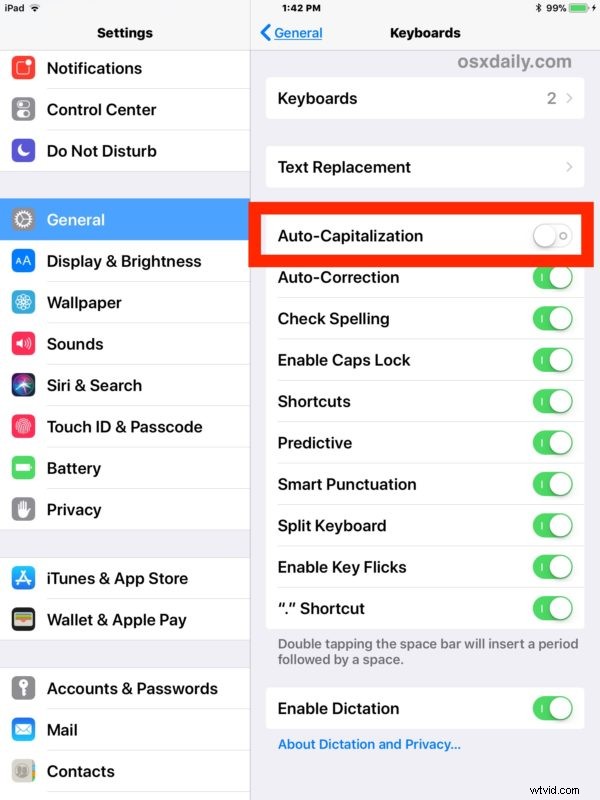
This is a blunt force approach and not an ideal solution by any means.
Again, with auto-capitalization disabled, everything will be in lowercase caps just like you were typing on a Mac or PC, thereby requiring constant use of the Shift key to capitalize words that need proper casing. Some people will find that a sufficient trade-off wheres others will find it to be unacceptable, and it’s arguably more useful going this route on iPad than iPhone just due to the nature of the onscreen keyboards.
Why words randomly capitalize themselves in iOS 11 is not clear but it’s perhaps a bug that is yet to be addressed with software updates to iPhone and iPad.
Workaround 2: Check Your Contacts for the Capitalized Words
Another possibility that explains some random capitalization is if the names or words being capitalized appear in your Contacts list. You can check this through the iOS Contacts app.
For example if you have a contact for “Doctor Bob” then you may find that every time you type the word ‘doctor’ it shows up as “Doctor”, or if you have a contact for “Flowers ETC” then you may notice that both ‘flowers’ and ‘etc’ show up capitalized to represent how they appear in contacts.
For business names, you can modify the contacts so that the “First Name” and “Last Name” fields are left blank and instead fill in the “Business Name” section of the contact and then saving the change.
Some other options that have floated around support forums include disabling auto-correct on iPhone or iPad completely, or even resetting the Keyboard dictionary, but in testing neither of those seemed to fix the issue.
Workaround 3: Resetting the Keyboard Dictionary in iOS
If you do want to try resetting the keyboard dictionary on iPhone or iPad, then do the following:
- Open the “Settings” app and go to “General” and then to “Reset”
- Choose “Reset Keyboard Dictionary” – note you will lose keyboard shortcuts set in iOS by doing so
This has mixed results however, and may or may not help the issue for you. Let us know in the comments below if you have success with this method, or any other.
This appears to be a fairly widespread issue, and there are many threads (1, 2, 3, 4) on this topic on the Apple Discussion boards, suggesting that Apple should be aware of the problem, and perhaps we’ll get a resolution in a future iOS software update.
Do you have any experience with the random capitalization of words when typing on an iPad or iPhone with iOS 11? Were you able to remedy the problem with this fix or another solution? Share your experience with us in the comments below.