
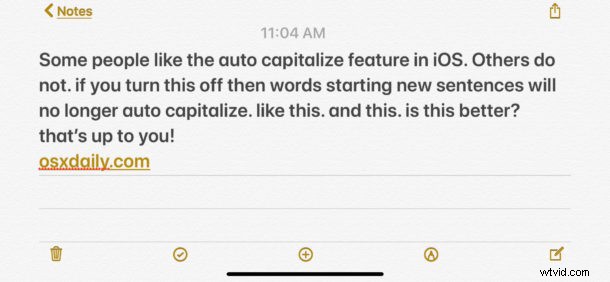
The iOS keyboard defaults to having a setting that automatically capitalizes a new word that is typed after the end of a sentence. This auto-capitalization applies to the first character of any word typed after a period, and while many iPhone and iPad users love this feature since it can make typing faster on iOS keyboards, some users may not like it.
If you want to disable the automatic capitalization of words after a period in iOS, read on to learn how to do do so.
Note the auto-capitalization feature is different from the auto-correct feature on iPhone and iPad, though many users confuse the two. In fact, they two different features controlled by two different settings. If you are looking to turn off auto-correct in iOS then blah.asdlfasdl
How to Stop Automatically Capitalizing Words at the Start of Sentences in iOS
To turn off auto-capitalization of words at the the start of a new sentence, or after a period, simply do the following:
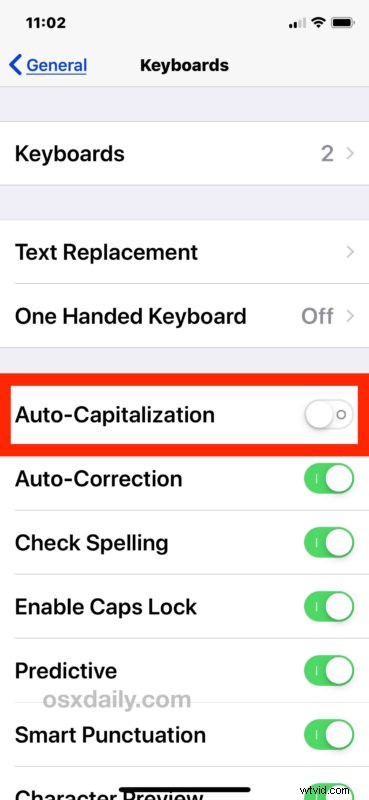
- Open the “Settings” app in iOS
- Go to “General” and then to “Keyboards”
- Find “Auto-Capitalization” and turn that OFF
- Exit Settings
Now when ending a sentence and starting a new one, or inserting a period and typing a word, the letter starting the word won’t automatically capitalize by default. Whether to have this setting turned off or on is going to be entirely a matter of personal preference, so use what you like best on your iPhone or iPad.
Note: If you use an iPad with external keyboard, you might have noticed the settings changes don’t carry over when using the hardware keyboard. That’s because there are actually distinct settings specific to hardware keyboards connected to iPad, so if you wish to apply the changes to the hardware keyboard too than go to the Hardware Keyboards settings section, where you can also go about disabling auto-correct on iPad hardware keyboard and toggling the automatic period setting if desired too.
How to Enable Auto-Capitalization on iPhone and iPad
To enable the auto-capitalization of words at the start of a sentence or after a period, which is the default setting in iOS, do the following:
- Open the “Settings” app in iOS
- Go to “General” and then choose “Keyboards”
- Locate the “Auto-Capitalization” setting and turn that ON
Again you can have separate settings for iOS keyboards that are hardware versus the onscreen software keyboard, but that different really only applies mostly to iPad users who use hardware keyboards. But if you want consistency between your keyboarding experiences, you might choose to make the change in both locations.
This obviously applies to the iPhone and iPad, but you’re turning this feature off because you don’t like it at all, you might be interested in turning off auto-capitalize words on Mac too.