
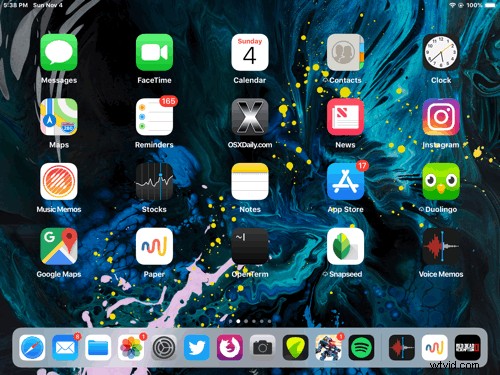
Have you ever noticed that your iPad or iPhone wallpaper moves around as you pick up the device and physically move it around? If you’re prone to motion sickness, you’ve almost undoubtedly noticed this Perspective Zoom feature, as the parallax effect induces nausea in some susceptible users, and for others they’re maybe just left wondering why their icons and wallpaper picture is sliding around and panning in the background of the Home Screen and Lock Screen of an iOS device.
While you can use Reduce Motion to disable those movement effects everywhere in iOS another option is to simply focus on the wallpaper, and turn off the movement of your background wallpaper picture on an iPhone or iPad, which is what we’ll show you here.
How to Disable Perspective Zoom for iOS Wallpapers
- Open the “Settings” app in iOS
- Choose “Wallpaper” then tap directly on your currently active wallpaper (either the Lock Screen or Home Screen, you can change the other one separately either way)
- At the “Wallpaper Preview” screen look for “Perspective Zoom” and tap on that so that it says “Perspective Zoom: Off” to disable the wallpaper background movement
- Choose to set the image as your wallpaper for Lock Screen or Home Screen again, then repeat with the other screen if desired

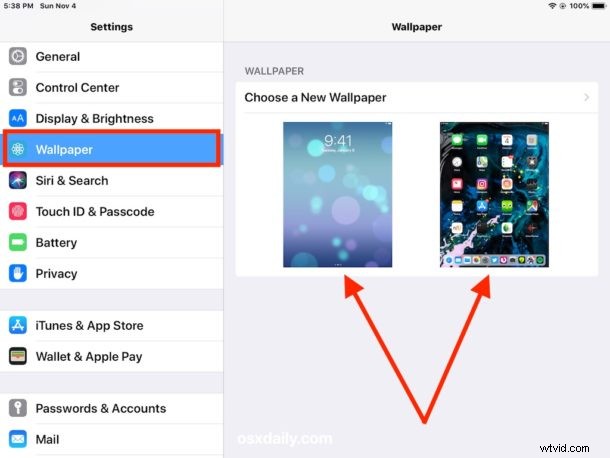
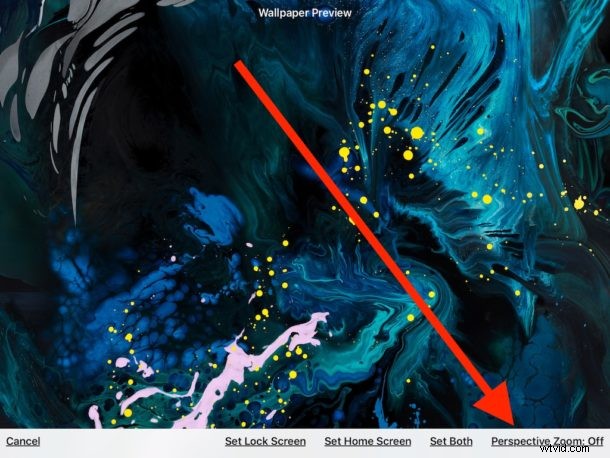
That’s it, now your wallpaper will no longer move around in the background as you pick up your iPhone or iPad, whether it’s at the lock screen or home screen.
If you dislike all of the general zooming and moving and panning and parallax effects and animations in iOS, you can also enable Reduce Motion in iOS to dramatically reduce the number of motion and parallax, which instead causes iOS to replace those zooming animations with a fading transition effect that some users may enjoy more, but also sometimes feels faster for some devices.
You can also adjust the Perspective Zoom setting while setting a picture as your wallpaper in iOS from the Photos app or elsewhere.
If you aren’t entirely sure what this article is referencing, the topmost animated GIF image (repeated immediately below) shows the effect on an iPad, with the wallpaper background moving around and the icons sliding around, as the device itself is moved. The same feature exists as default on the iPhone and iPad and iOS in general:
Note this is specifically about the motion you see in wallpapers, it does not relate to zooming of the image itself. If you are trying to reduce the zoomed effect of wallpaper images this workaround in iOS works quite well for that purpose, particularly if you’re trying to fit a photo of people as your wallpaper image.
This obviously only applies if your current wallpaper has “Perspective Zoom” enabled, if the feature was not enabled to begin with when setting a wallpaper you won’t have any movement of the icons or wallpaper. Likewise if you have Reduce Motion enabled, you won’t see the wallpaper movements and backgrounds either.
Whether or not you like the parallax perspective motion feature in iOS is entirely a matter of personal preference, and perhaps your proneness to motion sickness, vestibular disturbances, and nausea, but for some users it’s also entirely a matter of taste as well. Set your iPhone or iPad as you like, whether it’s moving, or still!