
Want to quickly get the battery life of an iPhone or iPad? While on some iOS devices you can glance at the top of the screen to see the battery percentage remaining, newer iPhone models with the top screen notch hide the battery life percentage and instead require users to find battery life in Control Center, like on the iPhone XS Max, iPhone XS, iPhone XR, and iPhone X.
But there’s another way to get battery life percentage remaining quickly in iOS, and that’s by using everyones favorite voice assistant, Siri.
Getting Battery Life Remaining on iPhone or iPad with Siri
- Summon Siri as usual, and then ask “what is my battery life?”
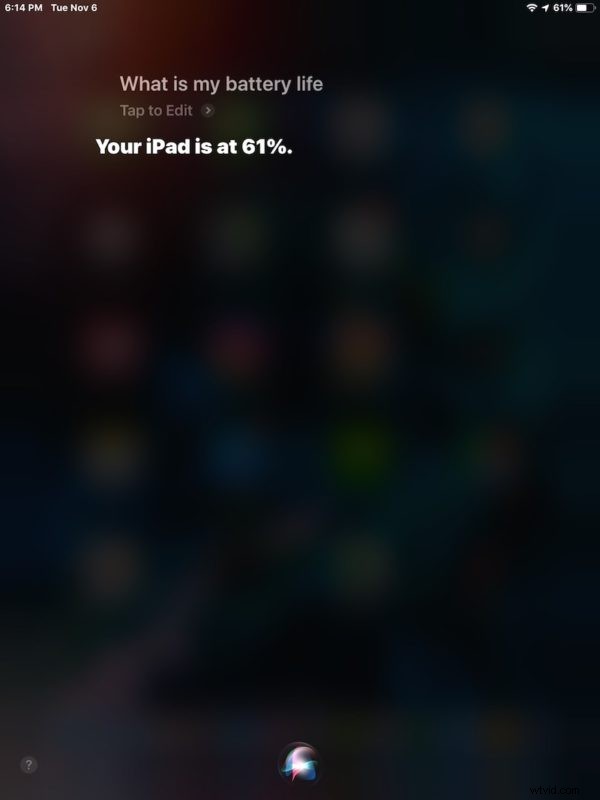
Siri will report back something along the lines of “Your iPhone is at 100%” or “Your iPad is at 82%”
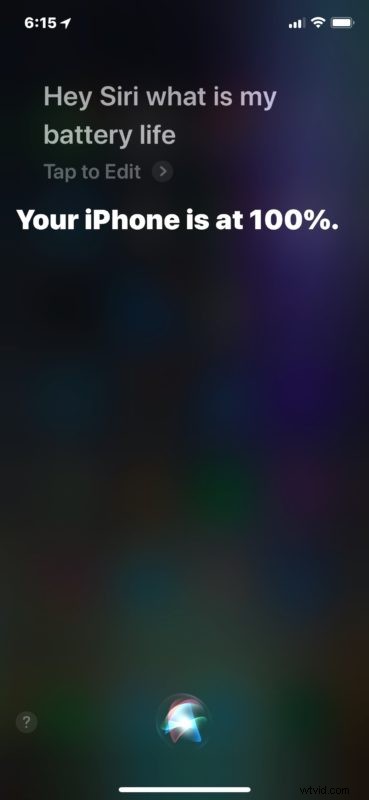
You can bring up the Siri request through any way you want, whether it’s Hey Siri voice activation, holding the Home button if your iOS device has one, or holding the Power button if the iPhone X, iPhone XS, iPhone XR, or iPad Pro has no Home button, or by using Assistive Touch.
While the screenshot above shows this trick working on an iPhone, it works the exact same on iPad too, as the screen shot image below demonstrates:
If you’re checking battery life because you feel like your device is running down a little too fast, one of the best possible battery life extending tricks is to use Low Power Mode on iPhone which dramatically boosts battery life at the expense of some features and performance that you likely won’t notice anyway. Unfortunately Low Power Mode does not exist for iPad for whatever reason (yet anyway), but it’s a wonderful feature for iPhone users to enjoy.
And of course if you’re obsessing about battery life because battery performance seems to be rapidly declining like after updating iOS system software, you can check out some battery life tips here for iOS 12 devices that can be quite useful for prolonging battery usage.
Have any other helpful tips, tricks, or advice about getting battery life details and time remaining from Siri or otherwise? Share with us in the comments below!