
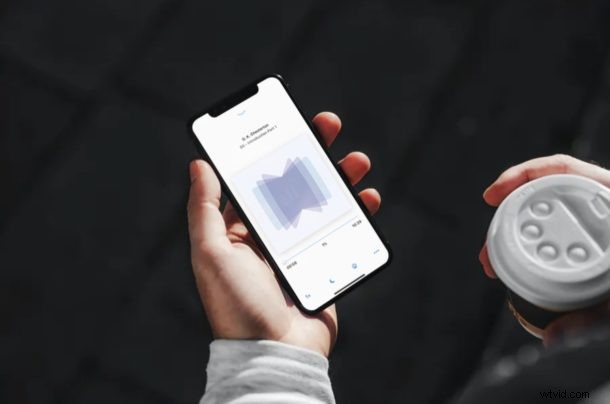
In today’s busy world, not everyone has the time to curl up with a book and read. One great option for the busy bookworm is the audiobook, and the great thing about listening to audiobooks is you can do so while driving, going for a walk, while working out, or even during a flight. If you want to read more, you’ll be pleased to know that you can listen to many free audiobooks right on your iPhone & iPad.
If you’re not yet committed to audiobooks, you may be hesitant to spend money on them, but fortunately there are multiple websites that you can use to access audiobooks for free. For example, Librivox is a website that consists of volunteers from across the globe who read and record public domain texts to create free audiobooks that can be downloaded to your iOS and iPadOS device.
Additionally, you can use third-party apps to easily manage and listen to the downloaded audiobooks offline too.
Interested in learning how to get some free audiobooks on your iPhone or iPad? Perfect, then read on!
How to Listen to Free Audiobooks on iPhone & iPad
Before you head over to Librivox and start browsing through their library, you’ll need to install the BookPlayer app from the Apple App Store. This application allows you to import & listen to the audiobooks you download, and helps in maintaining an audiobook library.
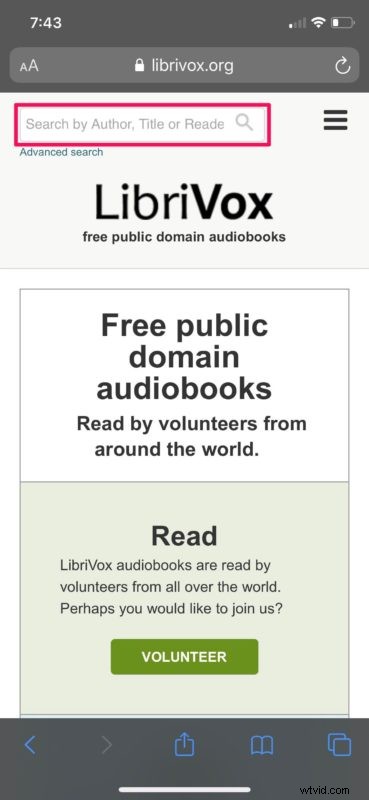
- Open “Safari” on your iPhone or iPad and head over to librivox.org. Here, you can search for audiobooks by author, title or reader by typing in the search box as shown below.
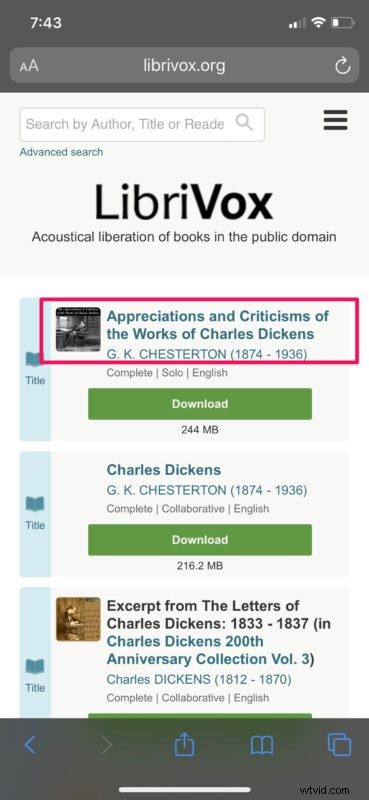
- Once the website loads your searched results, tap on the title of the audiobook to view all the chapters. You also have the option to download all the chapters as a single ZIP file.
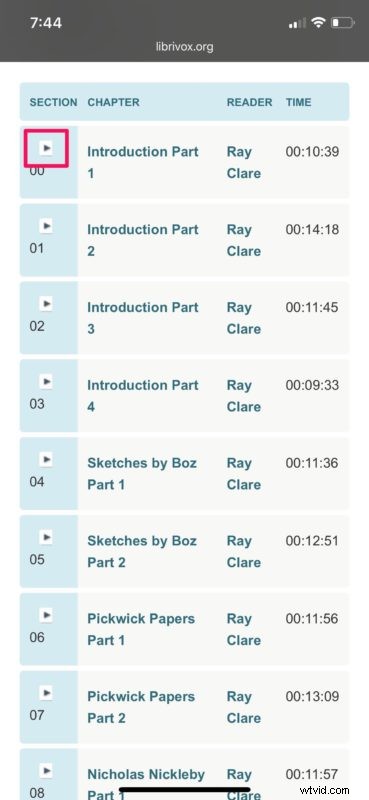
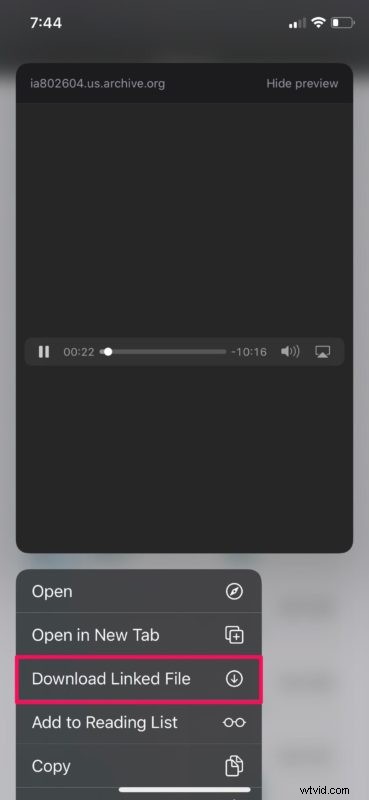
- Now, long-press on the play icon right next to a specific chapter.
- This will open the actions menu. Choose “Download Linked File” to start downloading that particular chapter.
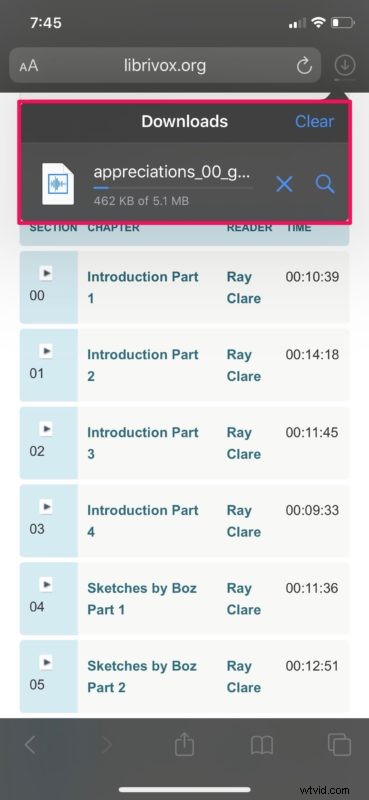
- As you can see here, Safari download manager has started downloading the mp3 audiobook file.
- Once the download is complete, open the “BookPlayer” app on your device. (Download Bookplayer from the App Store)
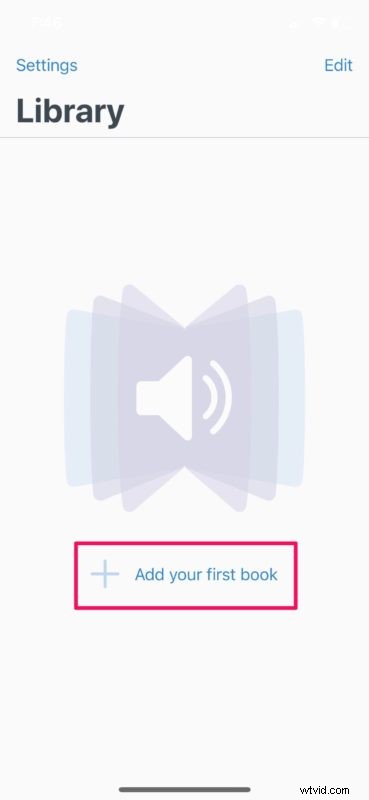
- Now, tap on “Add your first book” as shown in the screenshot below.
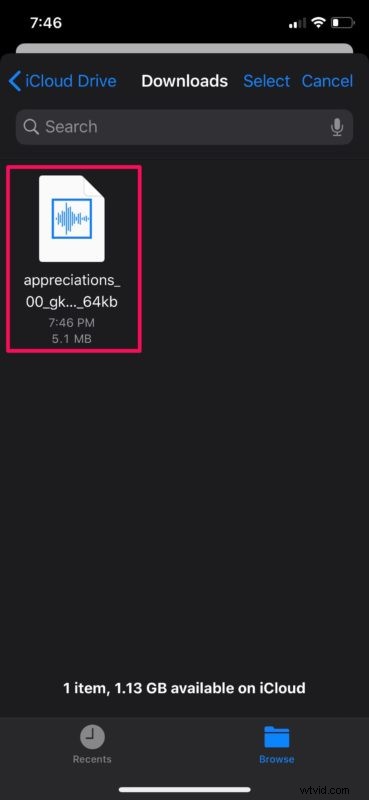
- This will bring up the Files app menu where you can browse the downloaded audiobooks. By default, it’s saved in the Downloads directory. Tap on the audiobook to add it to your library.
- Your BookPlayer library will be immediately updated. Tap on the audiobook in order to start listening to it right away.
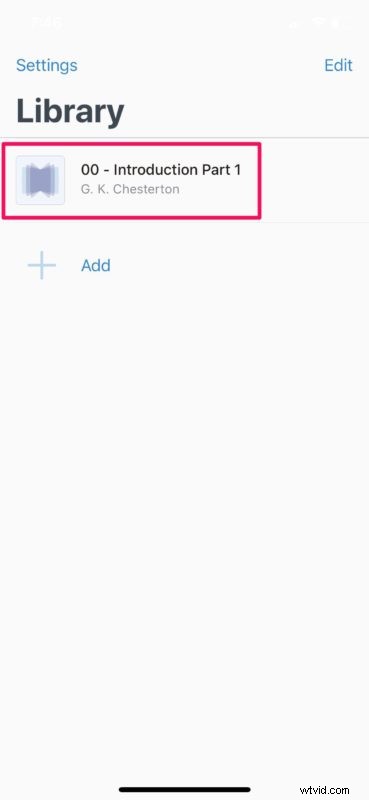
That’s pretty much it, if you followed successfully you’ll now have access to tons of free audiobooks that you can listen to and download to your iPhone or iPad.
It’s important to note that if you choose to download all the chapters as a single ZIP file, you’ll need to unzip the file first before you’re able to add it to your BookPlayer audiobook library.
It’s worth mentioning that the BookPlayer app is not mandatory to listen to audiobooks since you can simply listen to the downloaded file within the Files app. However, BookPlayer’s clean user interface and library management makes listening to audiobooks a pleasant experience.
Librovox is not the only source that gives you access to free audiobooks. You could find thousands of audiobooks on archive.org and gutenberg.org that can be downloaded to your iOS or iPadOS device in a very similar way.
And if you’re hooked on audiobooks and willing to pay for more (and often with notably higher quality narration), you could use Audible to access a massive audiobook library for just $14.95 per month. Amazon offers a free 30-day trial for Audible, so you can enjoy a few books and decide yourself if it’s worth spending money on.
This is obviously for free audiobooks, but are you interested in listening to free music as well? If so, you can use AudioMack to download free music on to your iOS device for offline listening while you’re on the move. You could also listen to your favorite songs on Spotify for free with ads, or Pandora has free streaming plans too.
We hope you managed to download and listen to free audiobooks on your iPhone and iPad, and that you’re enjoying some great pieces of literature. Do you know of any other services for listening to free audiobooks? Share your thoughts and experiences in the comments, and happy reading/listening!