
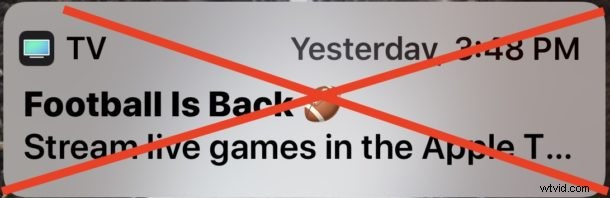
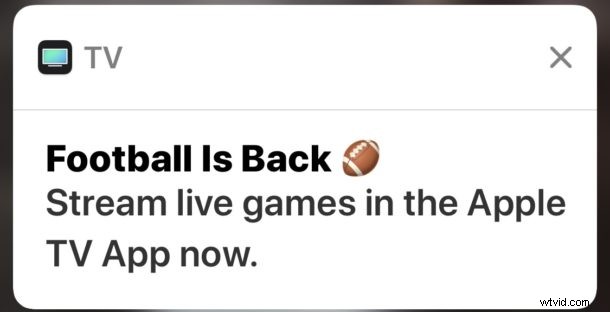
Have you discovered your iPhone or iPad is getting notifications and alerts for “TV” ads? For example, you might have recently seen a pop-up alert on your iPhone or iPad promoting “TV – Football is Back – Stream live games in the Apple TV App now” which presents itself as a promotion for watching football. Then, if you tap on the “TV” notification, you’ll find it’s sort of like an advertisement for the TV app that asks you to then download other apps or subscribe to various third party services or apps that are not bundled by default on the iPhone or iPad.
If you don’t want to see these promotional “TV” notifications showing up on the iPhone or iPad screen, you’ll be happy to know they can be easily disabled. Once the “TV” alerts are disabled you will no longer receive any more unsolicited TV banners promoting various TV app things and popping up on your iOS device screen.
How to Disable TV Notifications on iPhone or iPad
You can stop the TV ad notifications coming to your device just like disabling other app alerts and notifications in iOS, here’s how:
- Open the “Settings” app on the iPhone or iPad
- Go to “Notifications”
- Find and tap on “TV”
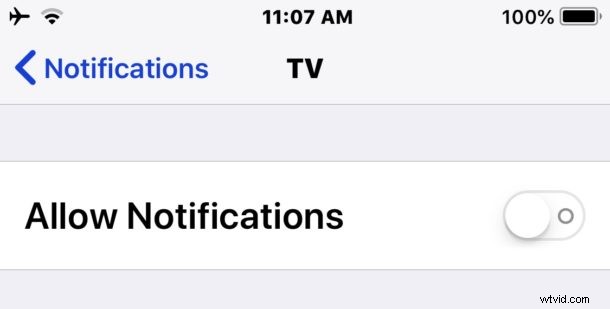
- Flip the switch for “Allow Notifications” to the OFF position to stop getting TV banner notifications for events, products, and other TV ads
- Exit Settings
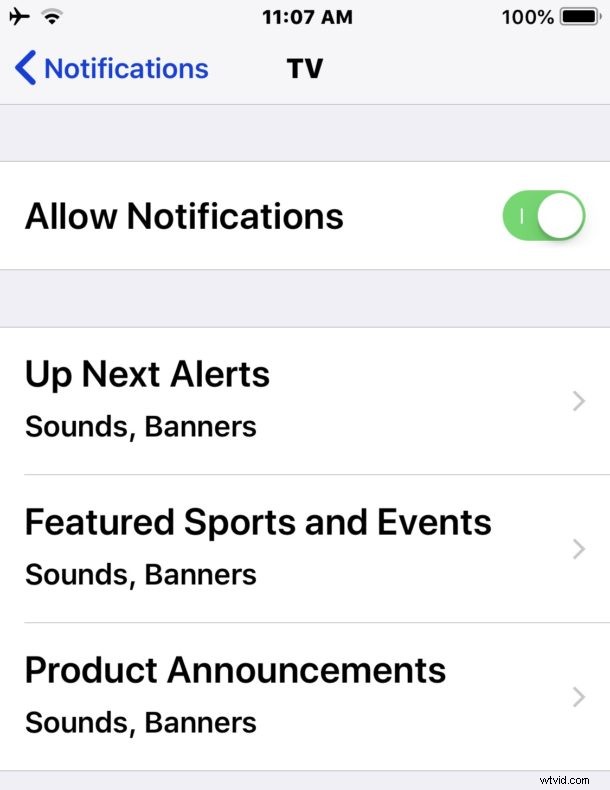
You can also be a little more specific in the TV notifications settings and disable notifications, sounds, alerts, and banners for specific items only, like “Up Next Alerts”, “Featured Sports and Events”, or “Product Announcements”.
Apple labels the “TV” app promotions as three different things; “Product Announcements” and “Featured Sports and Events” and “Up Next Alerts”, so if you don’t want any of the unsolicited TV banner alerts popping up on the screen it’s probably easiest to just turn them all off as we detailed in this tutorial. Nonetheless you can toggle settings individually if you feel like seeing some TV app notifications or promotions on your iPhone or iPad screen.
For what it’s worth, the now named “TV” app in iOS used to be named as the “Videos” app, and it also contains iTunes Store video downloads and rentals, as well as maintaining a library of your purchased iTunes Store video content. Aside from that, other parts of the “TV” app – particularly the “Watch Now” and “Sports” sections – function largely as a front-end to promotions for other third party TV apps and services, each of which typically require a separate app download (for example, app downloads for ESPN, HBO, or FOX) which then often requires a separate subscription to those specific individual services, or perhaps a subscription to a cable TV provider that offers those services as part of a broader cable television package.
While you’re tinkering around in Notifications settings, you might want to also disable notifications for other apps in iOS that you find unnecessary, or ust focus on the other frequently seen alerts like stopping News app headlines and alerts showing up on your lock screen in iOS.
How you handle notifications is entirely a matter of user preference, and while some users don’t like seeing notifications, other people really like having them pop-up frequently with various details, headlines, ads, events, announcements, and whatever else is being pushed to your iPhone or iPad to get your attention as notify you.