
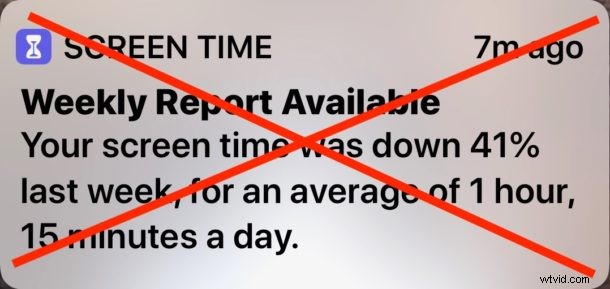
Want to turn off the Screen Time Weekly Report notification that appears on iPhone or iPad? There are a few ways to do that, and one is particularly quick and easy that allows you to disable the weekly screen time reports right from the iOS device lock screen.
Note this does not turn off Screen Time in iOS itself, nor does it remove a Screen Time limit on apps, only the notification about the weekly report. Screen Time is a great feature of iOS that lets you keep track of how long apps are used on iPhone and iPad, allowing you to set limits on app usage and even set time limits on categories of iOS apps like social networking so that you can better manage your time. It’s really quite useful, but some users may not want to see the weekly reports showing where they were using their time and on what apps or app categories.
How to Turn Off Screen Time Weekly Report Notifications in iOS
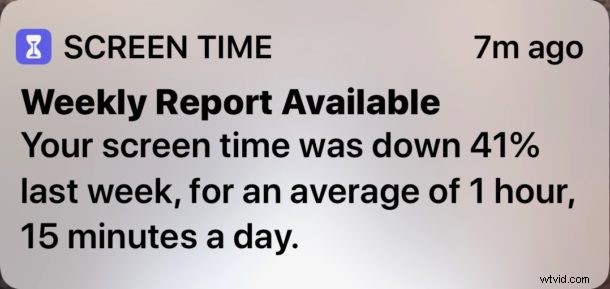
- When you see the “Screen Time Weekly Report Available” notification on lock screen of iPhone or iPad, firm press or long press on that notification (depending on if you have 3D Touch or not)
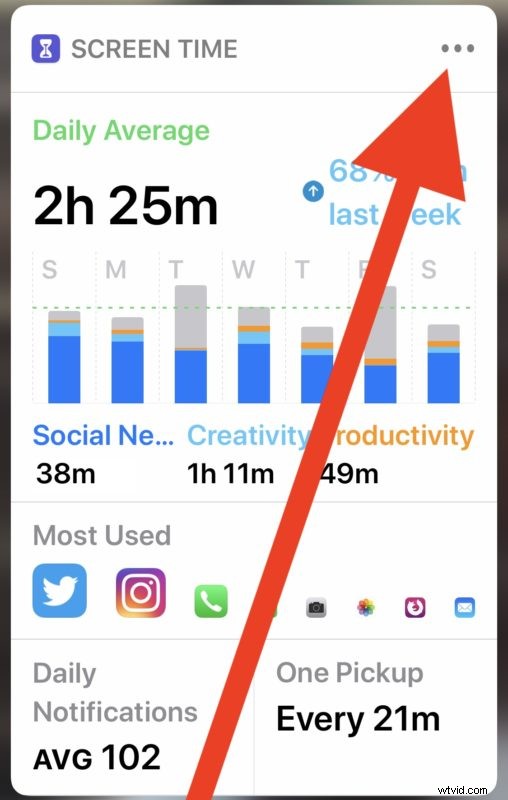
- This will expand to show a preview of the Screen Time weekly report, now tap on the three periods “…” button in the upper right corner
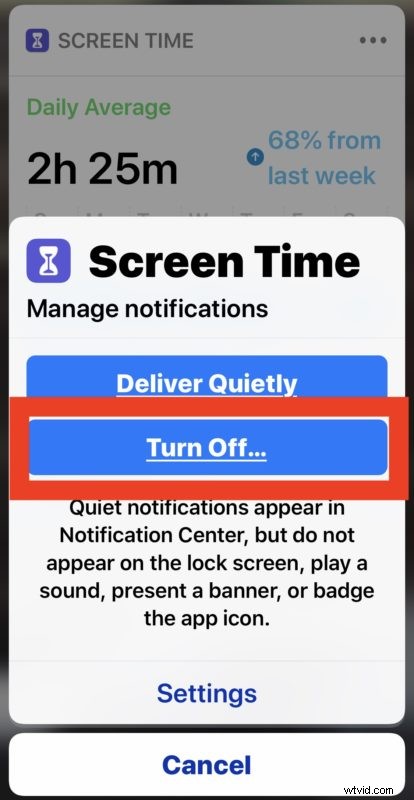
- At the Screen Time Manage notifications option, choose “Turn Off”
- Optionally, you can select “Delivery Silently” instead if you want to continue getting the screen time notifications but without the loud alert sound attached to them
Once you turn off the notifications from Screen Time, you will no longer see the weekly report alerts or get the sound effect notifying you that a use report is available.
Again this does not disable Screen Time on the iPhone or iPad, it simply turns off the weekly report notifications.
You can also disable Screen Time Weekly Report notifications from the Notifications settings of iOS. You can achieve this by going to Settings app > Notifications > Screen Time > turning Notifications to OFF (or otherwise customizing them as you see fit).
At any time you can reverse this change by returning to Notifications Settings and re-enabling the setting for Screen Time Notifications.