
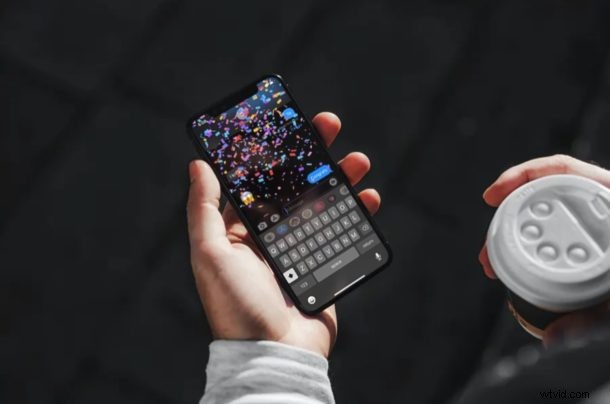
Tired of getting bombarded with the screen effects in iMessage? Is one of your iMessage friends annoying you by sending screen effects to your iPhone or iPad? If you get annoyed with these goofy and fun effects, you can turn off iMessage screen effects from automatically playing back on your iPhone and iPad within a matter of seconds.
Apple iMessage service is part of the Messages app on iOS and iPadOS devices and obviously it’s very popular with Apple users as it allows you to send free encrypted messages to and from any other iPhone, iPad, or Mac user (and obviously you can send text messages as SMS to Android and other users too). Screen effects and bubble effects specific to iMessage however, and there are many keywords that trigger screen effects automatically too so even if you or someone else is not intentionally trying to send them, they can still show up with certain keywords.
Although these effects let you add a touch of flair to your friendly conversations, they could be easily misused, frustrating, or even annoying. If you’re at that point, then read on, as this article will cover how you can disable iMessage screen effects on your iPhone and iPad.
How to Disable iMessage Screen Effects on iPhone & iPad
Disabling both bubble effects and screen effects on your iOS or ipadOS device is a fairly simple and straightforward procedure, here’s how to turn the feature off:
- Head over to “Settings” from the home screen of your iPhone or iPad.

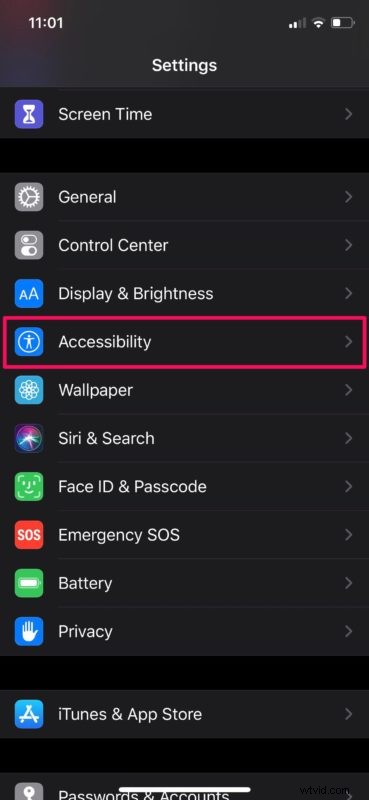
- In the Settings menu, scroll down and tap on “Accessibility”.
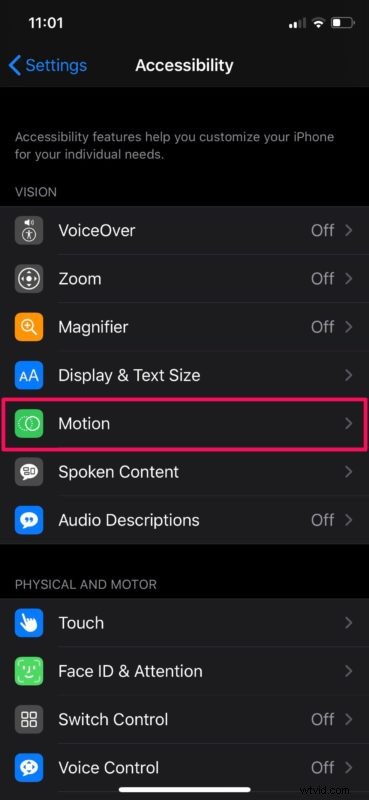
- Now, tap on “Motion” located under the Vision category, as shown in the screenshot below.
- Here, use the toggle to disable “Auto-Play Message Effects”.
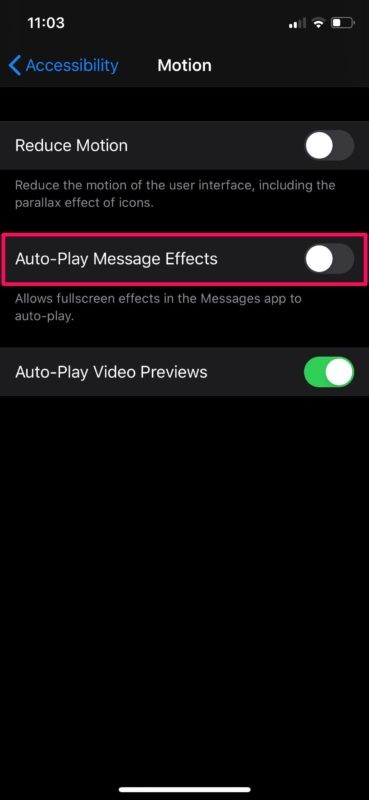
There you go. Now you know how to quickly enable and disable Message effects on your iPhone and iPad.
Be mindful that this does not completely turn off Message effects on your device. This setting only prevents the iMessage screen effects and bubble effects from playing back automatically, which is probably good enough for the people who are fed up with it.
If you turned this feature off because you have some degree of motion sensitivity, you can still manually play these effects at your convenience by tapping on the “Replay” option right below the text bubble.
The procedure we discussed here is aimed at devices running iOS 13 or later. If your iPhone or iPad is running an older version of iOS, you’ll need to turn on the Reduce Motion feature first in the same menu, in order to be able to disable iMessage screen effects.
Did you disable Message effects on your iPhone and iPad? What are your thoughts on iMessage screen effects and bubble effects? Share whatever your thoughts and experiences are in the comments below.