
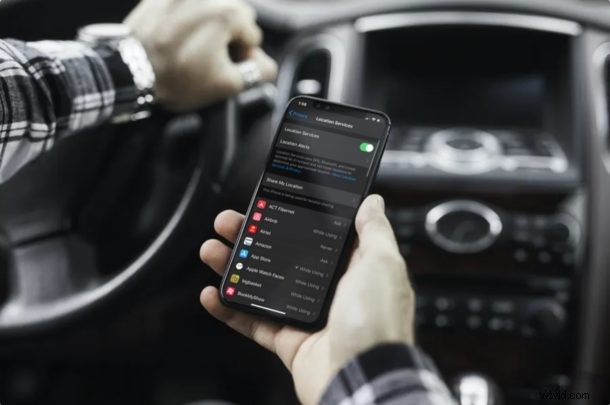
Many iPhone and iPad apps use Location Services to provide users with personalized content based on their location. However, if you’re concerned about your privacy, you can control which apps have access to your location data on your device.
Not all apps access your location data in the same way. Some of them only track your location while you’re using the app, whereas others use your location even in the background, which could even drain your devices battery faster too. The approximate location of your iOS or ipadOS device is determined not just with GPS, but also using local Wi-Fi networks, cellular networks, and even Bluetooth connections.
Whether it’s to safeguard your privacy or preserve your device’s battery life, you can easily turn off location services for the apps you don’t regularly use. In this article, we’ll be discussing exactly how you can manage which apps access location data on an iPhone & iPad.
How to Manage Which Apps Access Location Data on iPhone & iPad
Whenever an app is using your location, you’ll notice an arrow icon in the status bar. However, you can control apps that have access to Location Services within your device’s settings. So, without further ado, let’s take a look at the necessary steps.
- Open “Settings” on your iPhone and iPad.

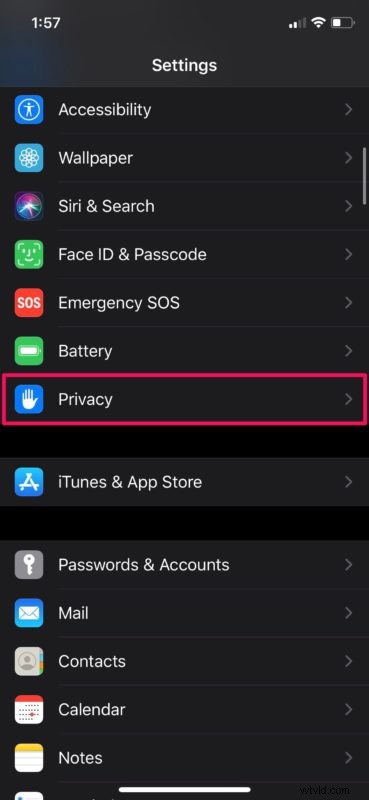
- In the Settings menu, scroll down and tap on “Privacy”.
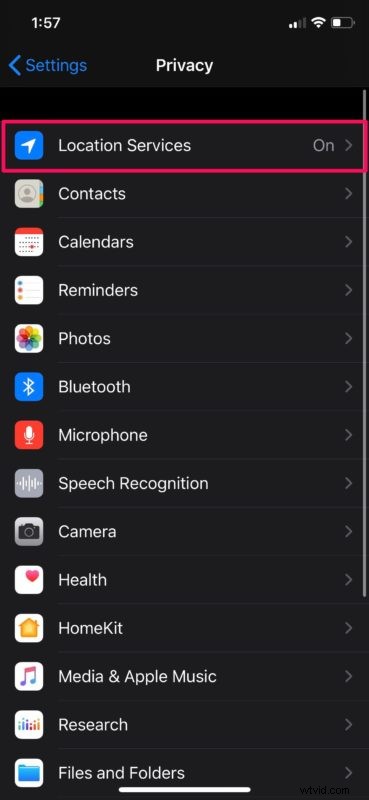
- Now, select “Location Services” which is the first option in the menu.
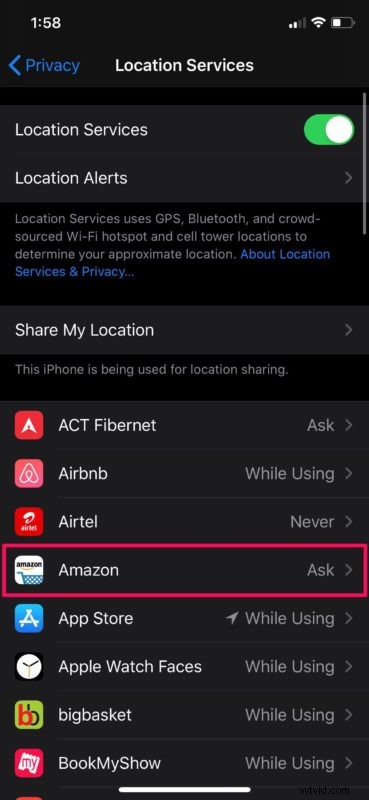
- Here, you’ll see a list of all the apps installed on your device that can take advantage of Location Services. However, this setting can be changed for each app individually. Select any app of your choice.
- Now, you can choose from four different location settings for the app. If you want the app to stop using your location, choose “Never” or if you don’t want it to track your location in the background, set it to “While Using the App”. You can also set it to “Ask Next Time” if you want the app to ask for your permission the next time it wants to use your location data.
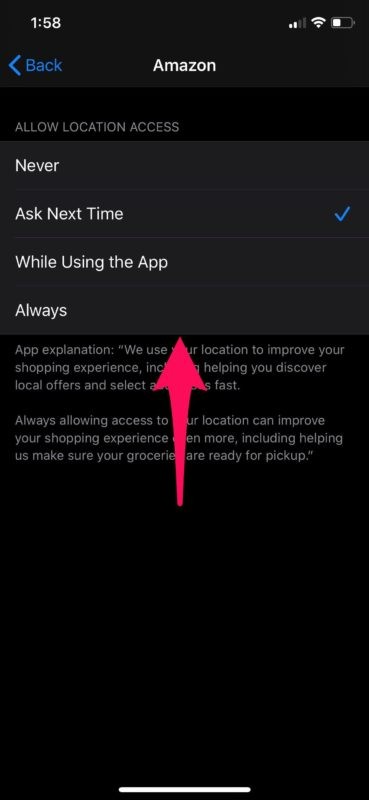
Now you know how to control location settings for apps installed on your iPhone and iPad, giving you full control over what knows where you are. It’s pretty simple, and it should give you some confidence in knowing what has your location information directly.
Apart from apps installed on your iOS or iPadOS device, system services also take advantage of Location Services. These include services like Find My iPhone, HomeKit, Wi-Fi Calling and more. If you scroll down to the very bottom in the Location Services menu, you’ll have the option to disable location access for these system services too.
If you have any apps that have access to your location data at all times, it’s best if you change the setting to “While Using the App” to minimize battery drain. Also, if you have serious privacy concerns, you might want to disable and delete Significant Locations on your iOS device, since the Maps app keeps a track of the places you’ve recently visited.
You also have the option to disable Location Services on your device completely, but some apps may be unable to function properly.
Likewise, you can also manage which apps have access to your health data on your iPhone and iPad. You can choose which apps have access to your camera too, if you’re worried about apps and services spying on you.
Now you you know how to manage Location Services for apps, feel free to turn the feature off or on for whatever apps you feel deserve that data, or don’t. Were you surprised by some apps using your location data? Do you have any thoughts or opinions on this matter? Share your experiences in the comments.