
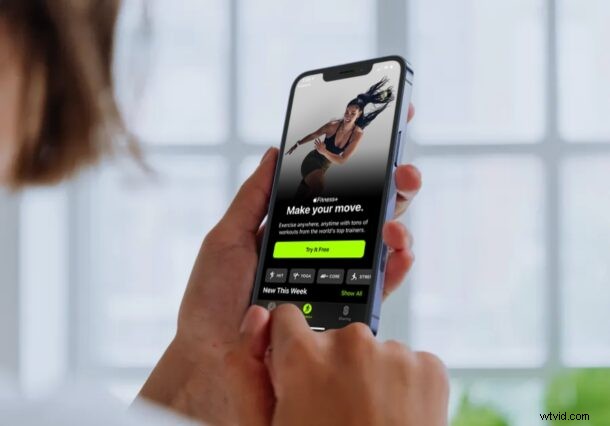
Want to workout with a digital personal trainer and your Apple Watch? Apple already offers a bunch of subscription services like Apple Music, Apple TV+, Apple News+, iCloud, and Apple Arcade for its users. To add one more to the list, the company just released its new Fitness+ service that’s built around the Apple Watch.
Fitness+ aims to change the way you take care of your fitness and manage your workout routine. The service gives you access to a library of workout videos that are tailored to you based on the metrics from your Apple Watch. If you’re not too sure about paying for the service just yet, Apple is currently offering a one-month free trial to help you make an informed decision. Also, if you purchased a new Apple Watch on or after September 15th, you’ll get access to a three-month trial instead.
Are you interested in trying out Fitness+ the next time you’re working out at the gym? We’re here to help.
How to Sign Up for Apple Fitness+
To get started with Fitness+, you’ll need an Apple Watch Series 3 or later. Also, you need to update your iPhone or iPad to iOS 14.3/iPadOS 14.3 or later. Once you’re done, just follow the steps below.
- Search and launch the Fitness app on your device. Prior to the update, it was called the Activity app.
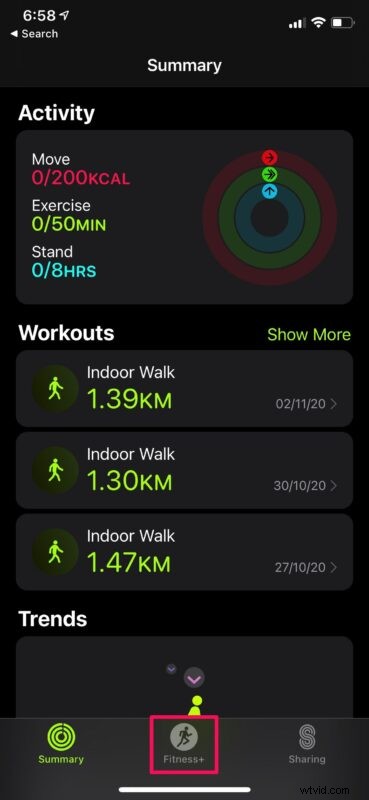
- Once you open the app, you’ll find the new Fitness+ section at the bottom menu as shown below. Tap on it to continue.
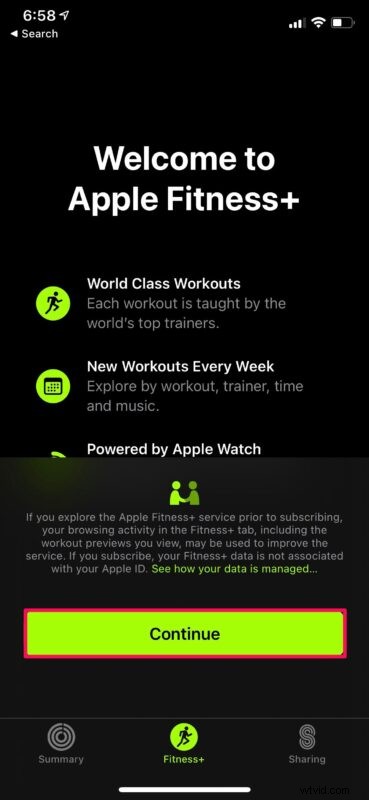
- Next, you’ll be informed about how your browsing activity in the Fitness+ tab will be used by Apple to improve the service. Tap on “Continue”.
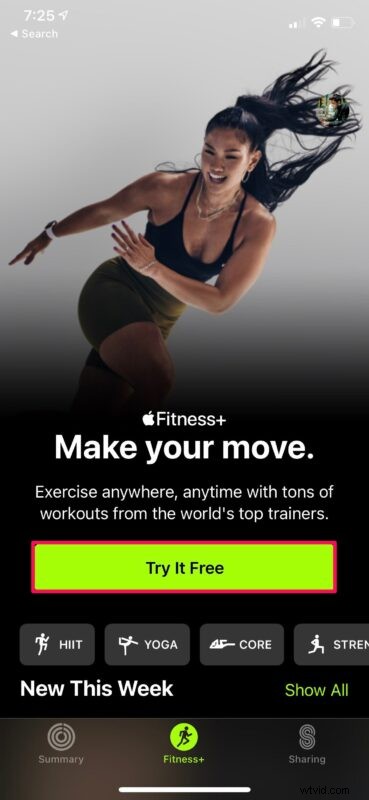
- Here, you’ll see the “Try It Free” option. Tap on it to get started.
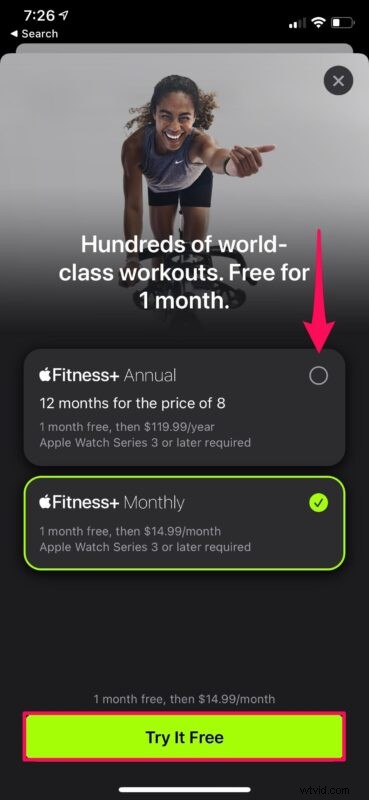
- Now, you’ll be able to choose your Fitness+ subscription plan once the trial period ends. Select the plan of your choice and tap on “Try It Free” to proceed.
- You’ll now be prompted to authorize your subscription using Face ID or Touch ID depending on your device.
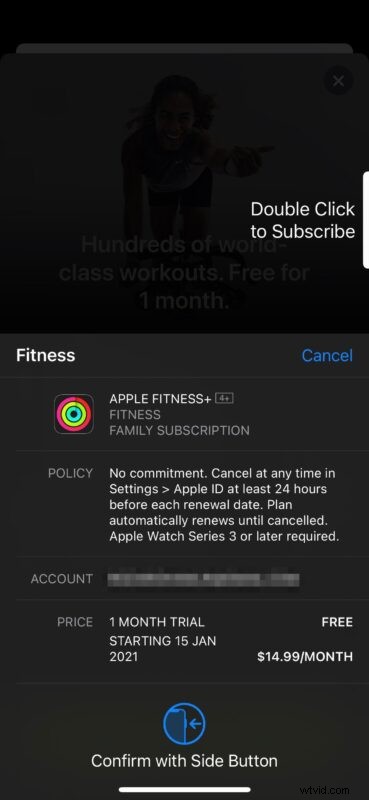
There you go. You’ve successfully subscribed to Apple’s new Fitness+ service.
Although you need your Apple Watch for initially setting up Fitness+, you will be able to do workouts and access the videos on your iPhone or iPad even when it’s not connected to the watch. However, if you’re going to be using Fitness+ on an Apple TV, your Apple Watch has to be connected to the same Wi-Fi network as your Apple TV.
If you’re unable to find the new Fitness+ section in the Fitness app, chances are, you’re living in a region where the service isn’t available. As of this writing, Apple Fitness+ is currently only available in the United States, United Kingdom, Canada, Australia, New Zealand, and Ireland.
As for the pricing, the monthly plan is priced at $9.99 whereas the yearly plan is set at $79.99 in the United States. If you think the service is on the expensive side, you’ll be happy to know that a single Fitness+ subscription can be shared with up to six people using Family Sharing. Fitness+ is also included in the Apple One Premier subscription plan which costs $29.95/month and includes all the services offered by Apple.
If you’re not interested in taking advantage of Fitness+ once the trial period ends, make sure to manually cancel your Fitness+ subscription from the subscriptions menu to avoid getting charged once the trial expires.
We hope you were able to sign up for Fitness+ and access the free trial without any issues. What are your first impressions on Apple’s newest subscription service? Is it available in your country? Let us know your thoughts and share your experiences in the comments section down below.