

Resetting your Apple ID password is normally a pretty easy task, but if you don’t have access to the device that you’re already signed into, things could get super complicated and inconvenient. However, Apple offers another option with an Apple ID recovery key, which can be used to reset an Apple ID account as well.
Apple ID Recovery Key acts as an extra layer of security for your Apple account, in case you forget your password and lose access to your trusted device. This completely eliminates the need to visit Apple’s website just to go through various hoops such as entering payment method details and answering your security questions for a password reset. Instead you can just use the recovery key. You’ll need to make sure your iPhone or iPad is running iOS 14 or newer to have this feature available, however.
How to Generate an Apple ID Recovery Key
Here’s how you can get a recovery key for your Apple ID:
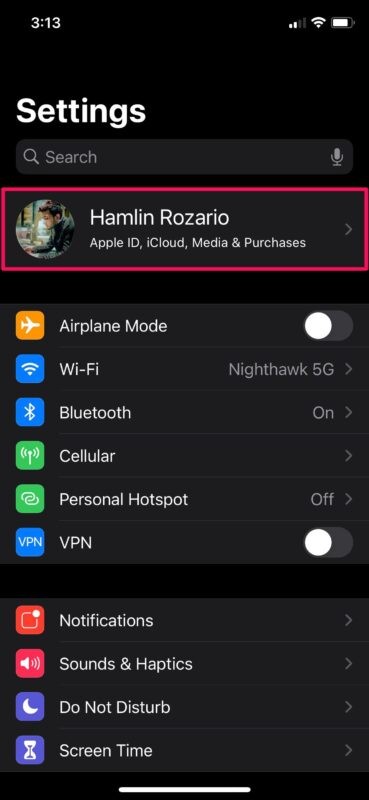
- Head over to “Settings” app from the home screen of your iPhone or iPad.

- In the settings menu, tap on your Apple ID Name located right at the top.
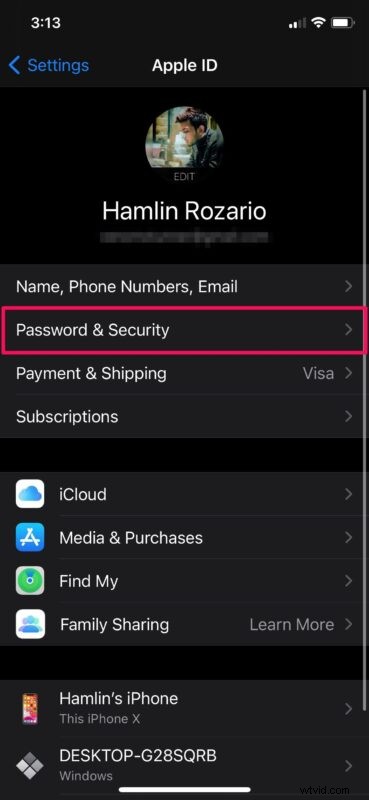
- Here, head over to “Password & Security” as shown in the screenshot below.
- Next, scroll down to the bottom of the menu and tap on “Recovery Key”.
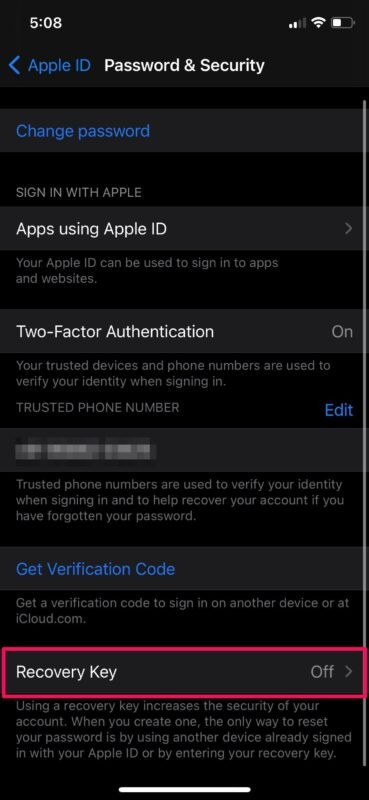
- Simply tap on the toggle to get started with enabling this feature for your Apple account.

- When you’re prompted to confirm, choose “Use Recovery Key” to proceed further.
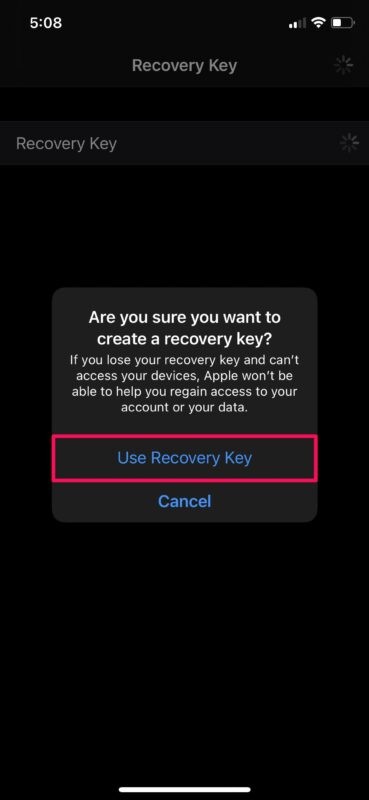
- Before you’re able to access the following screen, you’ll need to enter your device passcode. Your 28-digit recovery key will now be shown to you. You can write it down in a safe place that you’re able to easily access. Once you’re done, tap on “Continue”.
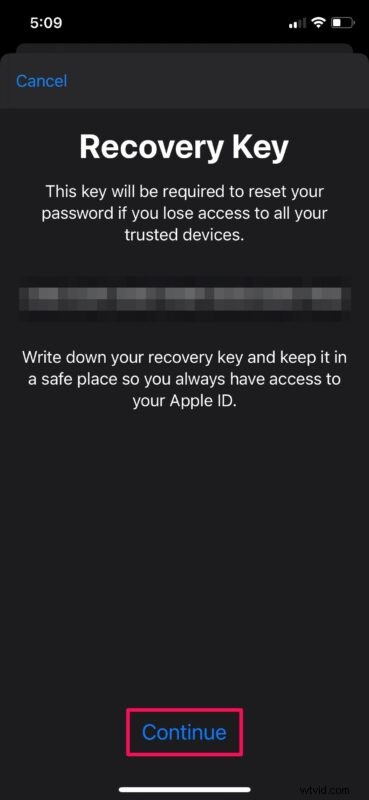
- Now, you’ll need to manually type in your recovery key for verification and making sure that you haven’t made any mistakes while noting it down. Tap “Next” when you’re done.

You’ve successfully created a recovery key for your Apple account.
From now on, you’ll have just two ways to reset the password for your Apple account. You can either reset the password from a device that you’re already logged into, or you can use the recovery key instead. The latter would prove to be a lifesaver when don’t have access to your trusted devices.
However, if you’re not really planning to use a recovery key as a backup for your Apple account in the long run, you can still follow the old school method of resetting your lost or forgotten password from Apple’s website.
It’s important to note that when you disable and re-enable Recovery Key, a completely new key will be generated for your account. Also, if you lost your current recovery key somehow, you can replace the key with a new one from the iPhone or iPad you’re signed into.
Make sure you don’t ever lose your recovery key, because even Apple Support may be unable to help you with the password reset.
For what it’s worth, this feature was around earlier, but then removed. We’re not quite sure why Apple removed the recovery key method from iOS devices shortly after adding it years ago, but we’re glad the feature made a return with the iOS 14 update.
What do you think of the recovery key feature? Do you use this, or do you have another approach to account recovery should it be necessary?