

Mobile websites are great, but they are very limited when it comes to how much content can be displayed on the small screen. Apple’s iPhones have gotten bigger in size over the years and thanks to HTML5, viewing desktop sites on your phone isn’t nearly as bad as you think. Plus sometimes you may need to use the full desktop version of a site, so you may come into a situation where forcing Safari to load the desktop site onto iPhone is necessary.
By default, when you visit a website using Safari or any web browser on an iPhone, you’re shown the mobile version of the site. Although it’s pretty easy to request the desktop site manually from the address bar, some people may want to access desktop websites at all times. No one would be okay with having to request the desktop version every time they visit a new website. It’s honestly far from convenient. If you’re one of those iOS users who’re frustrated by this, you’ve come to the right place, so let’s cover how to force Safari to load desktop sites on iPhone and iPad.
How to Force Safari to Load Desktop Sites on iPhone
Safari is fully capable of always loading desktop versions of websites, as long as you set it up properly. Just follow the steps below to get started.
- Head over to “Settings” from the home screen of your iPhone or iPad.

- In the settings menu, scroll down and tap on “Safari”.
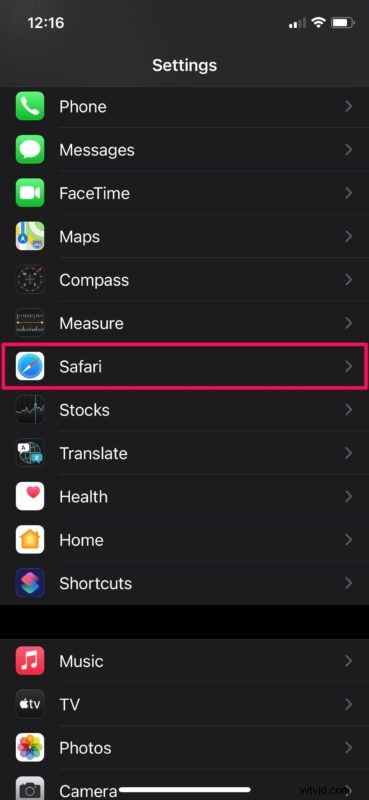
- This will take you to Safari preferences. Here, scroll down and choose “Request Desktop Website” located under the Settings for Websites category, as shown below.
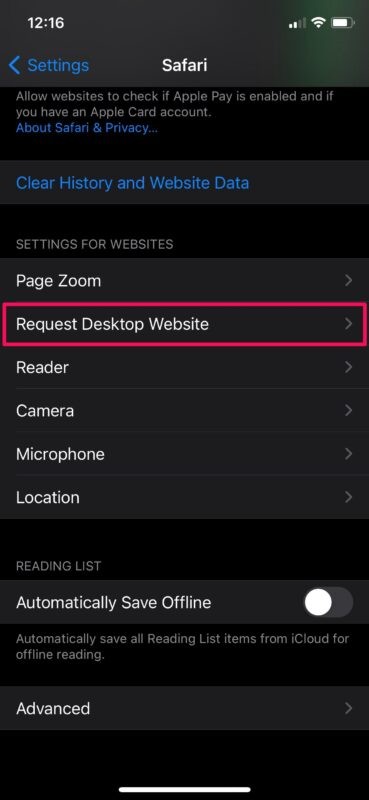
- Here, use the toggle to request desktop version automatically on all websites.

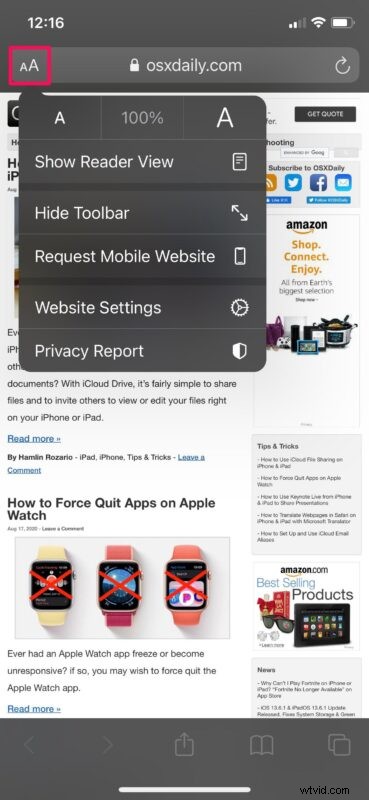
- Now, simply visit any website in Safari and you’ll automatically be taken to the full desktop version of the page. You can still view the mobile version of the site any time by tapping on the “aA” icon and choosing “Request Mobile Website” as shown here.
There you go. Now you’ve learned how to force Safari to always load desktop websites on your iPhone and iPad.
Keep in mind that Safari can only display the desktop version of the website whenever available. For example, when you try to visit the official Apple website, you’ll be shown the mobile version instead of the full desktop site.
If your iPad is running iPadOS 13 or later, you don’t have to follow this procedure. This is because iPadOS 13 brings desktop-class Safari to the iPad, and defaults to loading the desktop sites on iPad. However, this method is still applicable to iPads running older versions of iOS.
More often than not, mobile websites may still perform better on your iPhone as they’re more optimized for mobile devices. Therefore, if you ever change your mind, you can follow these steps to disable desktop websites on your iOS device.
Do you use third-party web browsers like Chrome on your iOS device? Unfortunately, there’s not currently a similar feature that allows you to always load desktop versions of websites for those web browsers, but it may be coming soon to them too. Instead, you’ll have to request the desktop site manually for the time being.
We hope you were able to permanently access desktop websites while browsing with Safari. What are your overall thoughts on this feature? Is this something that you’ll be using in the long run? Do share your valuable opinions and experiences in the comments section down below.