
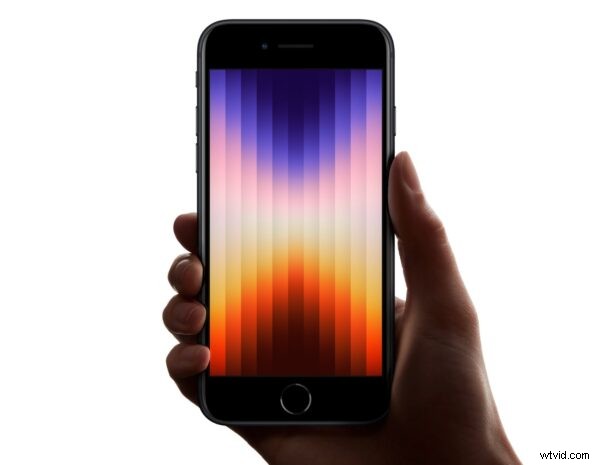
If you have a new iPhone SE 3 (the 2022 model) you may be wondering how to perform common troubleshooting tasks, like force restarting the iPhone SE, or shutting it down and turning it off, to initiating a standard restart on the device.
These procedures are simple once you learn how they work, so read along to discover the processes for the latest iPhone SE model.
How to Force Restart iPhone SE 3
Forcing a restart on the iPhone SE 3 may be necessary from time to time as a troubleshooting method. Here’s how to perform that action on the latest model:
- Press and release the Volume Up button.
- Press and release the Volume Down button.
- Now, press and hold the Lock/Power button.
- Continue holding the Power/Lock button until the iPhone restarts, as indicated by the Apple logo appearing on screen
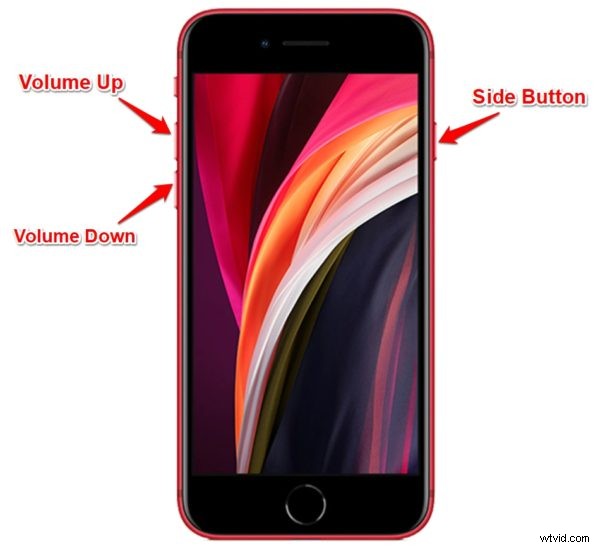
The iPhone SE will now start up as usual.
A forced reboot may take a little longer to start from compared to a regular boot sequence, and that is normal.
How to Restart iPhone SE 3
A regular restart on iPhone SE 3 is accomplished by turning the iPhone off, then turning it back on again.
- Press and hold the physical Lock/Power button located on the right side of your iPhone SE
- Swipe across the “slide to power off” toggle to turn off your iPhone SE
- Wait a few moments after the screen turns black, then hold the Power/Lock button again to startup the iPhone SE 3
There you go, a soft restart is pretty straight forward since it’s just powering off and back on the device.
Typically users will just initiate a force restart if they need to restart their iPhone for troubleshooting reasons, but it’s good to know how to perform a graceful soft restart as well.
How to Shut Down iPhone SE 3
Turning off and shutting down the iPhone SE 3 is easy:
- Press and hold the Power button until you see a “Slide to Power Off” toggle appear on the screen
- Swipe over on that toggle to turn off the iPhone SE 3
As you can see, turning off iPhone SE 3 is just the first part of the soft restart process, except you don’t turn the device right back on again.
Some users turn off their iPhone to get some peace of mind, to save battery, for storage purposes, for travel, or any number of other reasons, thus it’s useful to know how to power down the device.
How to Turn On iPhone SE 3
If the iPhone SE 3 is turned off, you can turn it back on at anytime by doing the following:
- Press and hold the Power button until you see the Apple logo appear on screen
If the iPhone does not turn back on after holding down the Power button, but instead shows a red battery indicator, that means the iPhone SE 3 needs to be plugged into a power source and charged for a while before being able to turn on.
There you go, you’re mastering the procedures of restarting, turning off, turning on, and force rebooting the iPhone SE 3. Once you do these a handful of times and memorize them, they’ll become second nature to you.
If you’re new to the iPhone world, you’ll be glad to know that this process is similar across the entire modern product line for iPhone and iPad devices, meaning once you remember how to force restart, restart, and turn off and on the iPhone SE 3, you’ll be able to perform the same tasks on any other modern iOS or ipadOS device.