

Would you like to snap iPhone photos in silence? As you know, the iPhone and iPad makes a camera shutter sound whenever you take a picture. The sound effect offers auditory feedback to acknowledge that a photo was taken, but there are times where you’d probably like to have the camera be silent too.
You may already be familiar with the traditional method of turning off the camera sound on iPhone by using the mute switch. Using the mute switch on the side of the iPhone will disable the shutter sound effect and allow you to take quiet pictures, but in some countries, like Japan, the mute switch does not silence the camera sound. This is due to privacy laws in Japan that make it so that you can not take another persons photo without their permission.
Fortunately there’s another way to take silent pictures on the iPhone or iPad, and it uses a feature you may already be familiar with; use Live Photos.
Enable Live Photos to Silence the iPhone Shutter Sound
Yes, enabling Live Photos allows the iPhone (or iPad) to silently take pictures, which is necessary because the Live Photo captures a small video with audio to generate the animated photo, so without muting the shutter sound effect it would be included in every Live Photo.
So, open the Camera app and toggle the switch for Live Photos to be on.
Turning on Live Photos is as simple as tapping the concentric circle icon in the Camera app on iPhone or iPad, and when it shows as yellow you’ll know the feature is enabled. Then take your picture as usual.
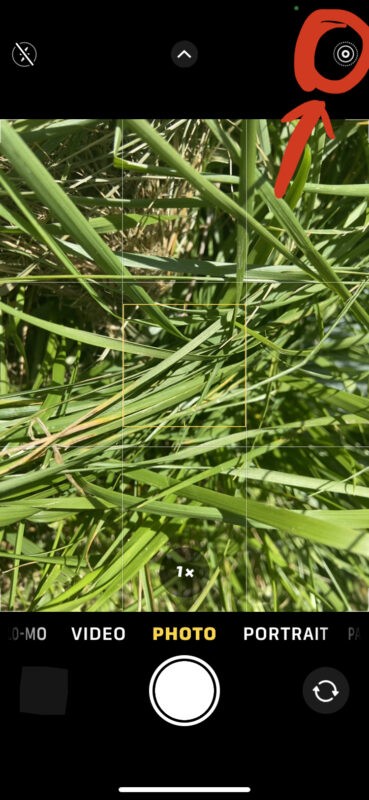
Silent photos, no more shutter sound, and you didn’t even have to use the Mute switch or turn down the volume on the iPhone or iPad either.
Some Japanese users also take silent photos by covering the iPhone speakers, which if done properly can mute the shutter sound effect as well. That’s harder to do on an iPad, however.
Where ever you are, taking a picture quietly can be a valid requirement; perhaps a child or a pet is sleeping and you don’t want to wake them, or perhaps a scene is unfolding that you want to discretely photograph for whatever reason, or maybe you just don’t like the shutter sound blasting away every time you take a picture on the iPhone or iPad.
Do you have any other tricks to quietly take photos? What do you think is the best method? Let us know in the comments.