

Live Photos are a notable camera feature of the new iPhone, which basically allow a typically still photo to transform into a short movie clip instead, with live action from a second before and after the picture was taken with the iPhone Camera. This is definitely an interesting feature of the new iPhone Cameras and it’s particularly well suited for taking pictures of people and animals, but not all users are interested in using the Live Photos ability. Additionally, since each Live Photo is basically a tiny movie clip, they take up more storage space than usual on the iPhone.
But not everyone likes Live Photos, and some iPhone users may find it annoying to frustrating to discover so many of their pictures are basically little photo movies.
If you’d like to disable Live Photos ability on the iPhone, or turn it back on again, you’ll find it’s very easy to toggle the live action photography feature directly from the Camera app.
How to Turn Live Photos ON or OFF on iPhone Camera
You’ll need an iPhone 6s or iPhone SE or newer to have the Live Photo feature available:
- Open the Camera from either the iPhone lock screen or the Camera app
- From the Photo view, tap the little concentric circle icon near the top (or side) of the screen to toggle Live Photos ON or OFF
- If the concentric dotted circle is in yellow, the Live Photos feature is ON
- If the concentric dotted circle is in white, the Live Photos feature is OFF
- Take your pictures as usual
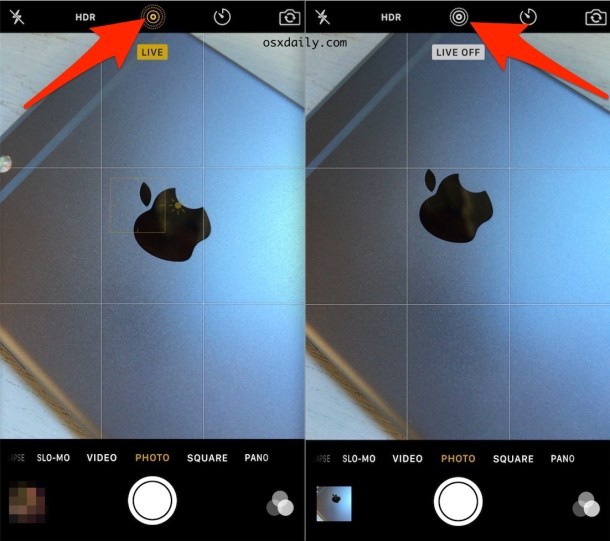
The Live Photo toggle works beyond just the current picture, meaning if you turn Live Photos off, all future pictures won’t use the Live Photo capture until it has been enabled again. Similarly, if Live Photos is turned into the On position, all pictures will capture live until it’s turned off again. This is quite useful, and in direct contrast to the HDR toggle, which turns itself off constantly regardless of how many times you turn it back on again.
Keep in mind that turning the Live Photo feature on or off again won’t have any impact on existing Live Photo images, whether in your photo library or used on the lock screen of your iPhone.
Why is My iPhone Taking Video Pictures? How do I disable the Live Photo Camera Recording?
If your iPhone is taking pictures that are short little video clips, that means your iPhone is taking Live Photos with its camera because the feature is enabled.
Toggling the Live Photos feature OFF will turn off the video pictures and take a regular picture. As the instructions above state, opening the camera and tapping on the little concentric dotted circle button will disable the Live Photos photo video picture feature on iPhone.
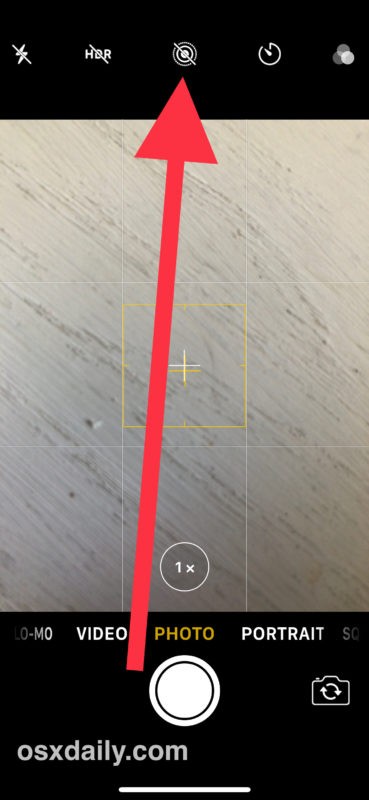
Likewise, turning the Live Photo feature ON will re-enable the short little video pictures known as Live Photos.
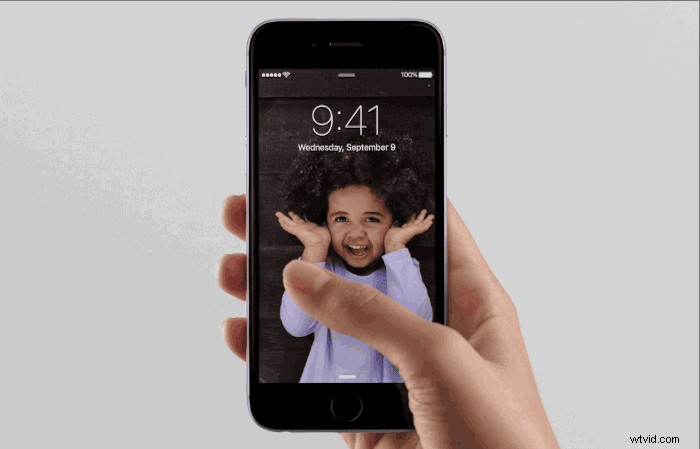
(Above animated gif picture via CultOfMac)
Of course, at the moment you will need either the iPhone 6s, iPhone 6s Plus, iPhone Se, iPhone 7, or better, as those are the devices which support the Live Photos feature on their cameras currently. With that said, you can expect this feature to stick around for future iPhone releases going forward.