
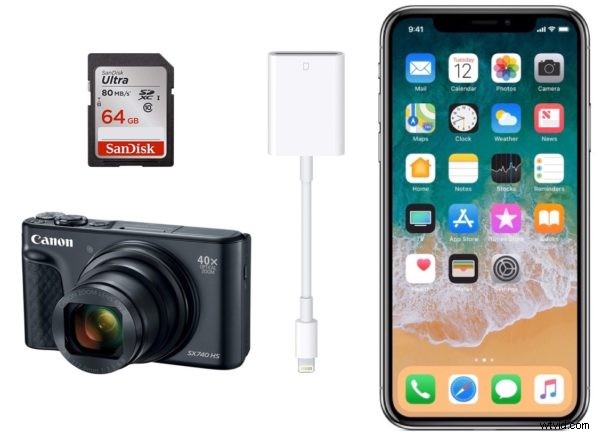
Want to transfer photos from a digital camera to iPhone? You can easily import photos and video from a digital camera or SD card to an iPhone with the help of an appropriate adapter and the super simple iOS Photos import procedure. This tutorial will walk through the steps to copy images and media from an SD card or camera to an iOS device.
To be able to successfully transfer and import photos from a digital camera or SD card to the iPhone, you will need the following:
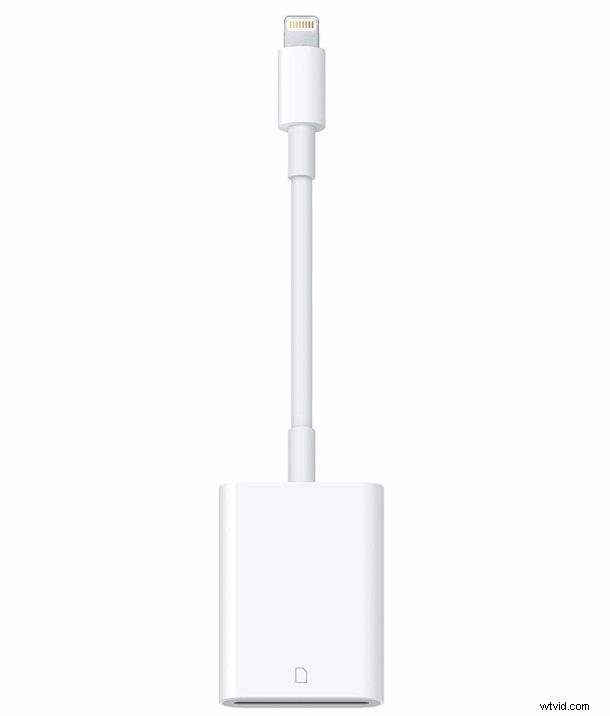
- Apple Lightning to SD Card Camera Reader – $29 (for digital cameras with SD cards)
- Apple Lightning to USB Camera Adapter – $29 (for digital cameras that use USB)
- Working iPhone with sufficient battery charge
- The digital camera and/or SD card to copy the photos from
Assuming you have those prerequisites met, you’ll be able to copy images from the digital camera or SD card to the iPhone. And in case you were wondering, yes all of this is the same on iPhone as it is on iPod touch and iPad, so long as the iOS device has a Lightning port.
How to Import All Photos from Camera / SD Card to iPhone
Ready to import and copy photos from the SD card / camera to iPhone? Here’s what you’ll want to do:
- Connect the Apple Lightning to SD Card Camera Reader adapter to the iPhone lightning port at the bottom of the phone
- Insert the SD Card into the Apple Lightning to SD Card Camera Reader
- Wait a moment and Photos app will launch automatically on the iPhone *
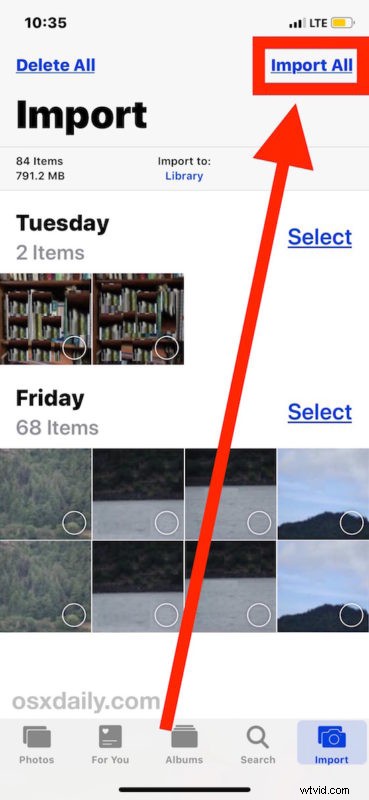
- Tap on “Import All” in the corner of the Import screen of Photos app **
- When the “Import Complete” screen appears, choose to “Keep” the photos on the SD card / camera, otherwise choose Delete if you want to permanently remove them from the attached SD card
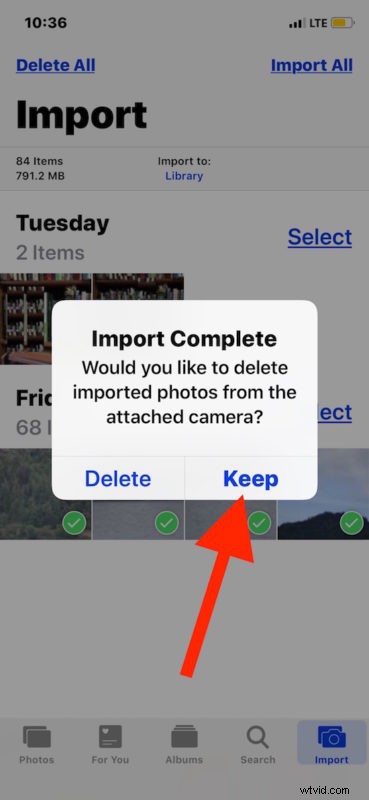
All photos that were copied and imported from the SD card will now appear in the Photos app on the iPhone. You can find them in the general Camera Roll section or in the Photos section, though do note that the default Photos sorting view is by date and so if the images are from different dates they may not appear at the very bottom of the Photos app screen.
You can also choose to browse the imported photos by going to the Photos app “Albums” view and then selecting the “Imports” album.
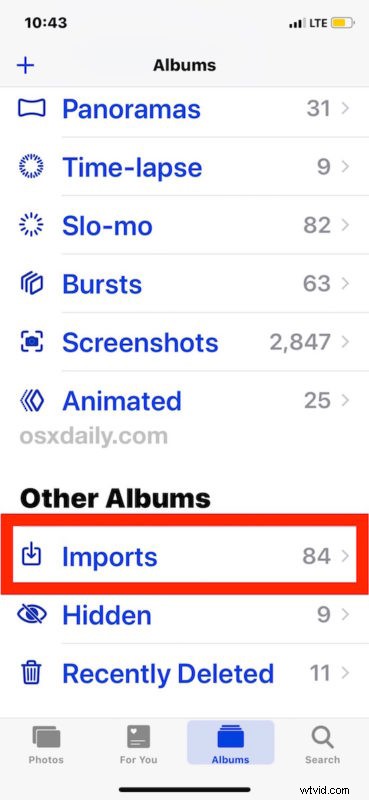
* Sometimes the Photos app does not automatically open when the SD card or digital camera is connected to the iPhone, if that happens manually open the Photos app and choose the “Import” tab.
** Optionally, you can manually select specific photos to import by tapping on them individually at the Import screen so that they a green checkmark appears overplayed on them, but for most users they’ll probably want to import all photos from the SD card to the iPhone.
If you have a digital camera that uses a different sort of memory card rather than an SD card, you’ll want to either use an adapter, or use the USB adapter for the iPhone instead. Fortunately most digital cameras have standardized around the SD card and so that will apply for most users who want to import pictures from a camera or SD card to their iPhone.
This walkthrough is obviously focused on the iPhone, but everything is basically the same on iPod touch and some models of iPad, assuming they have a Lightning port anyway. You can learn how to import photos from SD cards or cameras to iPad, iPad Pro, iPad Air, iPad mini here if interested which covers both the USB-C and Lightning port models. If you’re a Mac computer user than you can also transfer images from iPhone, camera, or memory card to the Photos app on Mac too.
Do you know of any other helpful tips, tricks, or methods of importing and copying pictures from a camera or SD card to iPhone? Share with us in the comments below!