
How to make a photo movie on iPhone
Luckily, Clideo just has the right tool for it! Our iPhone Video Maker works online from a browser, so you don’t have to download, install and set up any cumbersome app. It’s compatible with all the operating systems, so you still may use it even if you change an OS.
Last but not least, our service is user-friendly and doesn’t demand registration. You can upload files up to 500 MB each for free, and you may start as many projects a day as you want. There are no hidden ads, freemium modes or functionality limits.
Read on and learn how to create a video from photos in four self-evident and intuitive steps.
Upload photos to the tool
Open Clideo’s Video Maker with photos and music in your favorite browser and select a preferable way of uploading content. There are two available options:
- Hit the big blue “Choose file” pane and upload a file from your iPhone library.
- Tap the arrow on the right side of the pane to call the drop-down menu and select the picture you need from Google Drive or Dropbox.
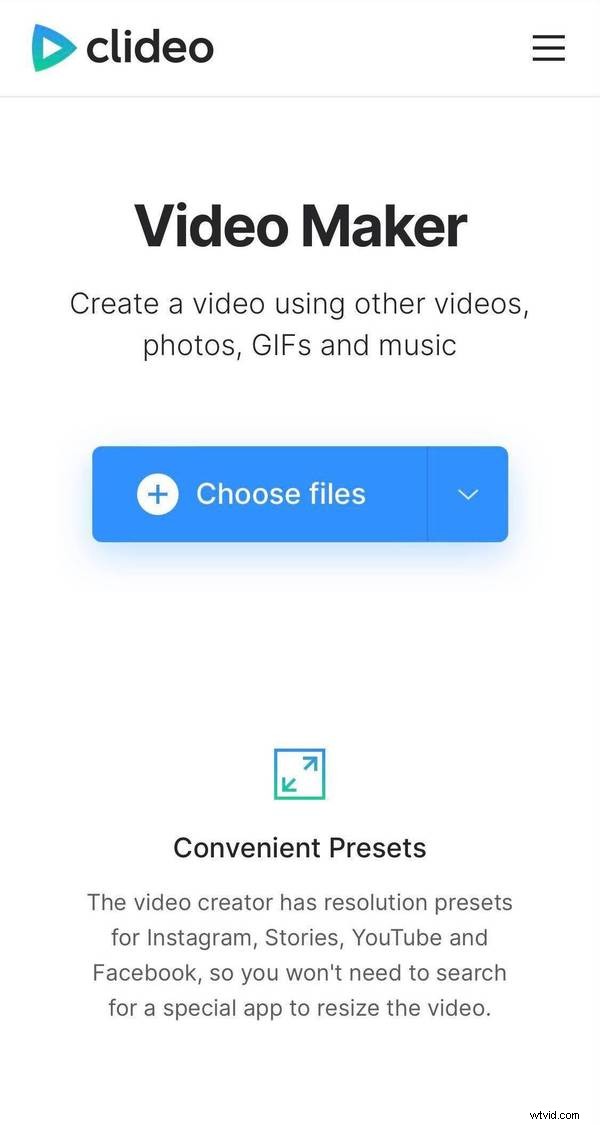
Multiple selection is possible for both ways. You can select not only images but also other videos or GIFs.
Add more files and adjust settings
If you want to add more files, you can do it right now: just use one of the abovementioned ways or drag and drop the visuals you need on the timeline below the player.
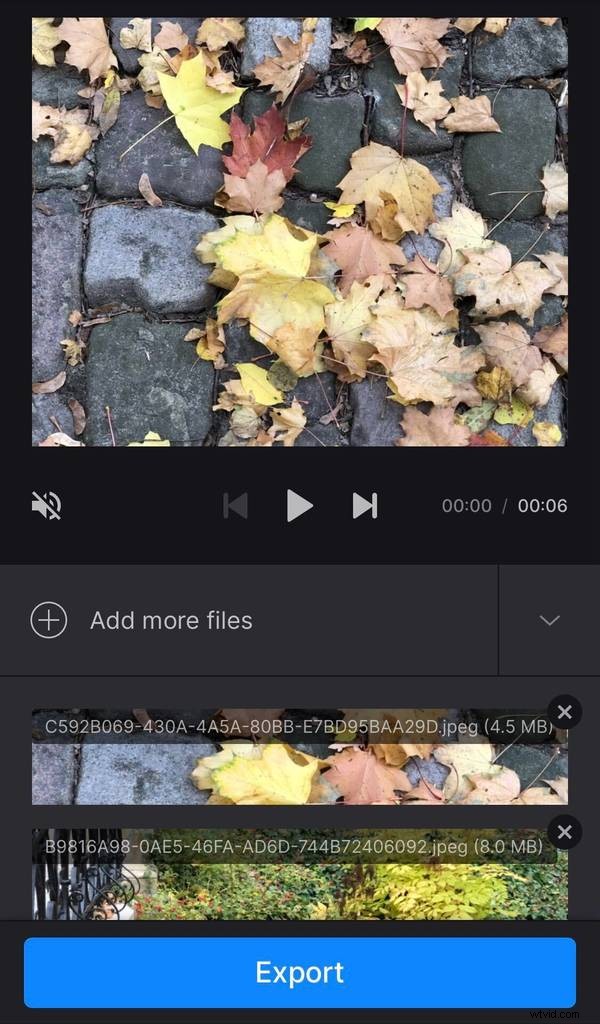
Decide on the crop option: you may fit the frame with borders or zoom and crop it. In the same section, select the aspect ratio. We have already prepared the most popular presets; the hints under them will tell you which social medium this aspect ratio fits the best.
Don’t forget to set the image duration. Be aware that this setting is equally applied to all the images in your future video and can’t be customized.
If you want the frame transition to come smoothly, tick the “Crossfade” box.
Add an audiotrack
Hit the “Add audio” pane to select a file from your personal device, or call the drop-down menu and upload it from cloud storage accounts.
When the music is uploaded, click on the scissors symbol and trim the piece by moving the sliders or setting the timestamps manually in the boxes. When you are done, adjust the volume. If one of your initial files is a video with its own sound, you can also change its volume.
Before exporting your project, select the format. Clideo service supports a wide range of formats, but if you want to post your video online, stick to MP4 or MOV.
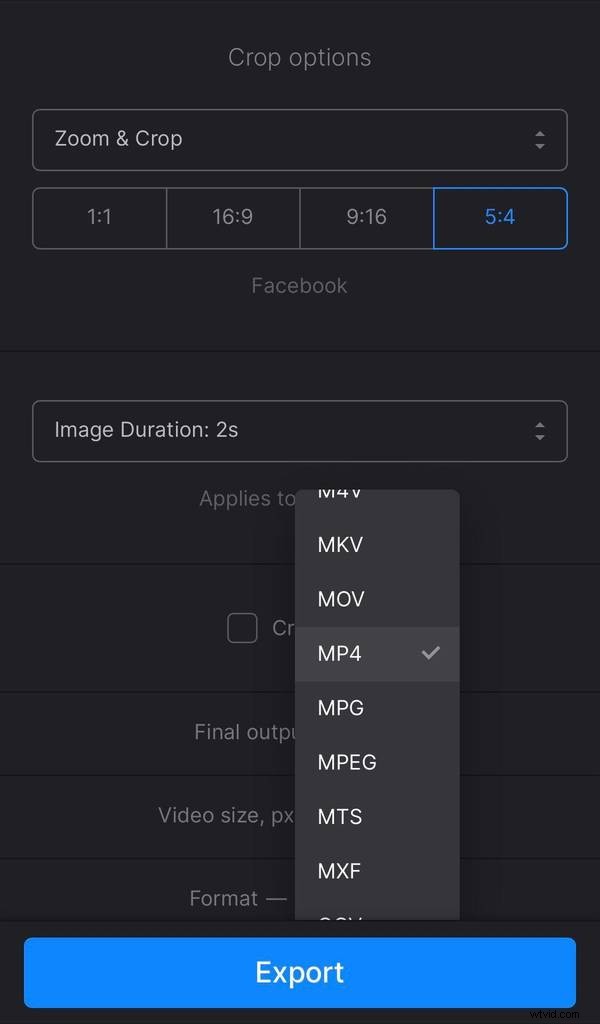
When all the settings are arranged, click on the “Export” button and let the tool do its job.
Save your project
Give your video the final run to check if everything is just as you want. If so, download your project to your device or save it to your cloud. Otherwise, hit the “Edit” pane and keep working on your video.
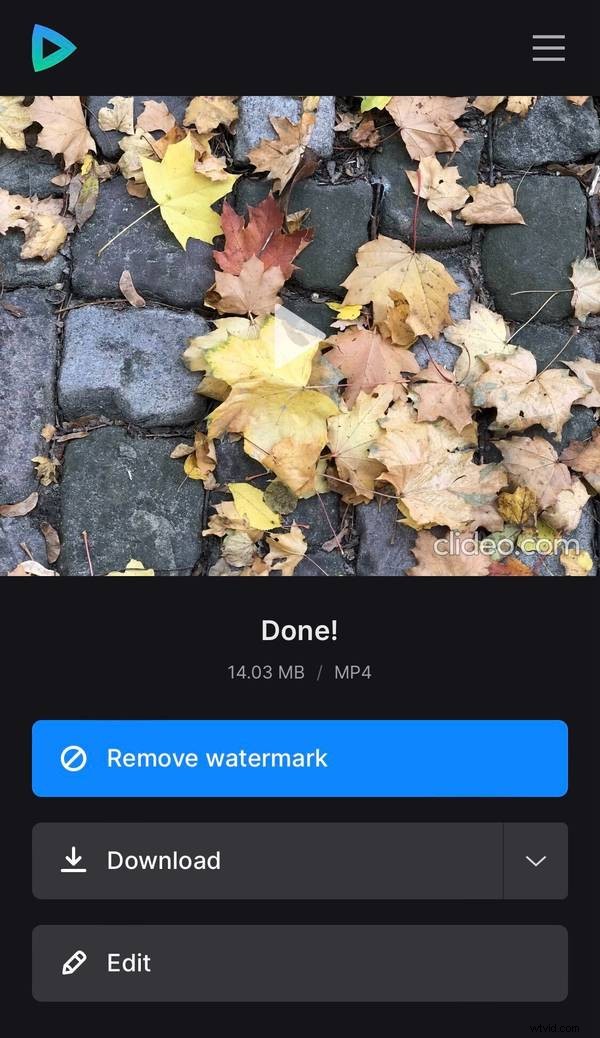
If you want to remove the watermark or continue editing in other tools right away, consider subscribing to the Clideo Pro plan.