
Are you a small business owner, teacher, student or content creator? Ever wanted to create a professional-looking video, but don't have time or resouces to record your own audio and video footage? Clipchamp has got you covered. Learn how to make a video using free stock images and music in minutes.
Here at Clipchamp, we’ve added stock images to our sidebar, complimenting our existing stock audio and video. Now anyone can create their own slideshows, presentations, video intros and outros using stock images and music. If you have photos you'd like to use but no time to edit the photos, you can consider reaching out to a freelancer or a photo editing company for high-quality photo retouching services at a reasonable cost.

Let’s jump into a step-by-step breakdown of how you can create a video with photos and music in our online video editor which works from your browser—no downloads necessary.
How to create a video with photos and music in Clipchamp
Step 1. Log into Clipchamp or sign up for free
To get started creating a video using stock images and music, you will need to log into your Clipchamp account if you’re an existing member. If not, sign up for free today.

Step 2. Create a new video
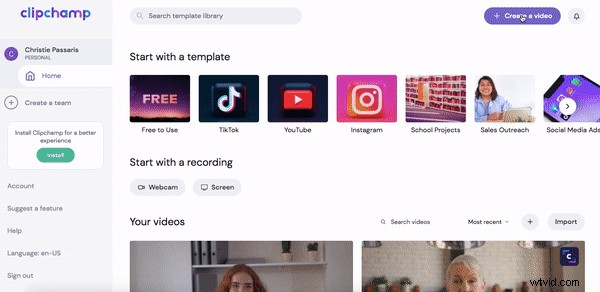
Click on the purple + Create a video button at the top right corner of your screen. Our editor will automatically open. Before you begin, rename your video.


 Free in-browser video editor
Make professional videos in minutes
Try for freeStep 3. Select stock images or upload your own
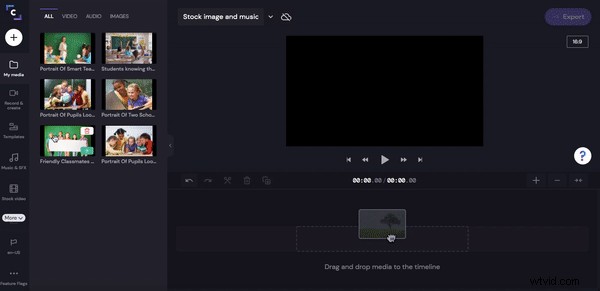
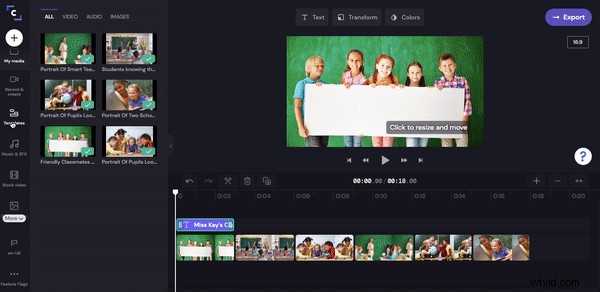
Click on the Stock image tab on the left sidebar. A pull out window will pop out. Search a specific category of stock images or choose from the suggested folders.
Click on the stock image you would like to use. Then click on Add to my media. You can scroll through similar images below as well. Your stock images will appear in your Media library.
Alternatively, click on the white + circle at the top of the left sidebar. Drag and drop your own images or search your computer files.
Step 4. Add images to your timeline
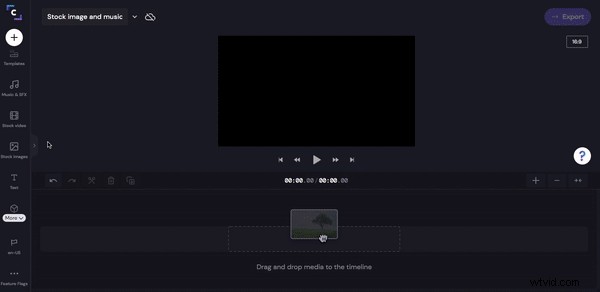
Drag and drop your stock images onto the timeline. To resize your images and delete any black boarders, click on Transform then Crop to fill.
Alter the length of your image duration by moving the green side bars left and right.
Repeat this process for all images.
Step 5. Add text if desired
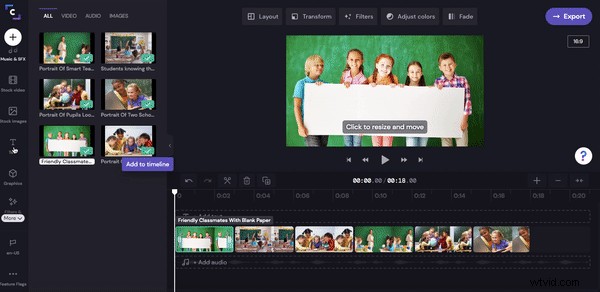
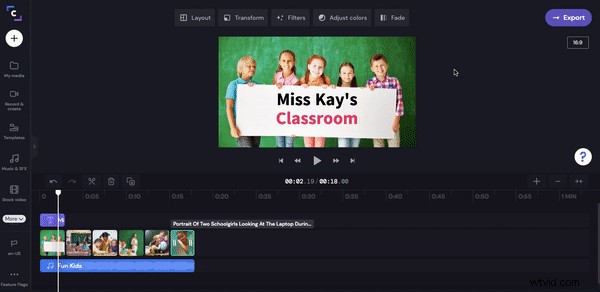
To add a title to your video, click on the Text tab on the left sidebar. Drag and drop your desired text onto the timeline above your images. Move the green side bar left and right to alter the text duration.
Edit the text, change the colour, size and position.
Step 6. Add stock music
It’s now time to add some groovy stock music to spice up your video. Click on Music & SFX tab on the left sidebar. Search a specific genre and title, or choose an audio track from our suggested folders.
Click on the green + symbol to add the audio to your timeline. Alter the length of your track by moving the green bars left and right.
Step 7. Save your new video
The final step is to export your video. Click on the purple → Export button in the top right corner of the editor. A pop out window will appear. Select 1080p for the best resolution and quality optimization.
Save your video directly to your computer, share a link with friends, embed code, or save directly to Box, Dropbox, Google Drive, OneDrive, Pinterest, LinkedIn or YouTube.
Make beautiful videos with stock images and music
And that’s a wrap. Successfully make a video in our online video editor using stock images and music. It’s easy!
If you’re looking to up your video game even further, head over to our how to turn your blog into a high-raking video tutorial.
Create beautiful video today. Sign up to Clipchamp.