
Digital art NFTs are snowballing. Do you want to create one-of-a-kind digital art and NFT videos? Read on to explore how to create a unique NFT video in the right size for any NFT marketplace with Clipchamp video editor.
What are video NFTs?
NFT stands for Non-Fungible Token. To simplify, they can only have one official owner at any time. NFTs can be in the form of videos, GIFs, music, photos, illustrations, or digital artwork. NFTs are bought and sold online with the transactions taking place using cryptocurrency.
Video NFTs are non-fungible tokens that are in a moving picture form. They contain auditory elements and can be animated, illustrated, or made from fiction.
Video NFTs are a newer category of digital art. Digital art encompasses any piece of art created with digital technology. Some more common formats are computer-generated paintings, dynamic paintings, 2D and 3D computer graphics, pixel art, manual vector drawings, raster paintings, fractal art, and data moshing.
Before you make an NFT video, here’s what you need to know
1. NFT video size and format options
OpenSea accepts JPG, PNG, GIF, MP3, MP4, SVT, WebM, GLTF, WAV, GLB, and OGG formats with a maximum file size of 100MB.
Mintable accepts all image and video formats with a maximum file size of 3GB.
Rarible accepts JPEG, PNG, WebP, GIF, MP3, and MP4 formats with a maximum file size of 10MB.
KnownOrigin accepts JPG, PNG, GIF, SVG, WebP, MP4, WebM, and GLB with a maximum file size of 75MB.
2. NFT video dimensions and resolutions
We recommend saving your NFT video in 1080px resolution and square 1:1 video format.
3. Creating an Account and Wallet for NFTs
Before you get started, you will need to have your own digital wallet that holds your verified cryptocurrency. You also need to pay to list your NFTs on a marketplace. A popular currency to trade NFTs in right now is Ethereum. Make sure to research the Ethereum price before you choose a day to list your NFT.
How to make an NFT with Clipchamp
Ready to create a unique video NFT for free? From BAYC and Cryptopunks to fun Doodles, NFT options are endless for creators. Follow the step-by-step tutorial below to learn how to make an NFT video with Clipchamp.
Step 1. Log in to Clipchamp or sign up for free
Log in to your Clipchamp account or sign up for free to get started.
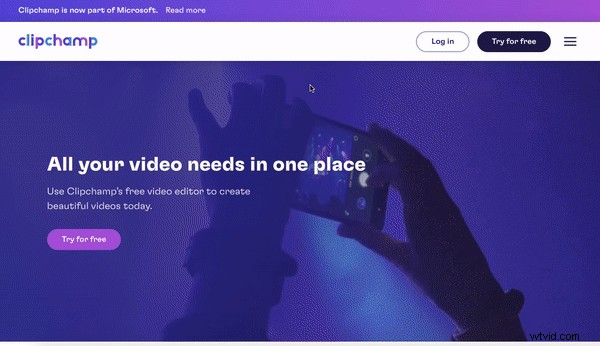
Step 2. Create a new video
Once you log into Clipchamp, the editor homepage will appear. Click on the Create a video button at the top right corner. The editor will automatically open. Rename your video by clicking on the Untitled video bar.
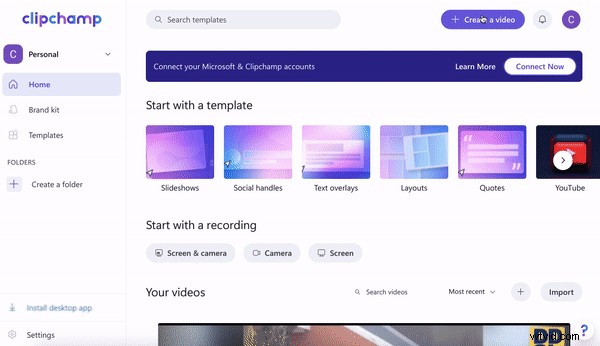
Step 3. Upload your video or images
Upload your NFT video to the video editor. You can upload any video you desire, as long as it is a personal video, not stock footage. We recommend using a video that is 1-minute or less.
Click on the + symbol on the left sidebar. Drag and drop video files from your computer, or click on Browse files. You can upload video footage from Dropbox, Google Drive, OneDrive, Zoom, Box, Google Photos, and your phone.
Once you have uploaded your NFT video to react to, it will appear in Your media library. Drag and drop the video onto your timeline. Make sure to change your video aspect ratio to square 1:1.
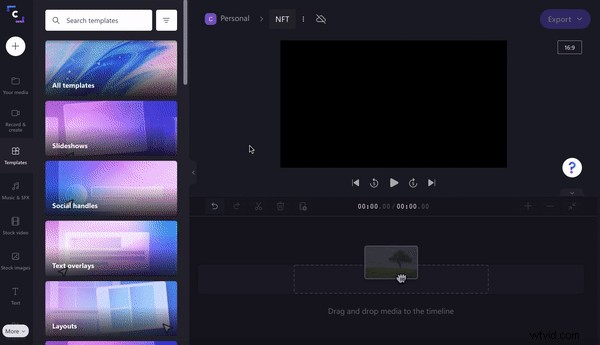
Step 4. Edit your NFT video
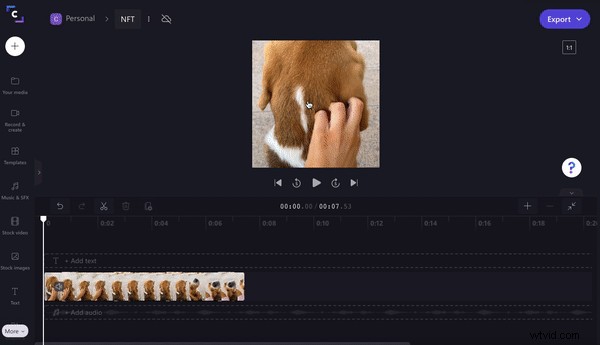
It’s now time to edit your video. If your video is in a 9:16 aspect ratio like ours, simply click on the video preview, then click Crop to fill.
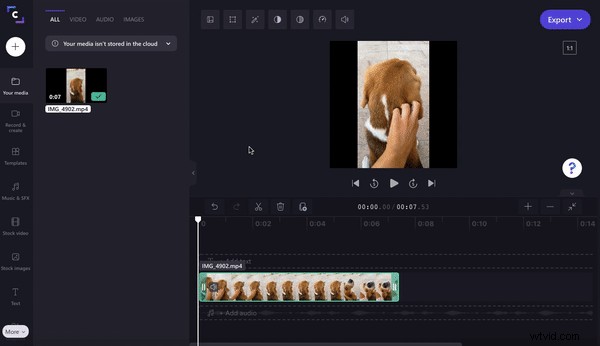
If you would like to adjust the color of your NFT video, click on the video preview to launch editing options. Edit the video's exposure, color, add filters, and more.
Step 5. Export your NFT video
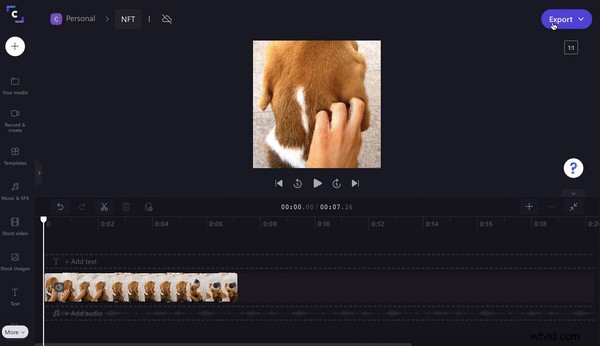
Once you have finished editing your NFT video, click on the purple Export button at the top right corner of the editor. Select either 480p, 720p, or 1080p video quality. We recommend selecting 1080p for a high-quality NFT video. You can also save your NFT video as a GIF if under 15-seconds long.
Save your video to your computer, or directly share your NFT video using our saving integrations.
Create NFT videos with Clipchamp
Whether you’re creating an iconic sports moment NFT or artwork video NFT, Clipchamp’s free online editor has all the tools you need.