
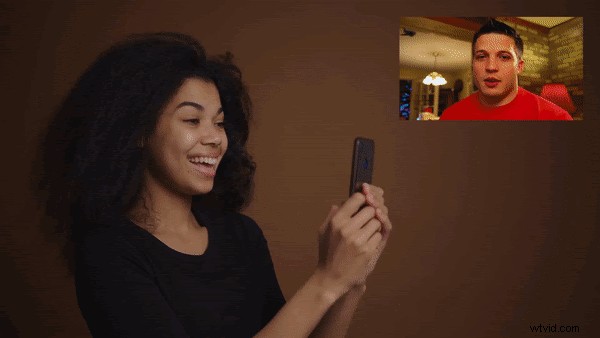
Have you ever watched a YouTube react or gaming video and wondered how they edit in that smaller second screen? The secret is, knowing how to make a video with picture-in-picture. It’s a common technique used in video editing to overlay one image or video on top of another. Usually, creators use this method in reaction videos like the example below, as well as video interviews, video chat calls and #letsplay or live stream gaming videos. If you’ve always wanted to try this video effect, follow our step-by-step tutorial on how to show an image or video on top of another video.
What is a picture in picture video?
Video overlay or picture in picture (PIP) is when two videos share the same screen display, with one of the videos significantly smaller than the other. It is a multi-window mode mostly used amongst content creators for video playback. Including the PIP video editing special effect can be a simple way to enhance the quality of your video.
How to create a picture-in-picture video in Clipchamp
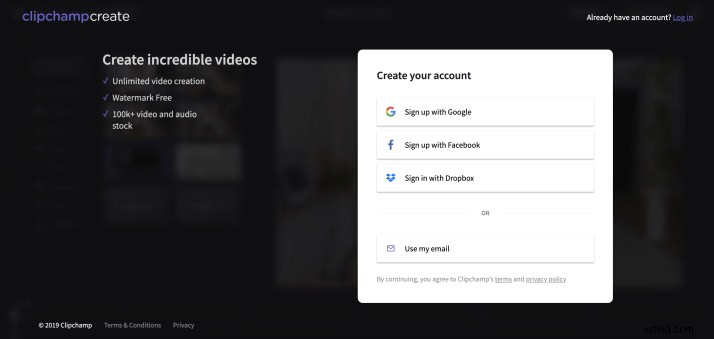
Step 1. Create an account
Log into your Clipchamp account, or sign up for free to get started.
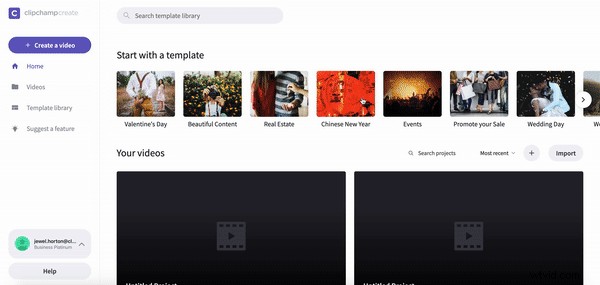
Step 2. Create a new project
Select the ‘Create a video’ button on the left side bar. We offer five different formats to choose from. Select the video ratio that best suits your project. We recommend using widescreen 16:9 if you are wanting to upload to YouTube.
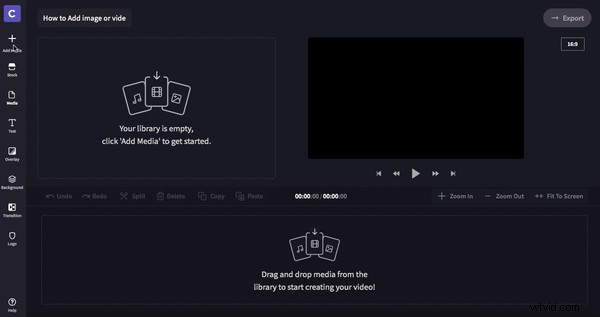
Step 3. Add footage
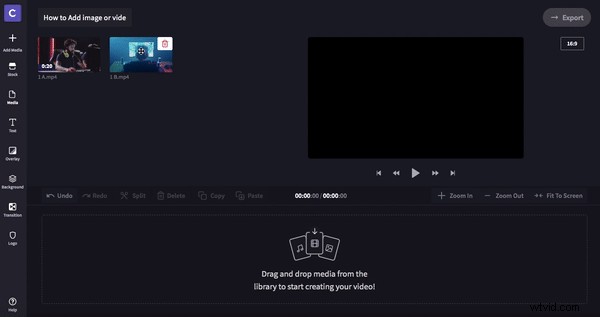
If you already have filmed footage you would like to use in your project, click ‘Add media’ and drag and drop your videos, audio and images to the media box. You can also click ‘Browse my files’ to add media. If you are wanting to use free stock footage, click ‘Stock’ and add your chosen videos by clicking the ‘+’ button ‘Add to project’. All footage will appear in your library.
Step 4. Drag and drop media to your timeline
Your videos are now in your media library. Drag and drop your selected picture-in-picture videos to the editing timeline. Arrange the two videos one above the other like in the example below. Make sure to line up both clips directly underneath each other.
Step 5. Create the picture in picture effect
Now that your videos line up with each other, click the video you would like to make smaller. The video you are reducing must be placed on the top. If it is located on the bottom, just drag and drop to switch locations. A small box will appear in the bottom left on the clip on the timeline. Click the box once, and the clip will shrink. Click the box again and editing options will appear. You can change the position of the smaller video and make the size bigger or smaller.
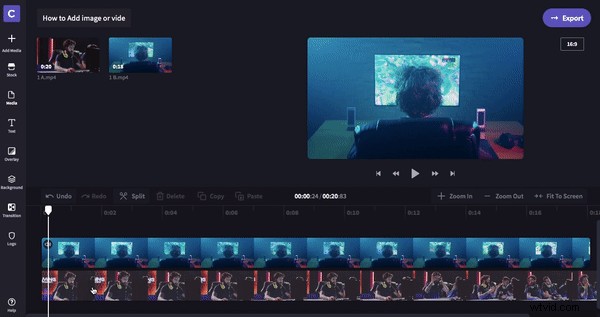
Step 6. Review your picture in picture video
Once you have finished editing your video, export your project. Save to a location or folder of your choice. You can directly upload and share to social media or embed the video to a document.
Create a PiP video now
Now that you have the know-how to create picture in picture videos, it’s time to create your own!
An extra tip – consider adding layover text to your picture in picture videos so no viewers miss the dialogue that’s essential to enjoying content like reactions and gameplay. Lastly, if in doubt during the editing process, check out our beginner’s guide to editing videos.