
Perfectly suited for tutorials, video game videos and all other forms of online videos, picture in picture effect can be used to depict things you are talking about or simply to add another video within your video. This overlay effect utilizes two different videos or photos in the same frame, a larger background image often contains the main source of narration or action, while the smaller one is frequently used for demonstration or to feature a person playing a video game in video game videos.
In this article, we will show you how you can easily create this effect in just a few simple steps. Let's have a look at how you can create PIP video with Movavi video editor.
How to Make PIP Videos in Movavi
1.Launch the Movavi Video Editor
If you decided to use Movavi video editor for the task of creating the PIP effect, the first step is to launch the program and enter the 'Full Feature Mode'. Once you find yourself in the editor you should click on the 'Add Media Files' feature and import at least two videos or photos.
2.Add two or more media files
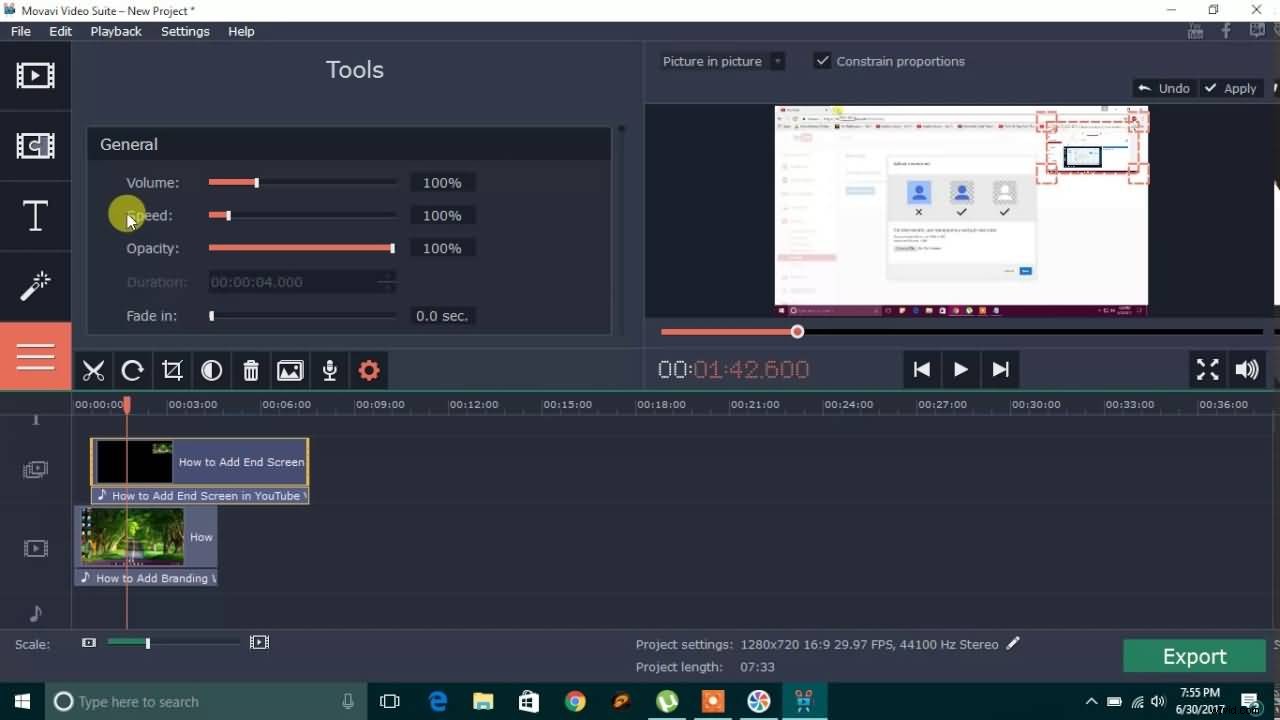
This action will place the files you want to edit directly to the timeline, but you will notice that video files are not located in the same 'Video Track'. Drag the video you would like to appear over your background video to the Video Track above and place it at the point on the timeline at which you would like it to appear in the final video.
3.Adjust settings
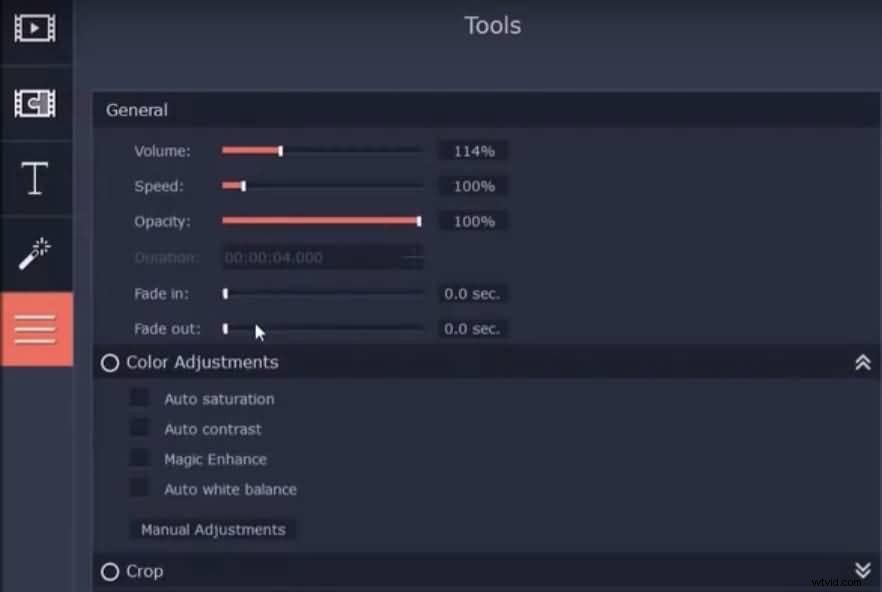
Double click on the overlay video to adjust its size and its position in the preview window, and proceed to adjust the settings such as 'Volume', 'Opacity', 'Fade In', 'Fade Out', 'Crop' among many others. Options like 'Volume' will not be available if you are working with photos, but photographs can be used effectively to demonstrate the things that are important for the story you are telling in your video.
4.Export video
Once you've made all the adjustments, click Export and select the output format for your video file and wait for your Picture in Picture video to be rendered.
A Better Way to Make PIP Videos with Movavi Video Editor's Alternative
Even though creating a PIP video with Movavi is a fairly simple process, an alternative video editing software may provide you with more options that will enable you to create better PIP videos. The Filmora video editing software provides many advantages over Movavi, including a faster and much easier way to produce PIP videos.
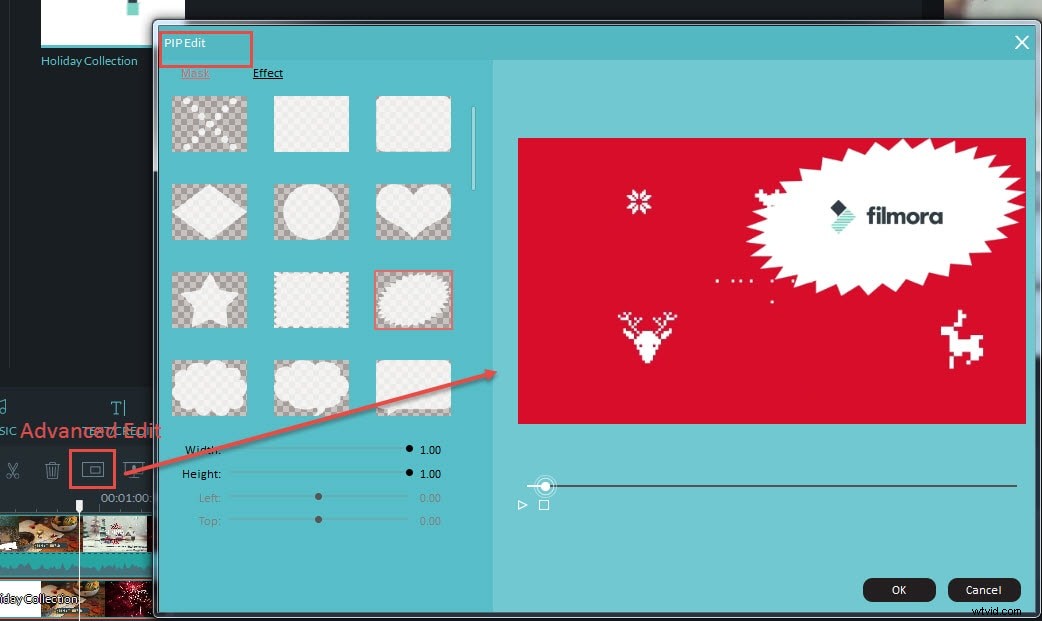
The Filmora video editor features an easy to use PIP track, that enables you to create PIP videos by simply dragging and dropping a video file you want to be superimposed over the background video. The background video, however, must be placed onto the editor's video track before you add the file to the PIP track. Once you've positioned the video files correctly, you will be able to see them in the preview window, where you can change the position of the second picture in the frame and adjust its size.
If you would like to have access to more advanced PIP options, you should consider modifying the PIP track. You can access the 'Motion Panel' by double-clicking on the video in the PIP track, once the panel is displayed on the monitor select the 'Advanced' option to gain access to more than 30 motion effects that will add animation to your PIP videos. Furthermore, masks will enable you to shape the overlay video in any way you want and thus create a more visually pleasing video.