
There are many different ways of creating visually engaging videos and adding an overlaying image over the background video is certainly one of them. The picture-in-picture effect can be used to narrate two different stories, provide important information to the video's viewer or protect your videos from the copyright infringements.
AVS Video Editor enables its owners to create PIP videos and in this article, we will show you how to add an overlaying video to the background video in this video editing software.
Making the Picture-in-Picture Video in AVS Video Editor
1. Adding the video clips to the timeline
When creating PIP videos, placing the video clips onto the correct tracks is of utmost importance. The video clip you want to use as a background must be placed onto the video track, while the superimposed video clip must be positioned on the editor's PIP track. If you are in doubt which track is which simply hover a mouse over it before adding files to it because this action will enable you to see what the track if for.
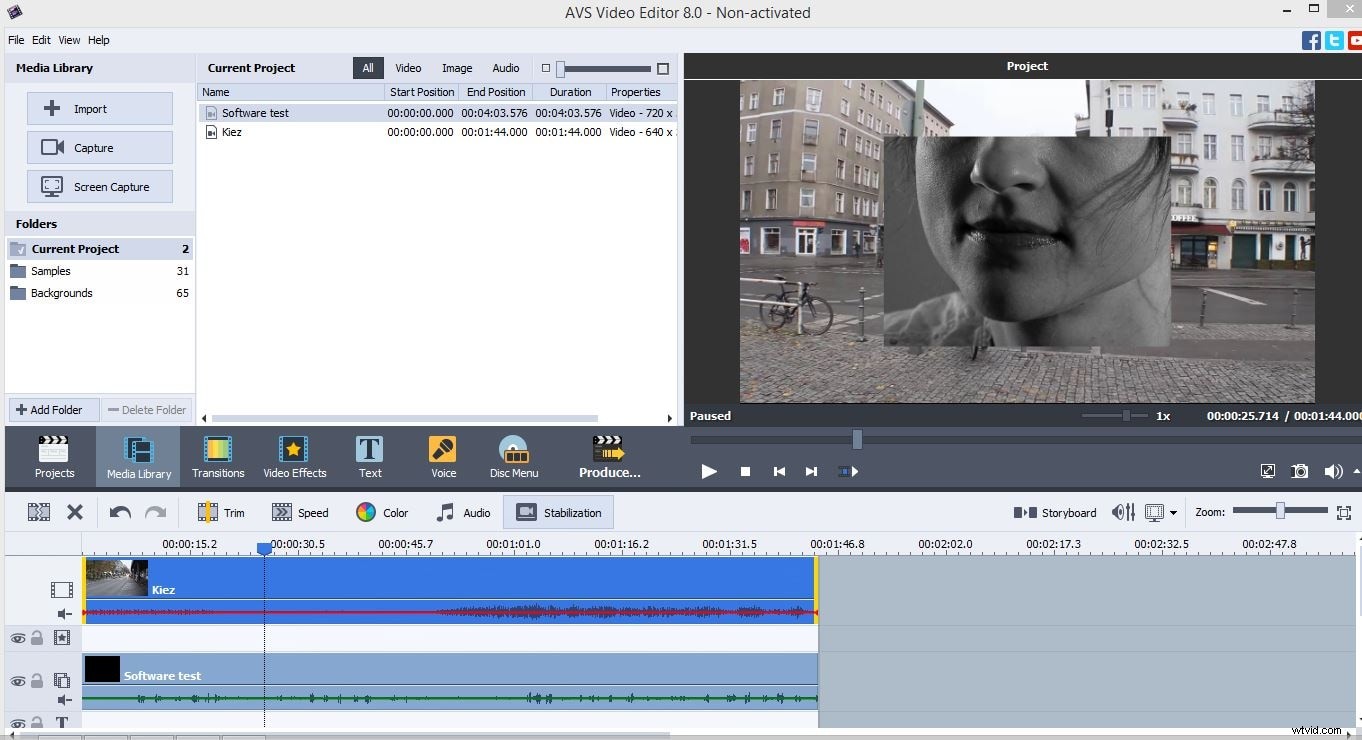
2. Adjusting the PIP settings
After you placed the overlaying video onto the PIP track in the editor's timeline, right-click on the video clip and select the 'Edit Overlay' option from the menu that emerges on the screen. Wait for the 'Video Overlay' window to appear and then proceed to adjust the size and the position of the superimposed video clip, by dragging it to the desired location and scaling its size by dragging one of its corners.
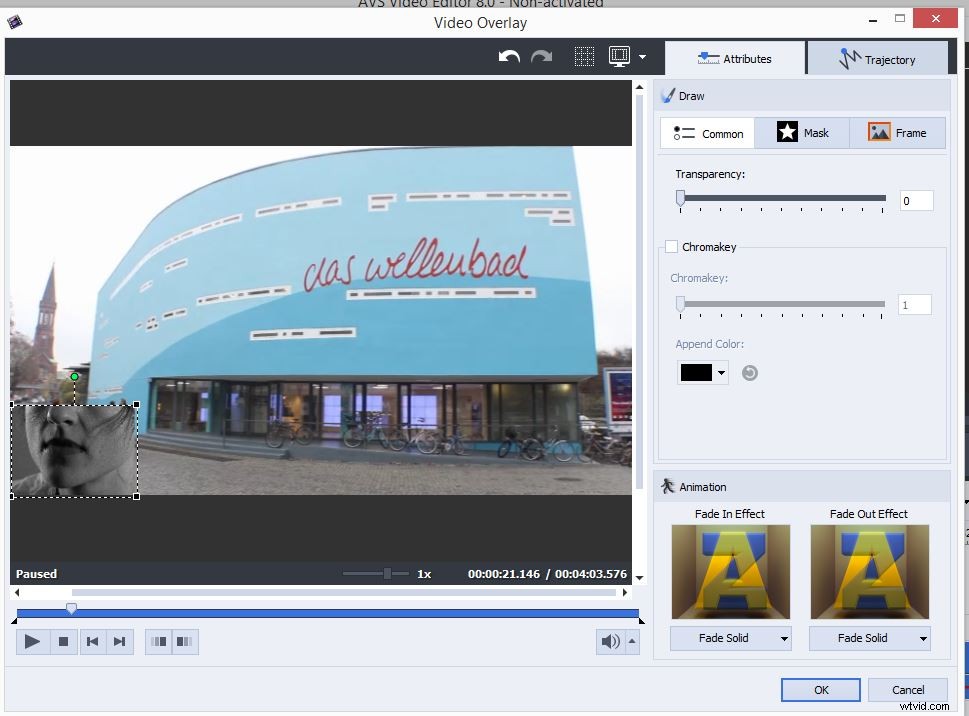
If you would like to apply visual effects to the overlaying video, click on the 'Mask' or 'Frame' tabs and select one out of many effects featured. Adding animation to your PIP video is also an easy task in AVS Video Editor, since the 'Video Overlay' window contains an animation section in which you can add 'Fade In' and 'Fade Out' effects, as well as many other motion effects that can help you to make a visually stunning PIP video.
Once you've adjusted all the settings, you need to click the 'OK' button to save those changes and proceed with the editing process.
A Simpler Way of Creating a PIP Video
Even though AVS Video Editor is designed for the newcomers to the video editing world, creating a PIP video with this video editing software isn't a task for an inexperienced video editor. On the other hand, creating PIP videos with Wondershare Filmora video editing software is an easy, simple and fun process that takes very little time.
In order to create a PIP video, users just need to place the background video onto the editor's video track, and the overlaying video should be positioned on the PIP track. Unlike the AVS Video Editor that offers just one PIP track, Filmora's users can use as many as ten different PIP tracks in their projects. Adjusting the size and position of the overlying video clip is easy in Wondershare's video editing software and users can choose from a large number of different masks and video effects that are very easily applied to the video.