

It’s been a minute since we last blogged about our mobile app, not that there was nothing to write about — quite the opposite. Our mobile app team’s been busy with several exciting updates, all in a quest to bring easy video editing to the palm of your hand.
So, what did you miss? Let’s jump right in and see.
Flexible text
Introducing flexible text — for when auto-captions alone just won’t do. Even though we love captions and how they improve accessibility, we understand they’re not always the right use of text for your video. Sometimes you need titles, often you’ll want to follow a TikTok trend, and other times your video doesn’t include speech to caption in the first place. Flexible text lets you add text (in your choice of fonts and colors) anywhere in your video!
Did we also mention flexible text can be animated and timed to your video editing? No? Well now we did, so make sure you play around with those features too.

Stock music and videos
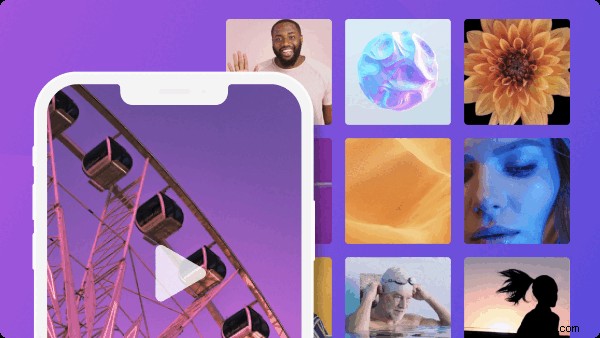
Stock music and videos need little introduction — we’re all familiar with how much they can enrich a video editing project. It’s a favorite feature amongst our desktop users and now it’s making its way to mobile! Now, you can add and edit high quality stock videos for visual impact or choose some stock music from our curated collection to soundtrack your creation.
Cropping, rotating, and aspect ratios
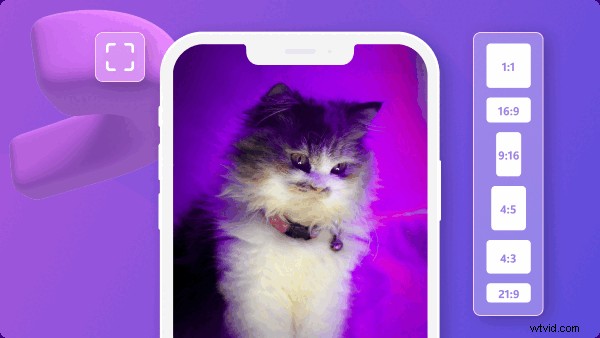
Sometimes the simplest additions create the most impact. Take these three for example: cropping, rotating and aspect ratios. First up — cropping. We’re introducing intuitive video cropping to our iOS app — simply pinch to reposition, zoom, or crop your video. Next — rotating. Easily select from a range of rotation options to put your video in a new perspective. Also — aspect ratios. Because not every video you create on your smartphone will be watched on one. Choose from a range of ratios, from 9:16 to 16:9 and everything in between.
Speed and volume editing
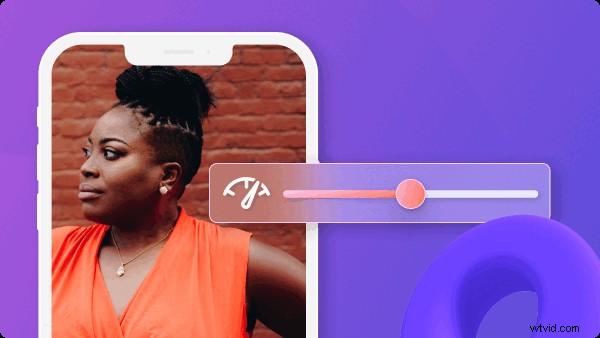
Finally, we’re excited to share some fundamental features we’ve introduced to our app. For the first time on Clipchamp iOS, you can slow down or speed up your video (0.1 x to 10x speed). This will do wonders for producing a slow-motion effect or creating a time lapse. Likewise, the ability to edit volume or mute your videos will be super handy for your projects.
Ready to rediscover our iOS app?
Our team’s genuinely excited about the progress our app has made over the last few months. We’re sure you’ll have a great time getting reacquainted with its original features, and exploring the newness introduced in this blog. If you haven’t downloaded our app already, you can do so in the App Store, or share your thoughts by leaving us a review.