
Shooting videos from any device whether it is a smartphone or camera can record a shaky video if you are not using a tripod or any other tool to stabilize the device. You can use so many tools to make your videos stabilized while recording them. But what if you have already recorded the video and it still shakes? Well, there is no need to worry about that. In this article, we are going to discuss how to remove shaking from videos to help you stabilize your shaky videos without making recording them again. You can find so many tips and tricks on the internet that tell you about stabilizing the videos while recording them but there is not an effective method on how to remove shaking from video on the internet.
You might be interested in:
- How to Make Annoying Orange Face
- Top 3 Websites to Make Annoying Orange Face
3 Ways to Stabilize your Shaky Video
For stabilizing your shaky video you will need to have Filmora X downloaded and installed on your PC because these 3 ways are tested on it and will work perfectly fine for Filmora X. We recommend Filmora X for the required results.
We know that it is very frustrating to record the same footage again for a stabilized version. But there is no need to record the video again. You can easily achieve a stabilized video with Filmora X. Stabilizing a shaky video seems to be a very hard task, but doesn't require any hard work or lengthy process to follow. You can achieve a stabilized video with any of these ways. You can try which one works best for you and apply them accordingly to your shaky videos.
- Stabilization
- Manual Adjustment
- Shaking Effects
Stabilization
This is the most effective and easy way to apply on your shaky videos. It helps stabilize the video by removing the pauses and unnecessary movement in a video. By smoothening the level of video, you will be making it look smoother even when it is not.
Features
- Easy to Use
- Apply with one click
- Automatic stabilization
Step-by-Step Guide
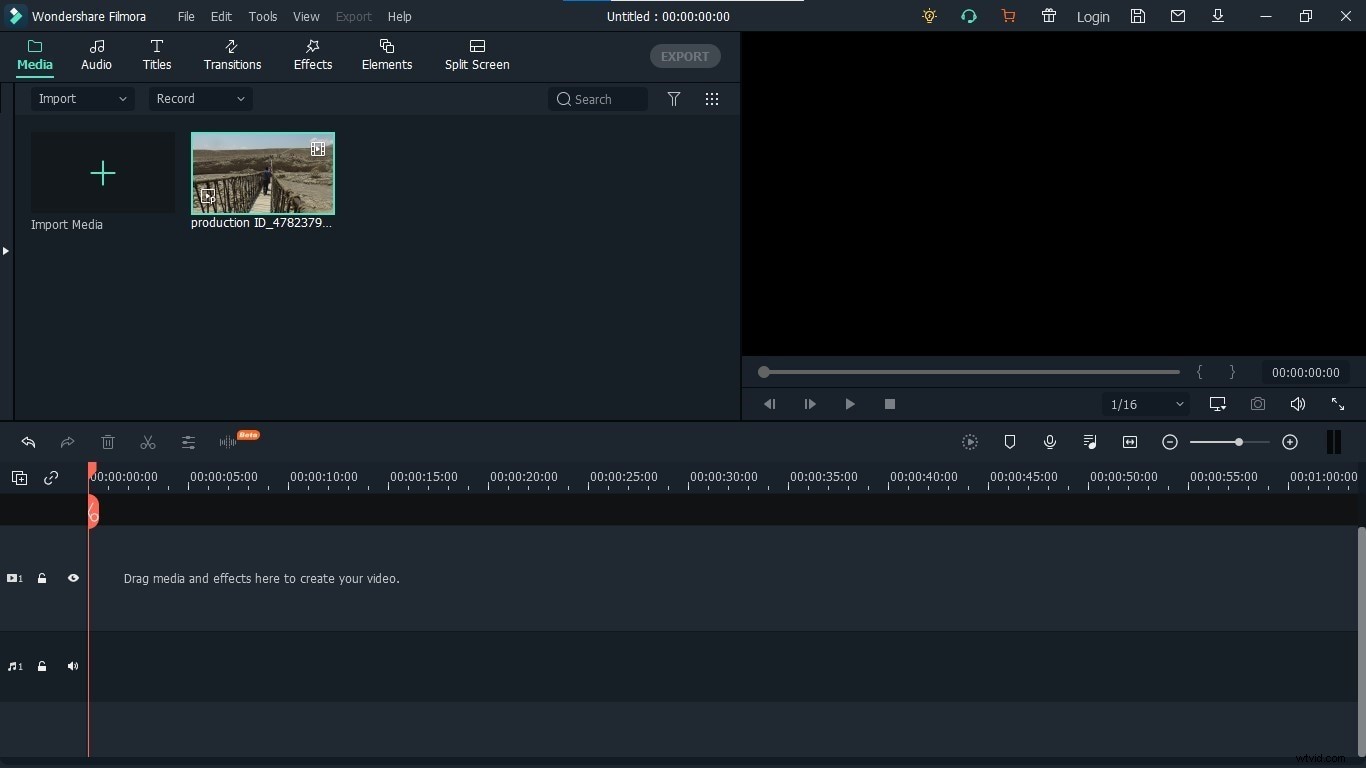
Step 1: To get started, open Filmora X on your PC and upload the footage you want to stabilize.
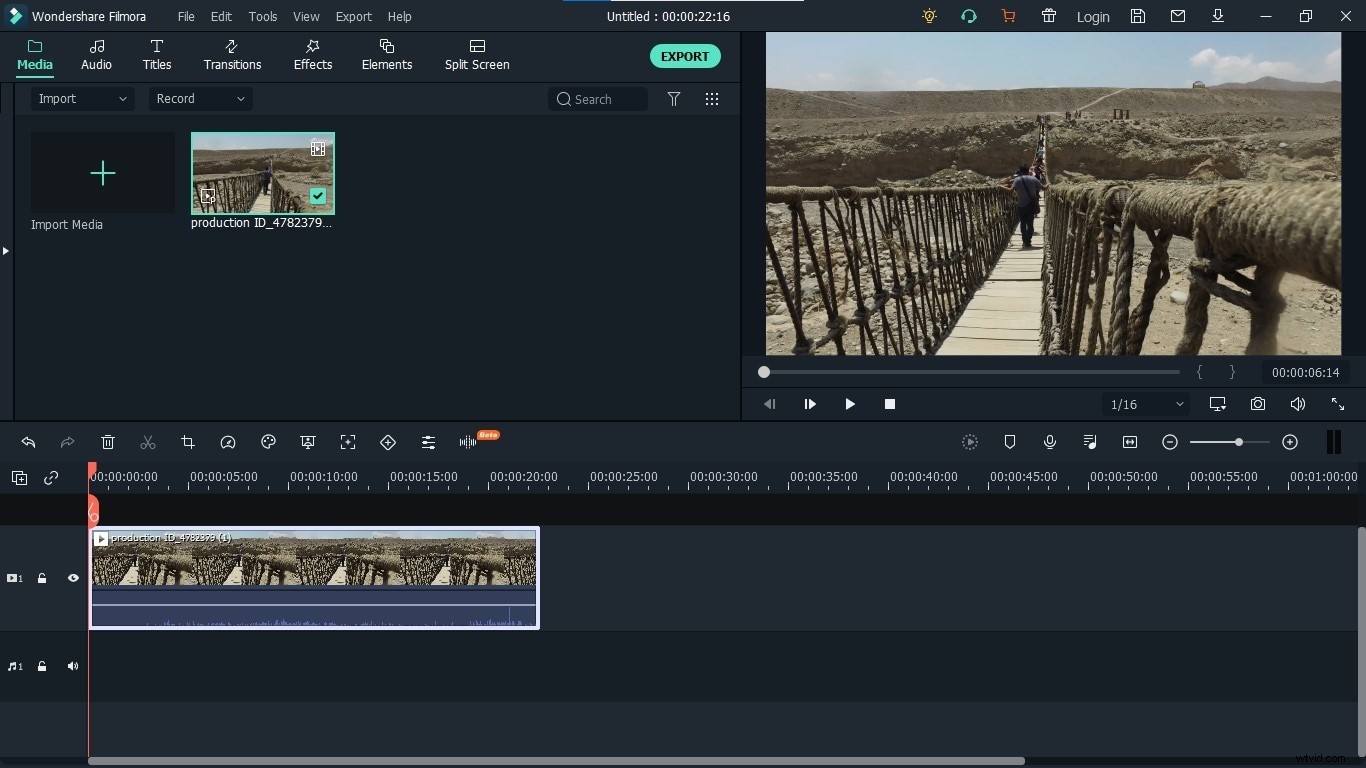
Step 2: Drag the footage into the timeline to enable its editing and other options.
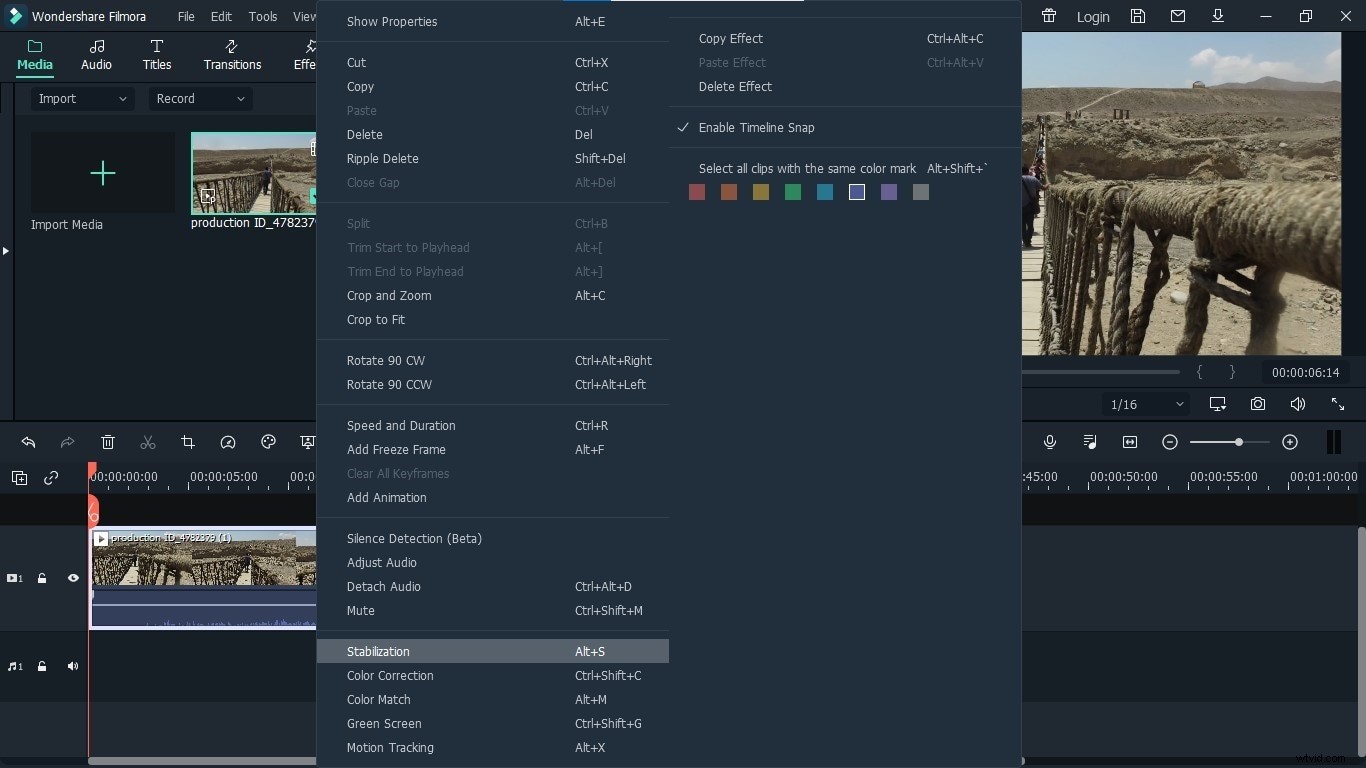
Step 3: Write click on the footage in the timeline and click on the stabilization to open the window.
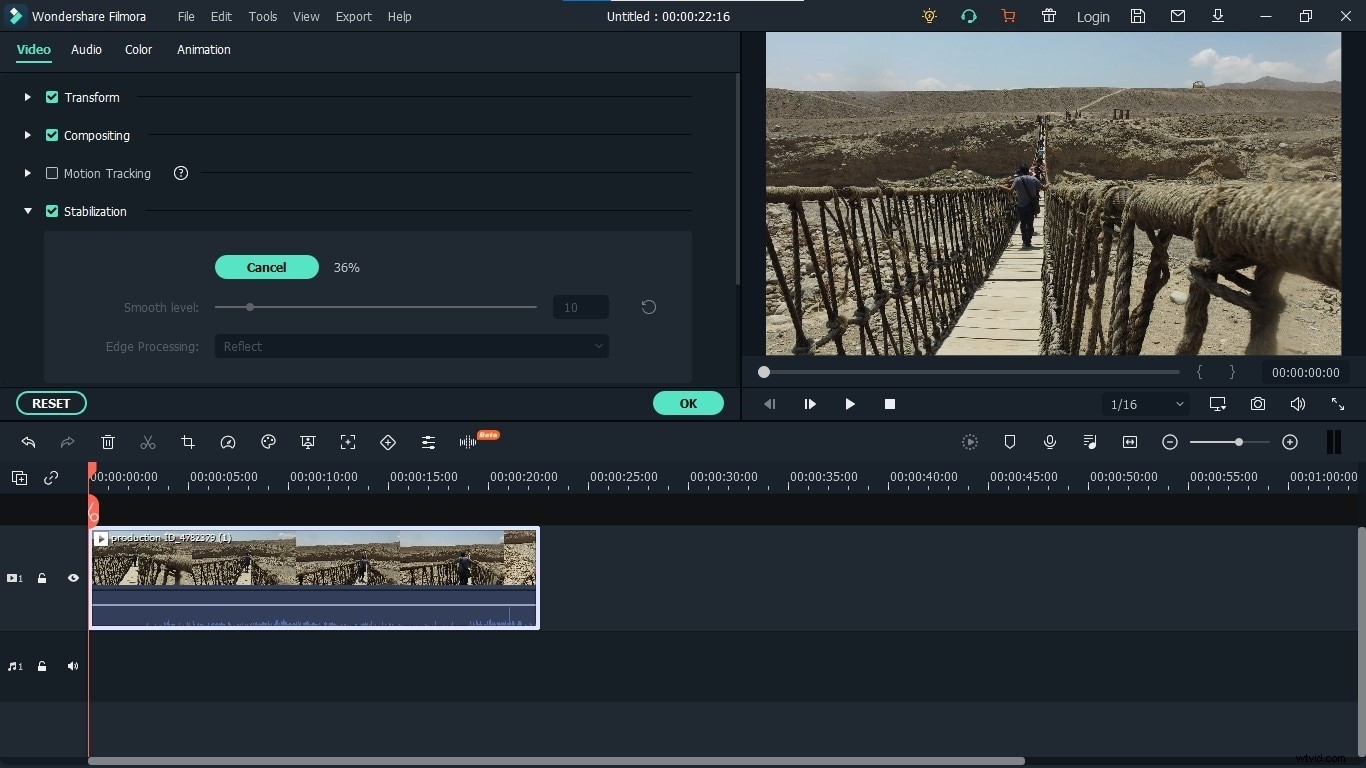
Step 4: When you click on stabilization a window will open up showing the option of increasing and decreasing smoothness level. It will take time to analyze your footage. Once the analysis of the video is complete, you can adjust the smoothness level of your video accordingly for your required results.
Manual Adjusting
This method is a bit direct and manual. This method is about adjusting the size of the video to make it look less shaky and stable. To apply this method, you have to follow these steps:
Step 1: To get started, open Filmora X on your PC and upload the footage you want to stabilize.
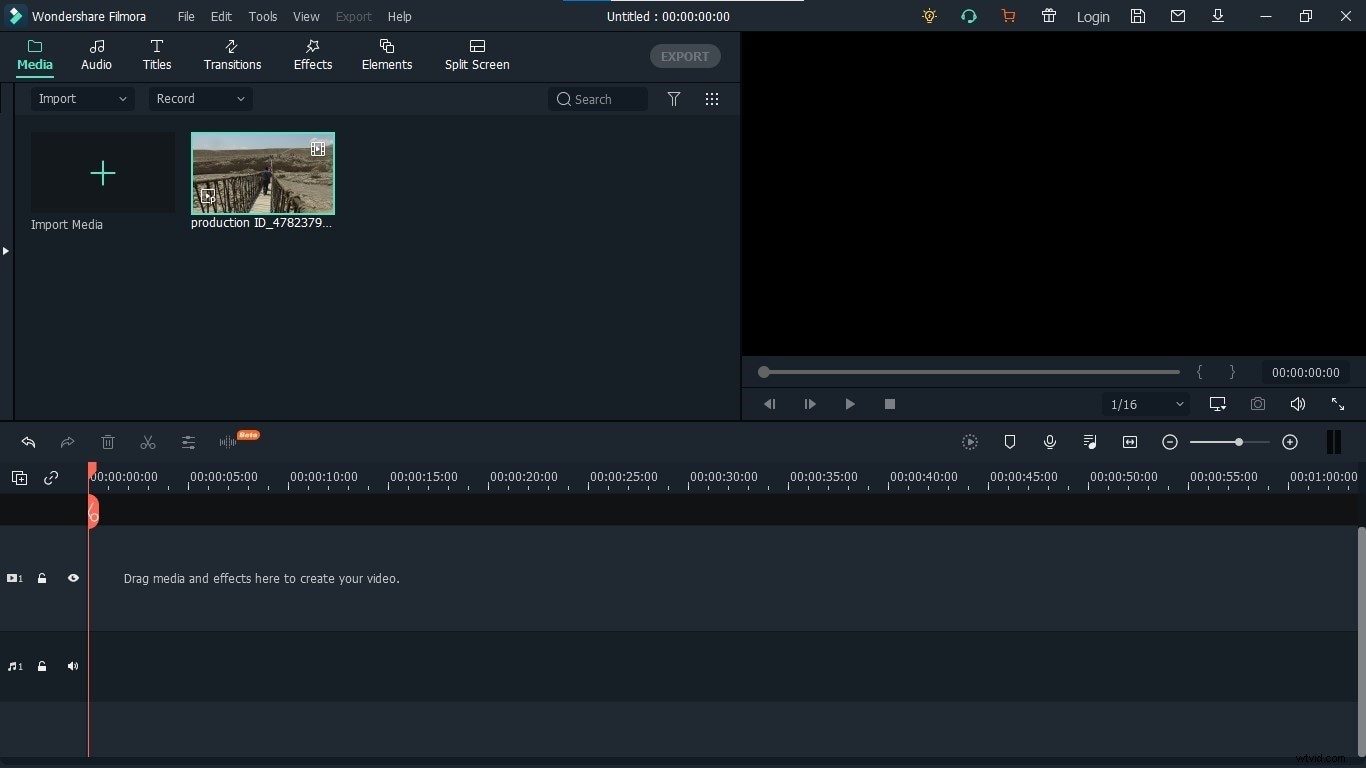
Step 2: Drag the footage into the timeline to enable its editing and other options.
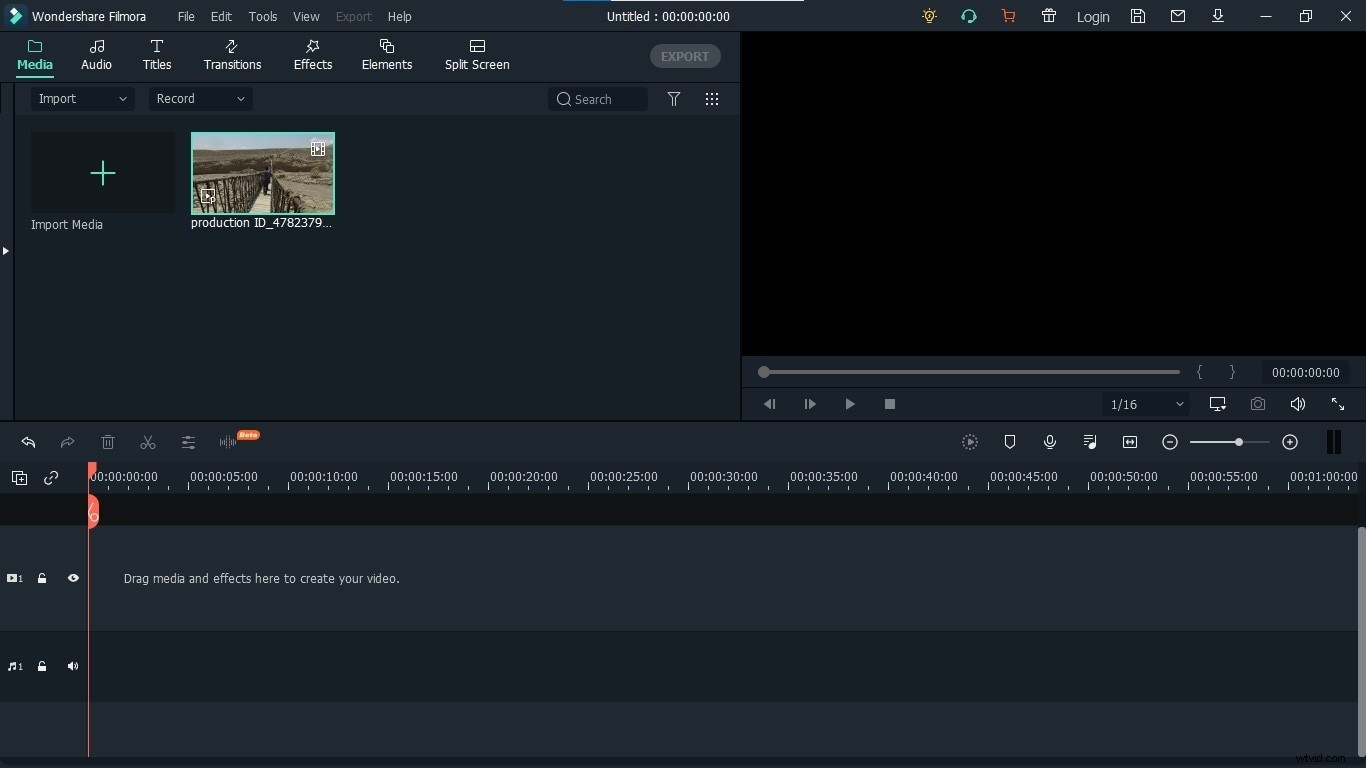
Step 3: Click on the video in the video preview section. It shows the handles of the video. Now drag those handles to change the size of the video and see which size works best for you.
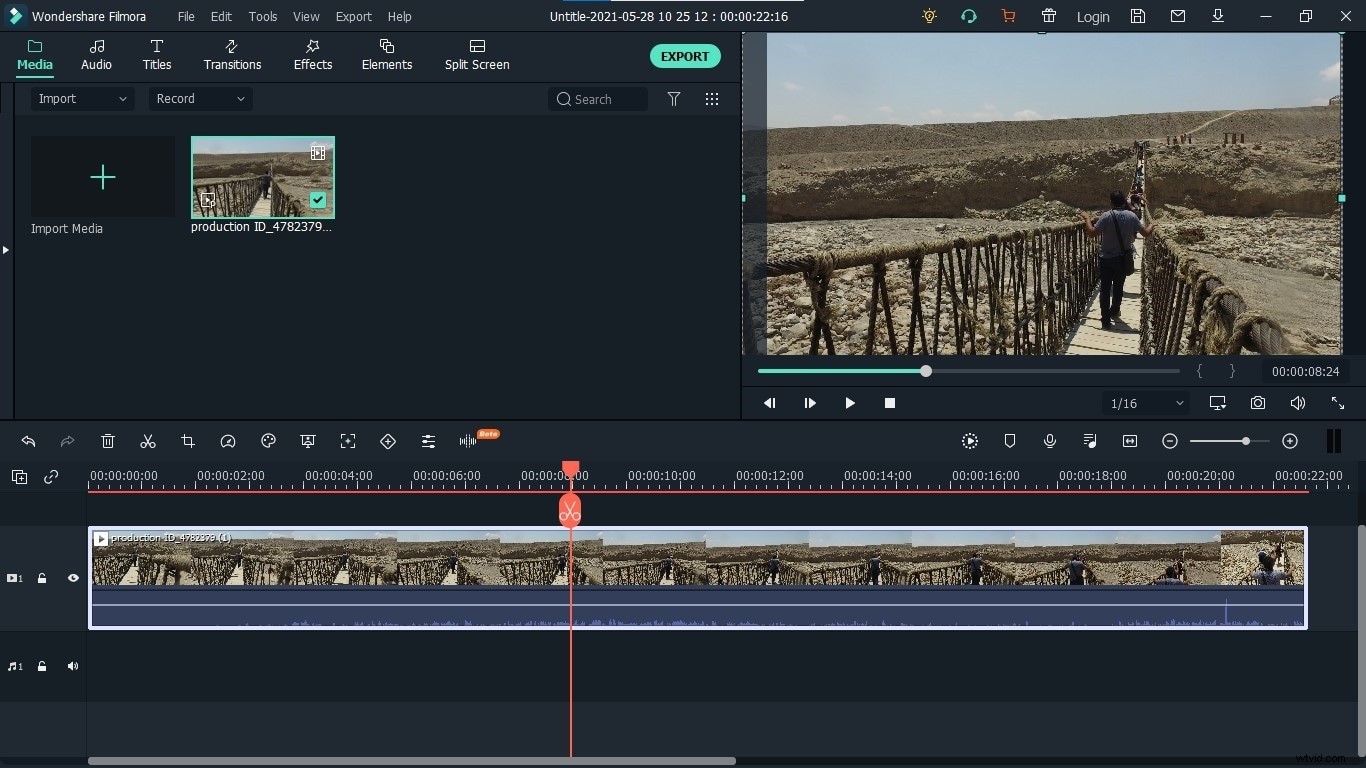
Shaking Effects
Last but not least is the method of using the Shaking Effect in your videos. This method is a bit strange and amusing at the same time. This method helps in making your video shake in a defined pattern to make it look intentional instead of a flaw or mistake. This method will hide the actual shakes of the videos and make it look like a shaking effect. To apply this effect follow these steps:
Step 1: To get started, open Filmora X on your PC and upload the footage you want to stabilize.
Step 2: Drag the footage into the timeline to enable its editing and other options.
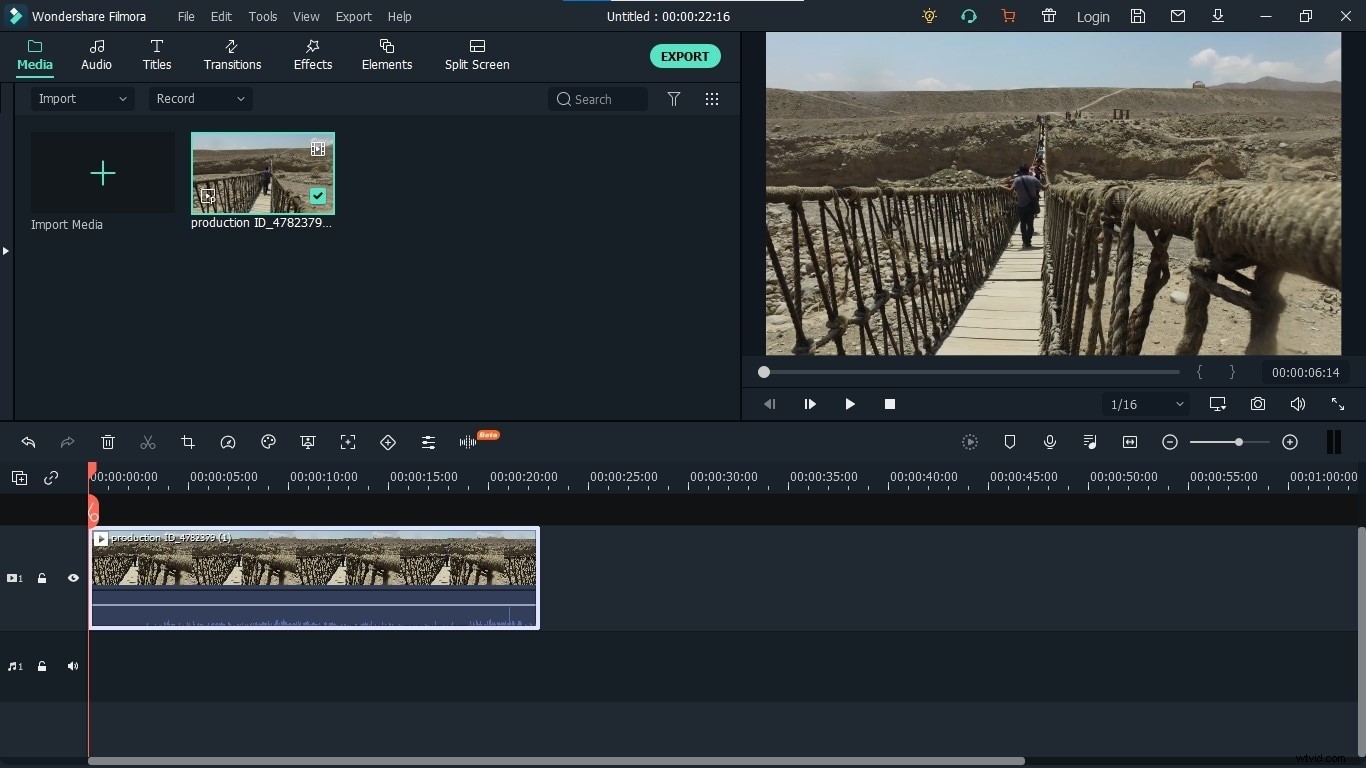
Step 3: Now click on the effects on the top of the screen, to open all the effects of Filmora.
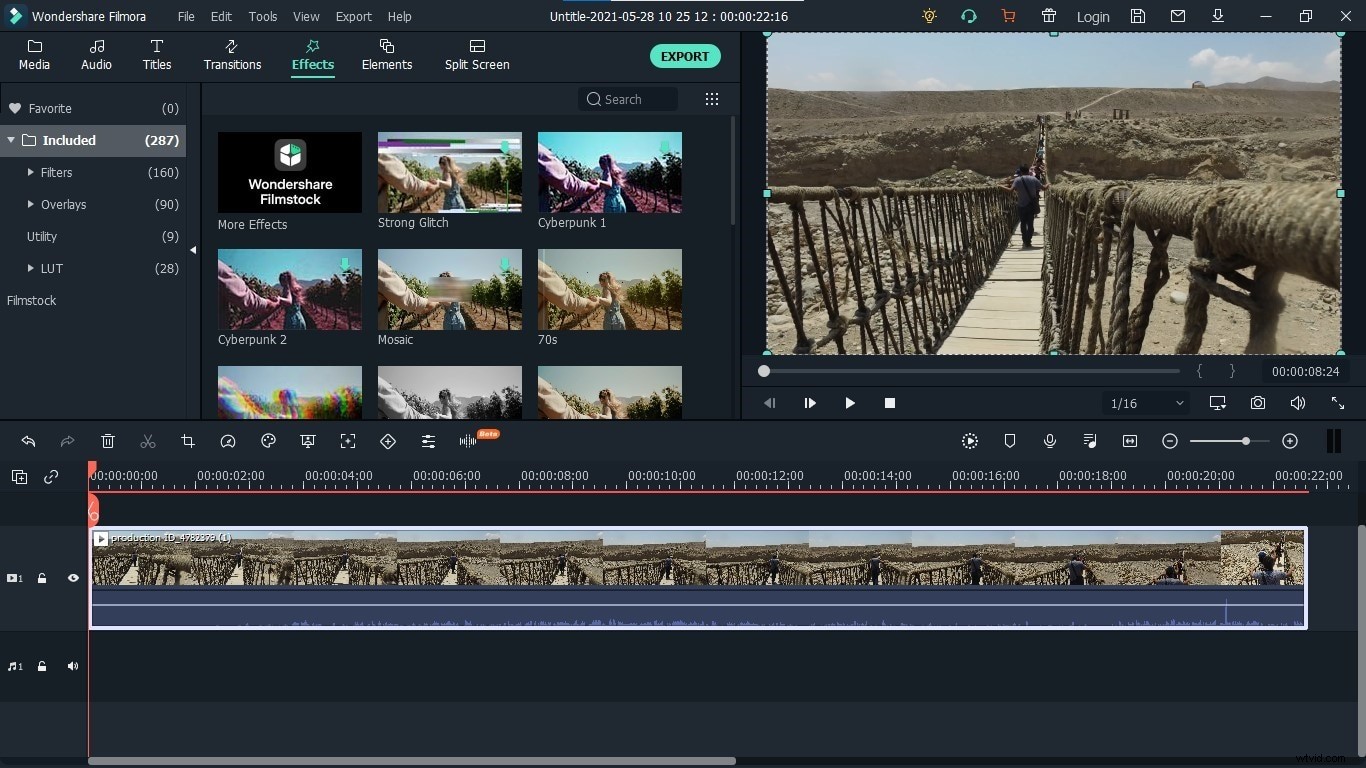
Step 4: Go to the Filters and then Shake. These are the effects that provide your videos a cool shaky look. Look at each of these effects and select one which you like the most.
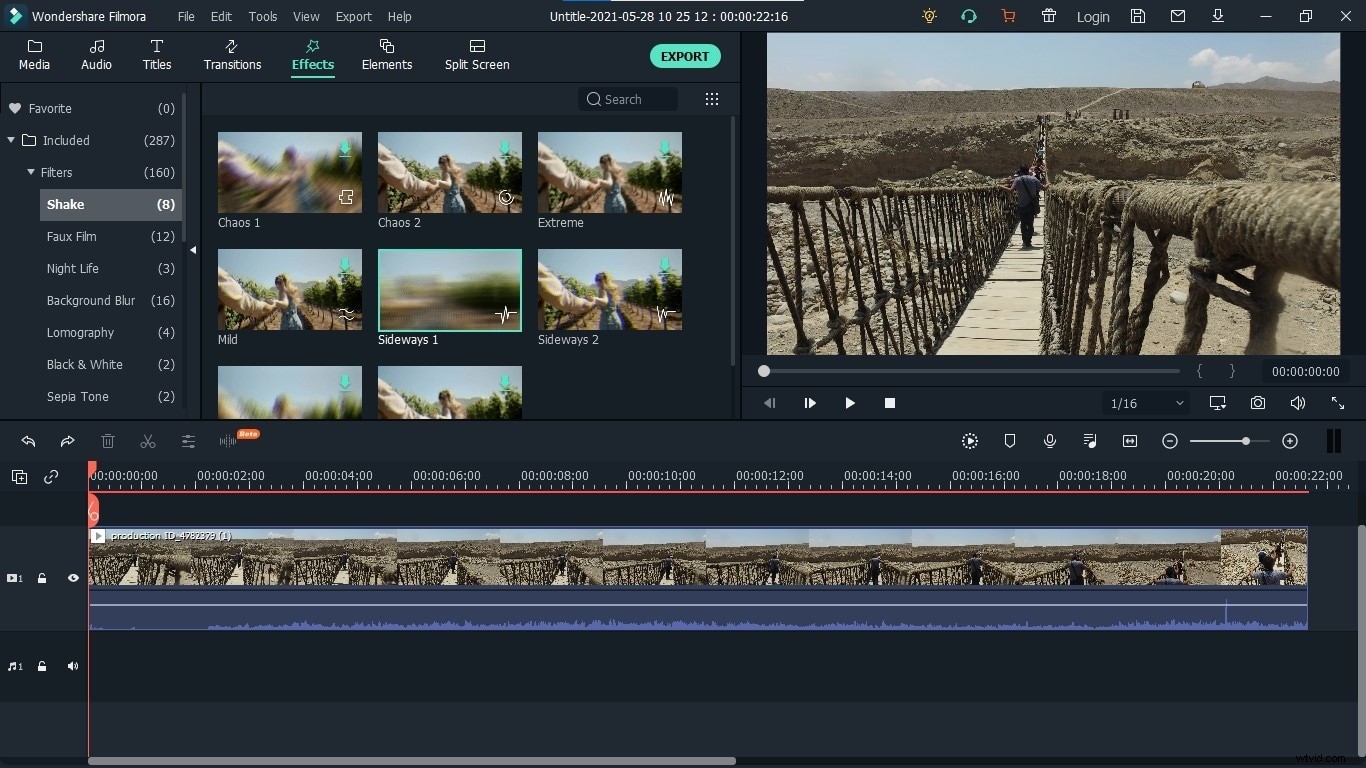
Step 5: After deciding which one to use in your video, you have to drag and drop that effect into the video on the timeline to apply it to your video. The effect has successfully added to your video.
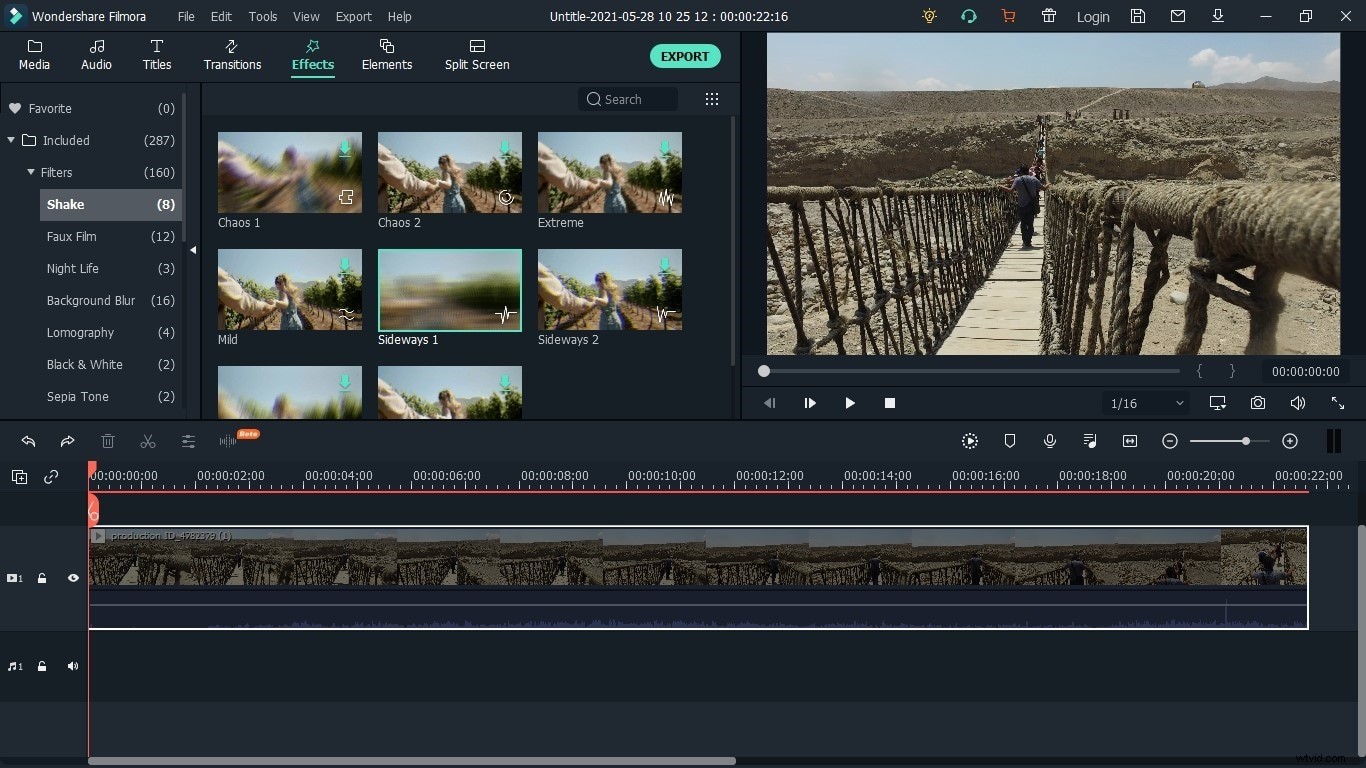
This intentional and aesthetic shake will hide the actual and unfavorable shake of your video and make it look stunning.
Conclusion
Shaky video is a common problem faced by every individual. These shakes can be avoided either while recording a video or after recording a video. Controlling these shakes while recording the video is quite easy and simple. It can be achieved by using tripods and other tools to reduce the movement. But the real challenge is to stabilize a shaking video after it is recorded. These 3 ways provide you with the best methods on how to remove shaking from video. All these methods can be perfectly implemented using Filmora X. Filmora X provides you with full control over your videos and footage. Out of its several other features, stabilizing a shaking video is one of the quite interesting features it provides to its users. Choose any one of these three methods that best suits your video condition and type.