
Video marketing is one of the useful tools to assist potential buyers to learn about a product. Over 90% of social media marketers use videos in increasing user understanding of a product or service. However, video content has to be adjusted based on the social media platform as aspect ratios vary for Facebook, Instagram, YouTube, Email and other platforms.
Video aspect ratios are one of the most important creative decisions a video marketer or editor makes, that is why they need to discover ways to resize videos. In this blog series, we have discussed the procedure to quickly and smartly resize videos for Mac.
How to Smartly Resize Videos with Wondershare Filmora for Mac?
Wondershare Filmora is one of the most useful video editing tools for users enabling them to create an interesting and powerful variety of videos. It has a very easy-to-use interface and intuitive design, making it one of the most selected editing tools. In Wondershare Filmora’s latest software for Mac V10.2, the Auto Reframe feature enables users to manually resize their videos. It has an automated and smart cropping option with an extensive range of split-screen templates.
It can be really time-consuming to crop videos. With the Al-powered Auto reframe feature in Wondershare Filmora 10.2, you can save your valuable editing time. You can now do editing in a few minutes as this latest feature in the software can detect any moving option and automatically crop it to instantly adjust as per different aspect ratios.
Basically, there are two methods to apply the Auto Reframe feature in Filmora for Mac.
Method 1:
Download Filmora on your Mac Device, select Auto Reframe under the More Tools option.
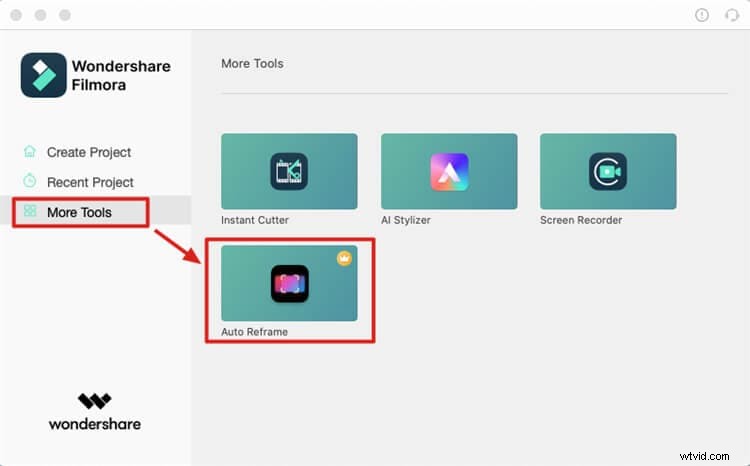
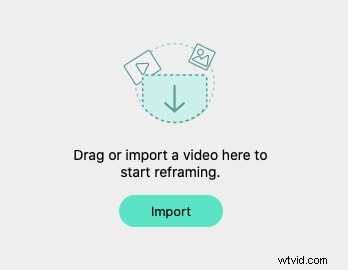
After selecting the Auto Reframe option, import the clip that you want to crop or hit the Import button.
Method 2:
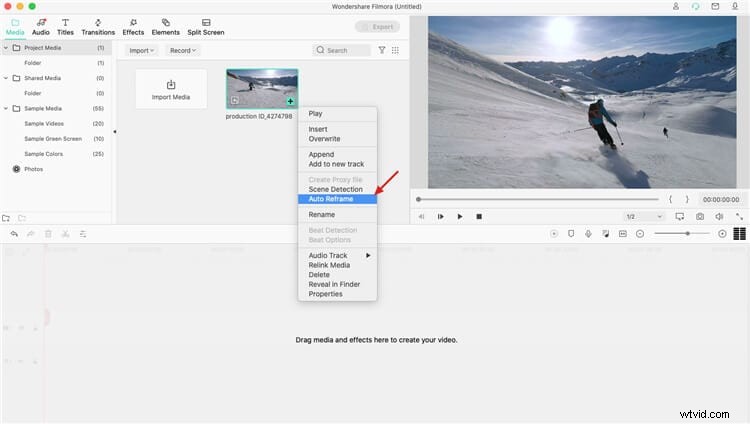
Select “Create Project”. Import the clip in the media area, right click on it and select Auto Reframe from the pop-up menu. You will see that the clip will automatically be added to the Auto Reframe tool.
After importing the video clip into the tool, follow the below steps to crop it automatically for different aspect ratios.
Step 1: Choose the Required Aspect Ratio
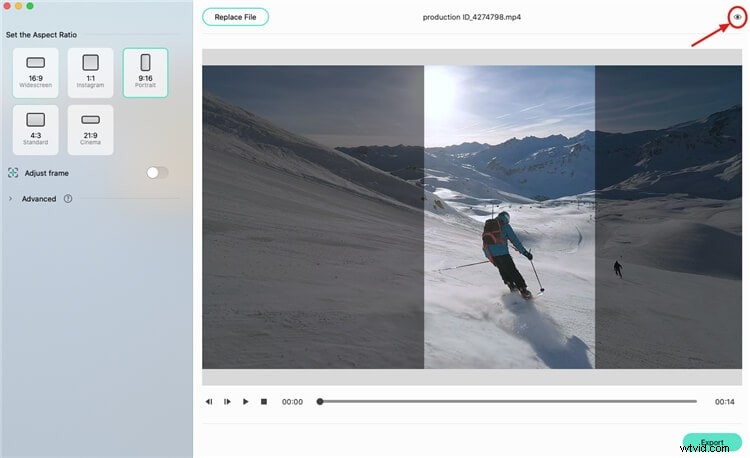
Basically, there are five different video aspect ratios from which you need to select. Reframing will begin automatically as soon as you select the required aspect ratio. Here are the aspect ratio options:
- Square (1:1)
- Standard (4:3)
- Vertical (9:16)
- Cinema (21:9)
- Widescreen (16:9)
You will be able to view the preview window as soon as the reframing begins. However, the editor will not be able to see the outside frame at this point. If you want to see the whole video screen, you can click on the eye icon which is right in the upper corner.
Step 2: Frame Adjustment
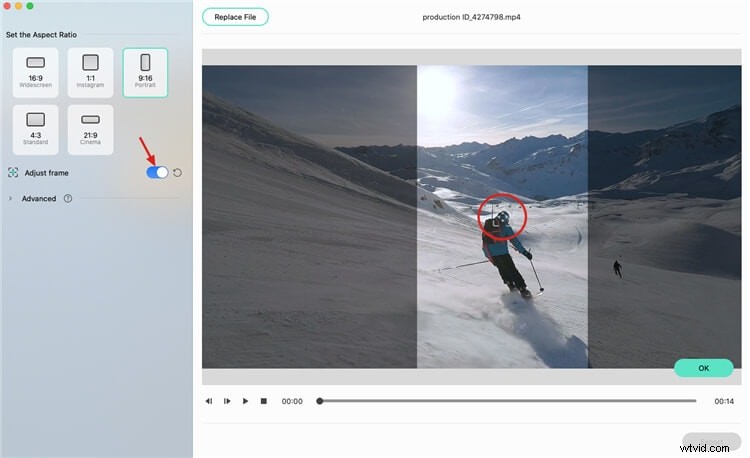
If you want to adjust the frame, click the “Adjust frame” option on the right and drag the crop box to fix it. Adjust the frame as per your requirements and hit the “OK” button to implement all the changes.
Step 3: Change the Tracking Subject and Speed
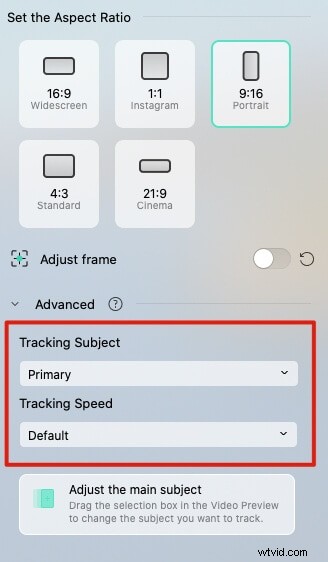
Under the “Adjust frame”, click on the “Advanced” tab and adjust the tracking subject and speed. You can select to adjust the tracking speed or track the secondary subject.
Step 4: Export the Clip
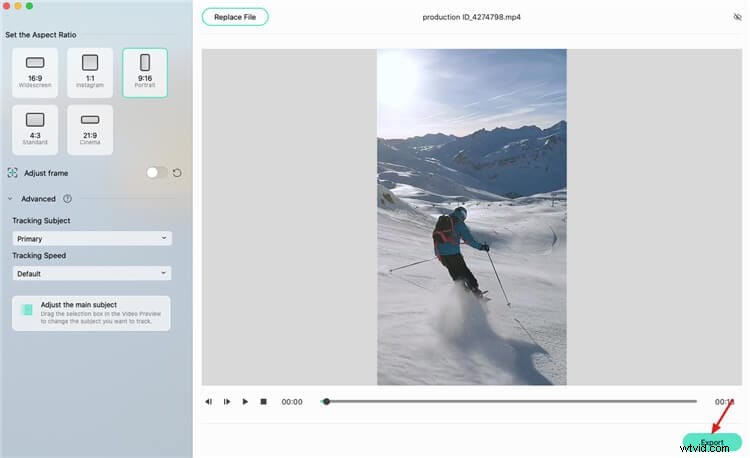
Once you are done with the reframing and other adjustments, you can hit the “Export” button to save your work.
Step 5: Save the File
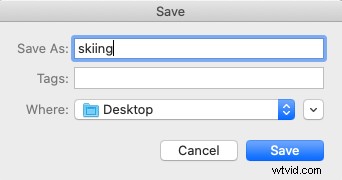
To save the file, enter its name, choose the location folder, and then click on “Save” button.
Step 6: Upload the Video
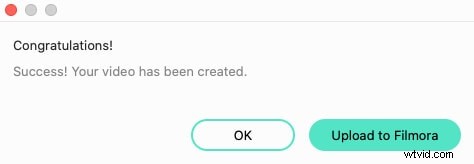
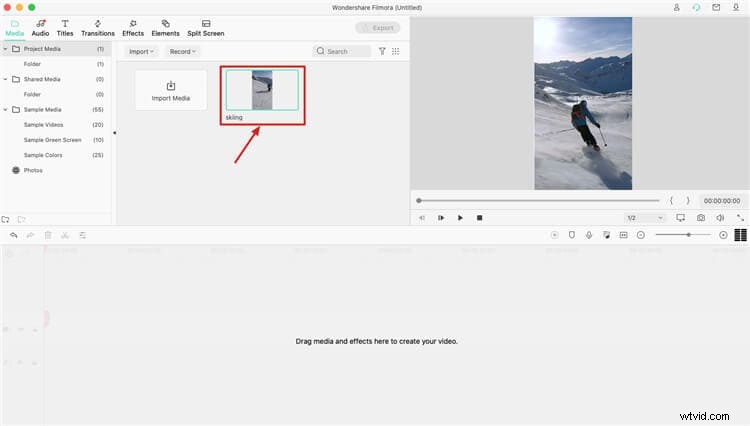
Hit the “Upload to Filmora” button as soon as the video is created. As soon as you take this step, the video clip will be automatically imported to the media window in Filmora.
Step 7: Do More Editing
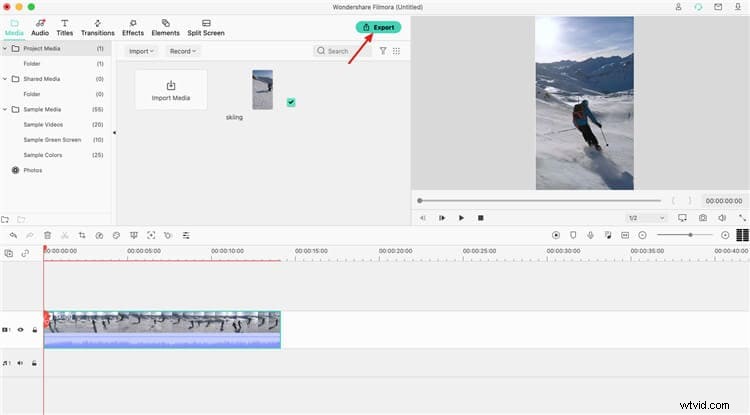
Do the required editing after dragging the clip to the timeline for further editing. You can add different music, effects, titles or transitions to make it attractive and appealing.
Step 8: Export the Video
Once the editing is completed, you can click on the “Export” button to save the clip and share it further.
Note: The exciting feature of Auto Reframe is temporarily available for Filmora Mac and is coming soon for Filmora Windows too. You can find more information about this new feature here.
Alternative Way to Smartly Resize Videos for Different Aspect Ratios
Video Converter, Editor, Recorder, Transfer, Compressor – this is the description of Wondershare Uniconverter, the video toolbox you can use to manipulate your videos in almost every way you would like to. It reads in UniConverter 2022’s description: VIDEO CONVERTER FOR YOUR EVERY NEED, so, this means there are a lot of features the toolbox offers to its users. Anyway, in this article, we are going to concentrate on resizing videos, which can be one of the most important things when it comes to video editing – even though when we have a lot of videos we need to resize, there are ways to do it quickly and smartly, so, let’s discover how to do this in Wondershare Uniconverter, which gives us the opportunity to modify our content online and free!
First, of course, you will have downloaded and installed Wondershare UniConverter software.
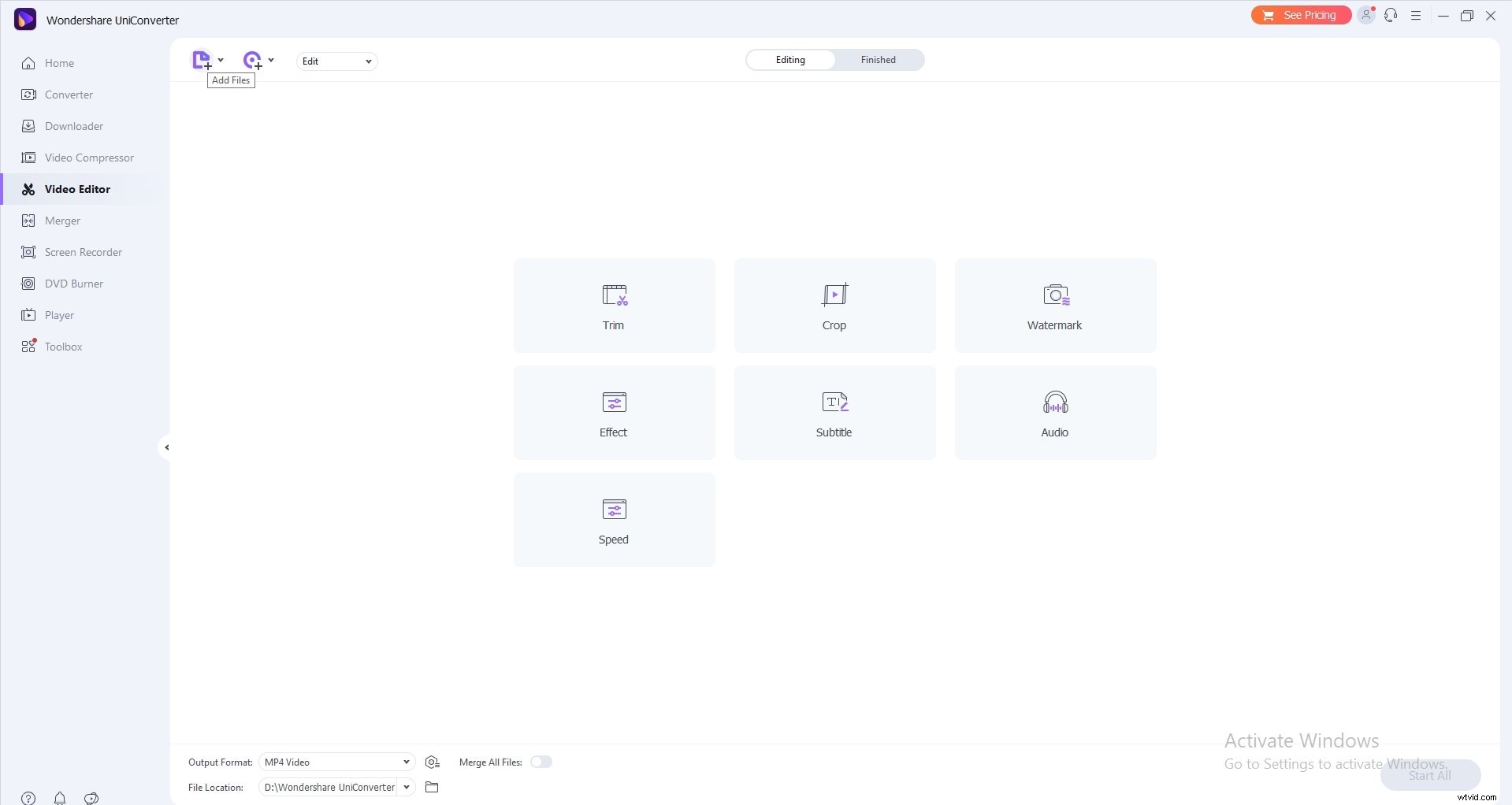
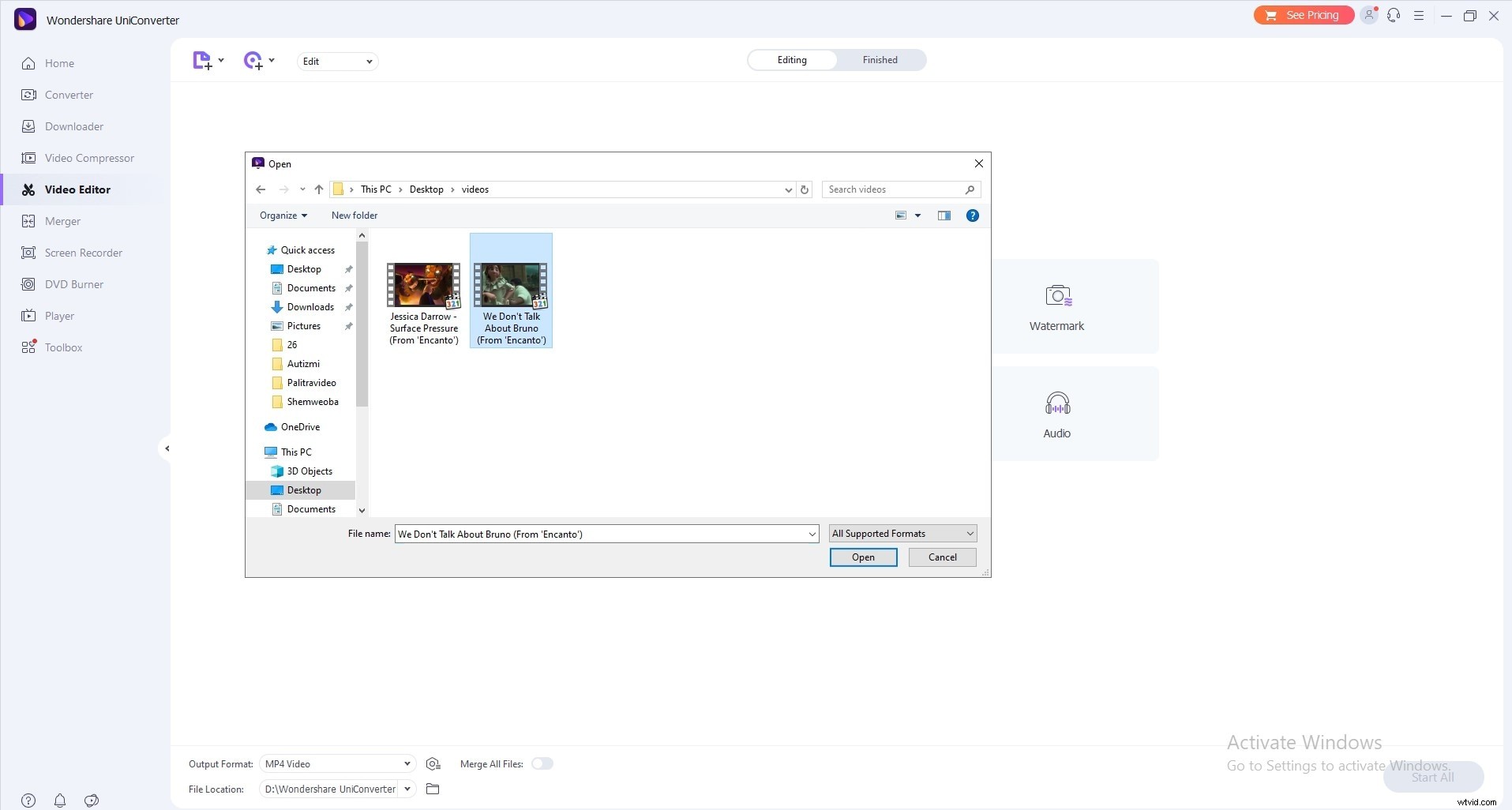
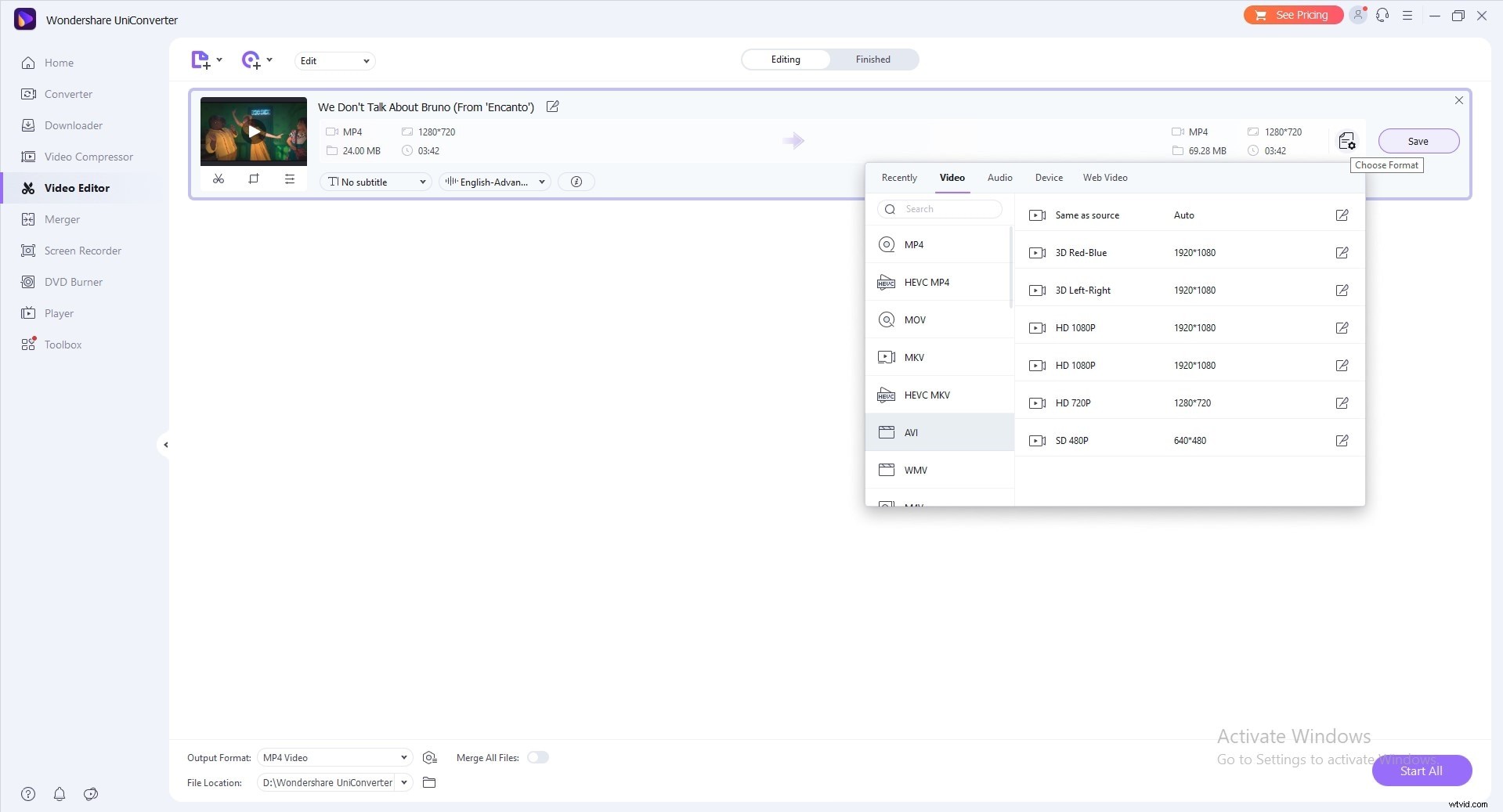
After opening it, add the video that you want to resize and then change the file format from the top right corner where it reads: Convert the file to… click on create custom and adjust following settings: screen resolution, aspect ratio (the main one for this topic), bitrate, and audio/video quality.
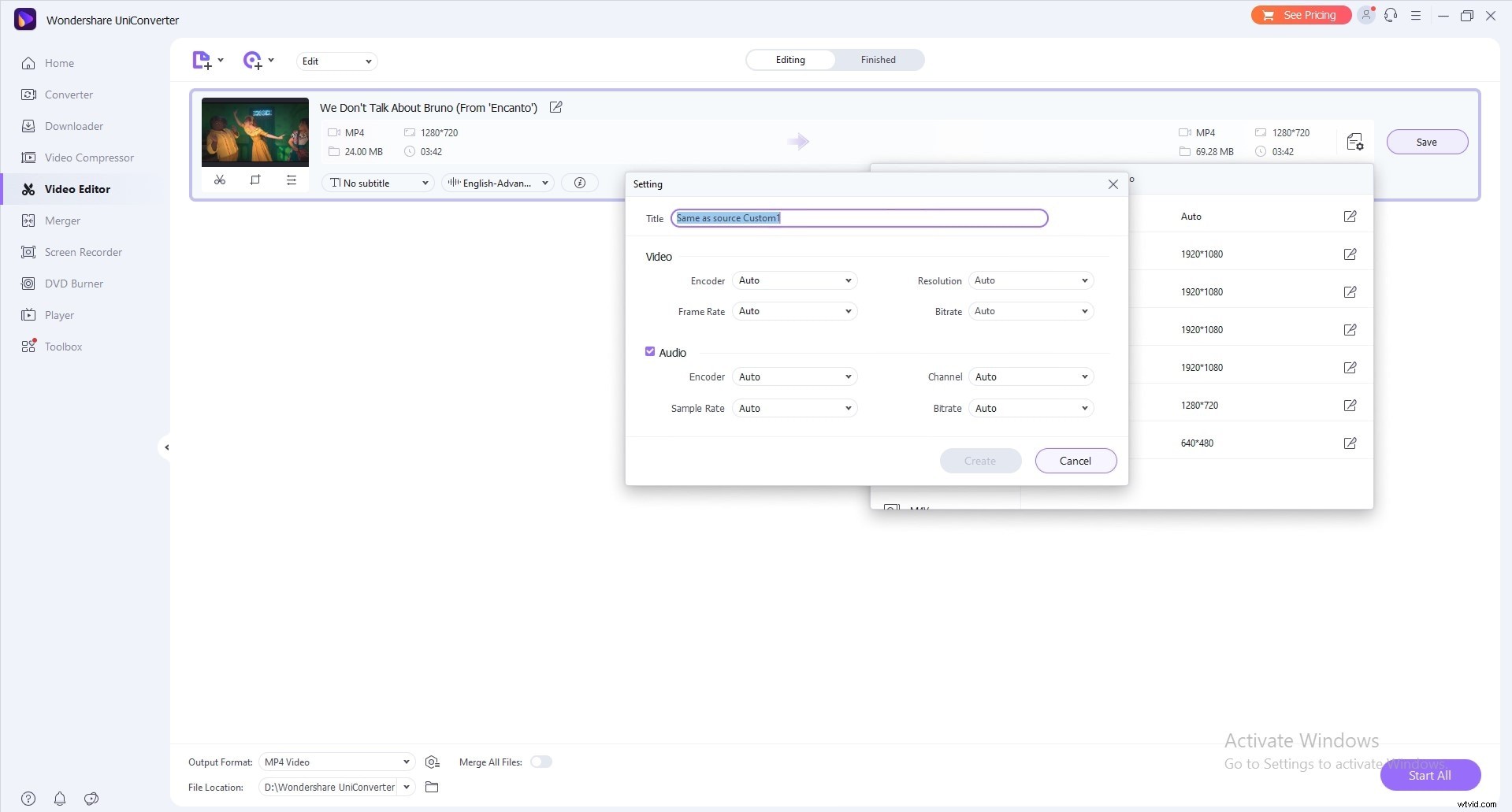
Then, find the location to save the output video and click on convert to resize the video. So, here we are and it’s finished!
Tips to Create Videos for Different Social Media Platforms
With over 80% of the social media marketers using visuals to promote their product and services, digital videos continue to push boundaries. To assist you in creating social media videos, here are a few tips that all editors must follow to come up with a video that is worth watching.
- Always form a content strategy before making videos
- Ensure keeping your videos to the point
- Hook the viewers in the first few seconds’ shot
- Include subtitles if the video has a conversation
- Use an external microphone
- Try aiming for natural lighting
- Build focus on the story
- Conclude with a call-to-action
- Optimize or resize the video for different platforms
- Use a good video editor
Final Word
Good video and visual marketing improve the level of trust and connection between brands, enhance lead generation, develop brand loyalty, and stimulate relevant conversations. However, it is necessary to add a suitable sized video on every platform. For that purpose, editors require a reliable video editing software tool for smart resize. One such software tool is Wondershare Filmora which can be convenient for both beginners and veteran video editors. Download it today and amaze your viewers!