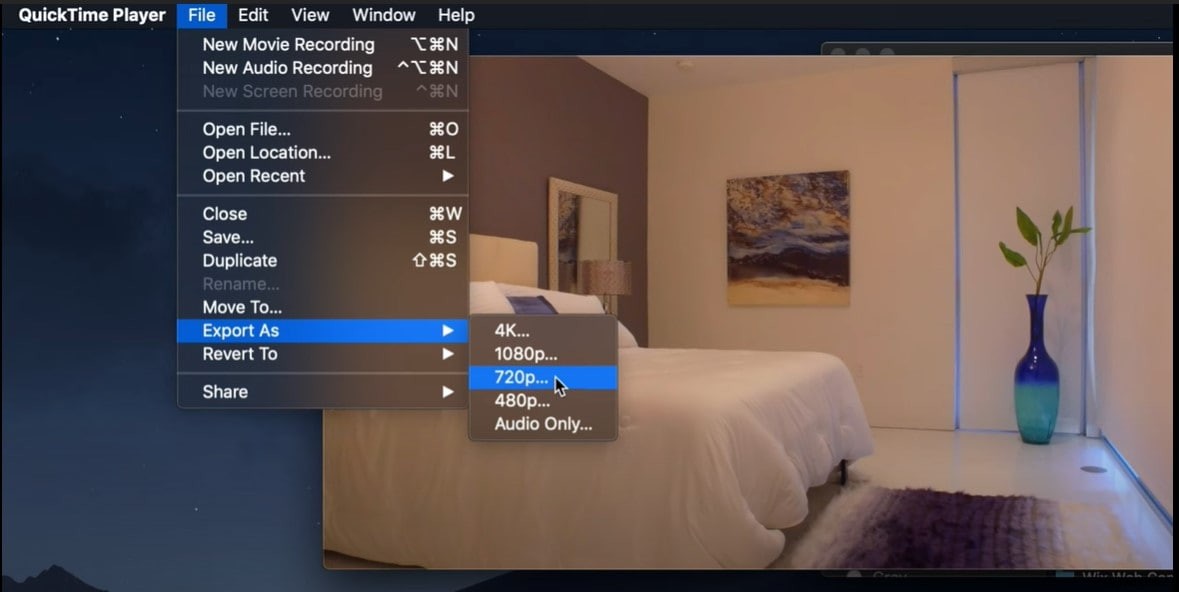
Occasionally, you may find your video screen size is too big to be uploaded to YouTube and Facebook, or you need to enlarge a small video to fill up your large monitor. So you may need to resize it and change the screen resolution.
To resize video on Mac’s latest operating system OS X 10.9 Mavericks, you can either change video screen size and format or crop your video. No matter what choice you make, you can install Filmora for Mac(Originally Wondershare Video Editor for Mac). This video resizer for Mavericks enables you to customize the video settings by yourself visually and you can also save your video to different formats, thus you can easily resize your videos. In this tutorial, let’s see how you can resize your video on Mavericks.
How to Resize Video on OS X Mavericks
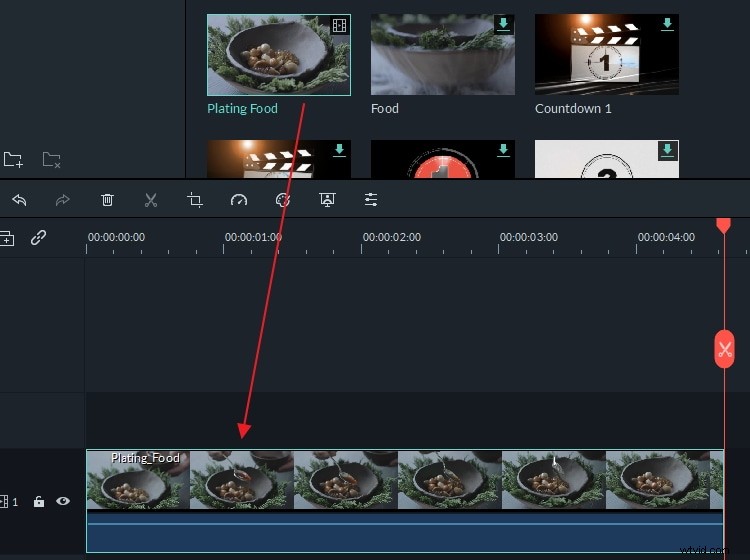
1. Install this video resizer for Mavericks and add your files to it
Download and install video resizer for Mavericks, go to File > Add Files and select files from the media browser. You can also directly drag and drop your files to the timeline.
2. Resizing video by changing video resolution or format
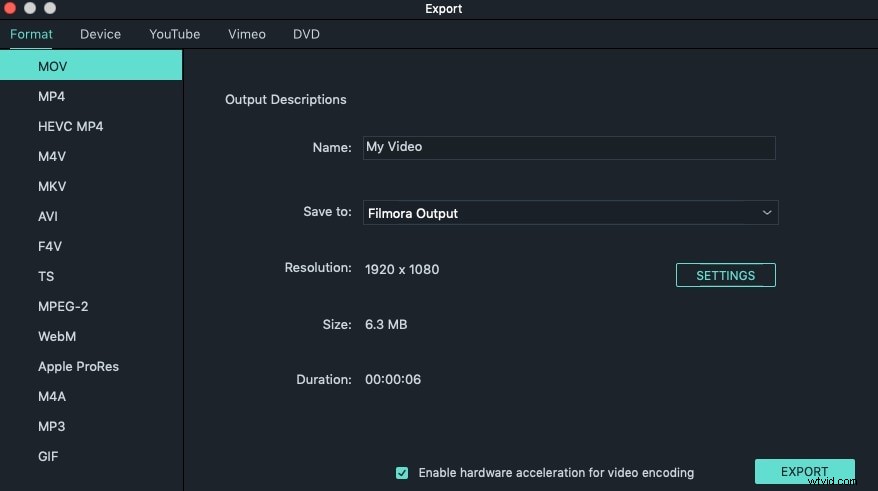
The most effective and easy way to resize a video is to change the video resolution. This can easily be achieved by Video Editor. After importing your files to the program, directly hit the "Export" button on the right side of the toolbar and go to the "Format" tab. You can click the Format list and choose a suitable format. Or change the settings of resolution, frame rate, bit rate, encoder, sample rate, etc. For example, by changing the resolution to 320x240 resolution, and reduce the video frame rate 15 fps, a FLV video of about 3 minutes will be exported to an 18MB FLV file. Not enough? Lower the bit rate and/or frame rate to get a smaller output file if your source video is long.
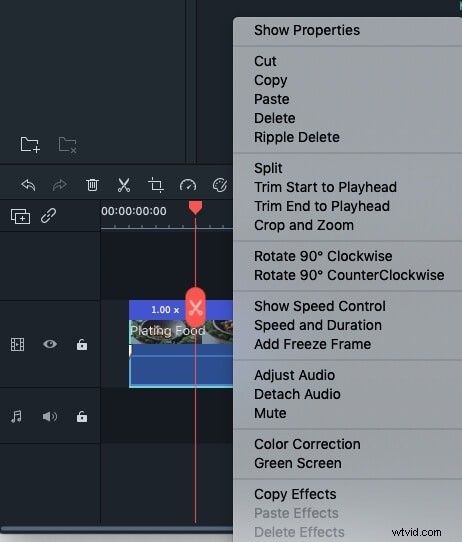
3. Resizing videos by cropping
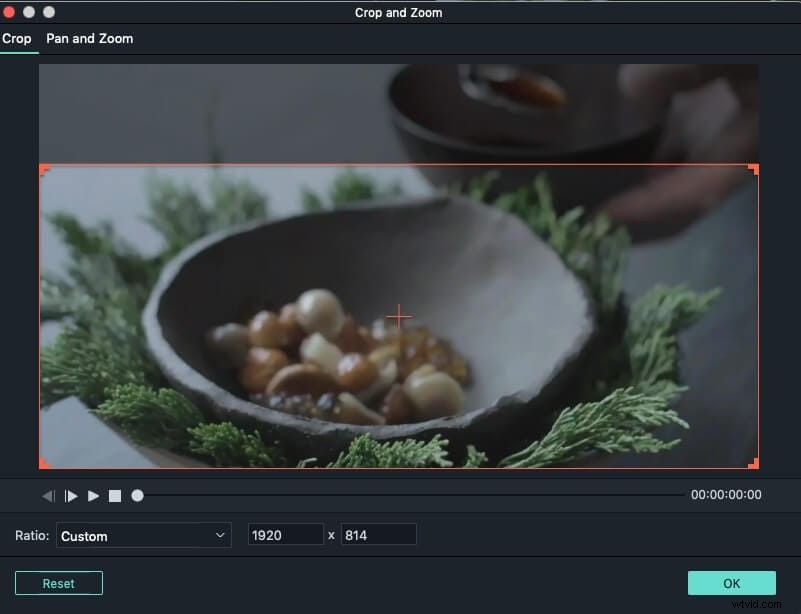
Another way to resize a video file is to crop it. To do it, highlight the target video file and click the "Crop" button. Then the editing window will pop up for you to crop videos. Here are 3 options for you: manually select the marquee, keep the marquee in 16:9 or 4:3 aspect radio. Choose a desirable way to crop your videos.
4. Export your video
No matter which way you choose, click "Export" then "Create" to save your file. Video Editor will finish the rest automatically.
Get to know more about Filmora for Mac:
An Alternative Way to Resize Video on OS X Mavericks Using QuickTime Player
Mac users will know what OS X Mavericks is, but for anyone else who has no clue, it is the 10th major release of macOS, Apple Inc.'s desktop and server operating system for Mac computers. And, since QuickTime is a multimedia framework developed by Apple Inc., it works on OS X Mavericks well. QuickTime Player gives us the chance to quickly and easily modify our video clips, such as trim, merge, resize etc. in this tutorial, you will see and be able to follow the steps on how to resize the video on OS X Mavericks using QuickTime Player – resizing tool is important when our footage size needs to be changed into the dimensions that give a better picture for posting or, just, for our other needs. So, learn about it now in a detailed tutorial!
In Quicktime, you can find the View menu, which lets you choose between half size, actual size, double size, fit-to-screen, or full screen modes. But there are other techniques to do the same, as well: one is to hold the Option key and drag on the window-resizing triangle at the lower right of the window, QuickTime will resize the movie only to those resolutions it can display most smoothly; another is to hold the Shift key when resizing, which makes QuickTime remove all constraints on the size of the movie. So, that’s how you resize the videos in QuickTime Player.