
Looping videos are popular on Instagram now. Can you make an Instagram loop video within the app? How to make a video loop on Instagram story? How to loop a video on Instagram story? Don’t worry, this post offers 3 methods about how to loop a video for Instagram.
How to loop a video for Instagram? In this post, we’ll show you how to make a looping video on Instagram directly and other ways to make a video loop from an existing one. (Try MiniTool MovieMaker to make a video longer or shorter.)
Method 1. Record a Looping Video with Instagram Boomerang Mode
In 2015, Instagram introduced the Boomerang app that helps users to make a video that continuously replays on a loop. Later, Instagram removed the standalone Boomerang app from Apple’s App Store and Google Play Store, but it has added the Boomerang mode in Instagram Stories.
Thus, the best way to loop a video for Instagram is to use the Boomerang mode to record a video in the Instagram app. Here’s how to make a video loop on Instagram story.
Step 1. Open your Instagram app, and click your profile picture to jump into Story.
Step 2. Slider over to the BOOMERANG. Alternatively, you can open the Instagram app and swipe left, and click the BOOMERANG.
Step 3. Tap and hold the Record button to record a looping video.
Step 4. You can click the Infinity symbol to slow motion and trim the video or apply the Echo and Duo effect. Also, you can add stickers, filters, and more. Then post it on your Instagram story by clicking Your Story.
Method 2. Upload a Looping Live Photo on Instagram
You can also loop a video for Instagram by uploading a looping Live Photo. With an iPhone, you can easily take Live Photos. But how to loop a video on Instagram story using Live Photos.
You can turn a Live Photo into a Boomerang using the Photos app or the Instagram app. Here’s how to loop a video for Instagram by turning a Live Photo into a Looping video with the Photos app on your iPhone.
Step 1. Open the Photos app, go o Albums and click the Live Photo, and open a Live Photo.
Step 2. Swipe up on the photo, and then click the Loop to turn your Live Photo into a video loop.
Step 3. Tap the Share icon at the bottom left corner, and click the Save as Video option. Then open your Instagram app, upload the video loop and post it.
Method 3. Make a Looping Video Online
Another way to make a looping video for Instagram is to loop an existing video. There’re many online video loopers like Kapwing, Clideo, Online-Video-Cutter, and VEED.io. This part will show you how to loop a video for Instagram using Kapwing.
Step 1. Go to the Kapwing website and sign up with your account.
Step 2. Go to Tools > Loop Video, and click the Upload to add your video.
Step 3. Then choose how many times to loop this video, and then click the CREATE!
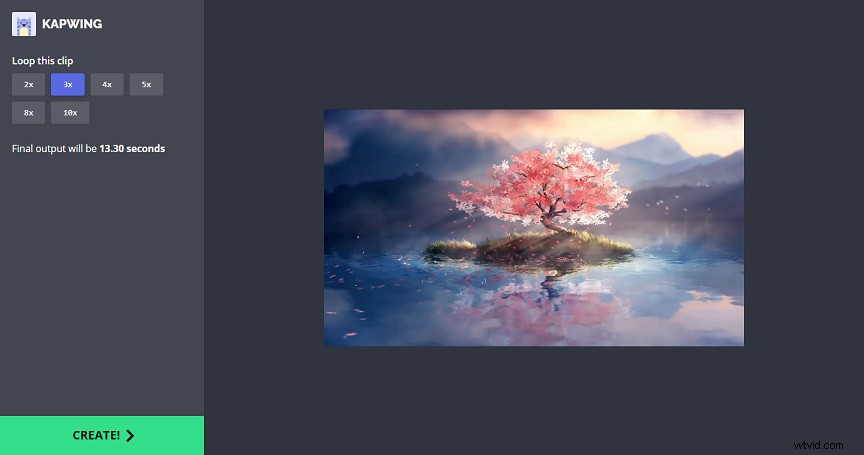
Step 4. Click the Download file on the right side to save this video and then upload it to Instagram.
Conclusion
This post shares 3 methods to loop a video for Instagram. Now, you can follow these steps to make a looping video for your Instagram Story.