
2 ways to crop videos for Instagram
- Online with Clideo
- Right on Instagram
If you’d like to create a video for Instagram with no crop - for example, to add borders to the clip without taking out a chunk of the moving image in the process, you can use Clideo’s Online Video Resizer.
Online with Clideo
This way you can crop any clip that you have stored on any device via a web browser, for free. Here you can alter it to any required dimension, meaning your clips can be prepped for both an Instagram Story or the regular feed.
Step 1: Upload a video
To get started, head over to the Clideo’s Online Video Cropper where you'll be welcomed by a 'Choose file' button. Tap this to upload your video from a PC, tablet, iPhone or Android smartphone.
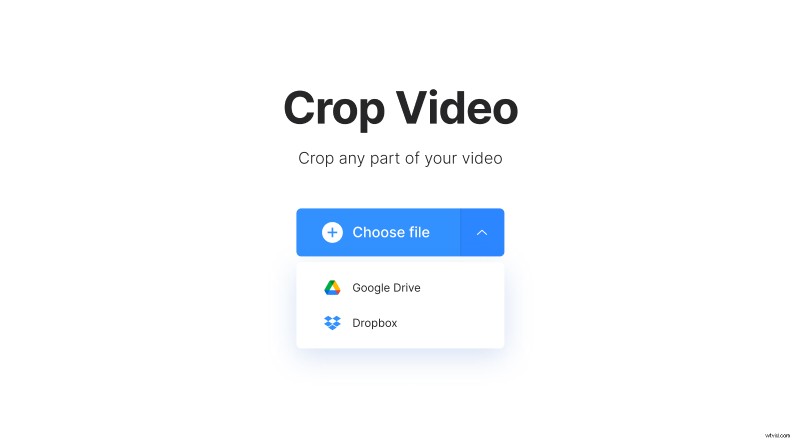
You can also upload straight from a Dropbox or Google Drive account - the options can be found by tapping the downwards-arrow.
Step 2: Crop the video for Instagram
Once your files have been selected, you’ll be taken to the editing page. Here you can choose the aspect ratio for Instagram or Instagram Story. Also, it’s possible to select the desired area of the video manually using the blue crop markers. The exact size in pixels can also be entered.
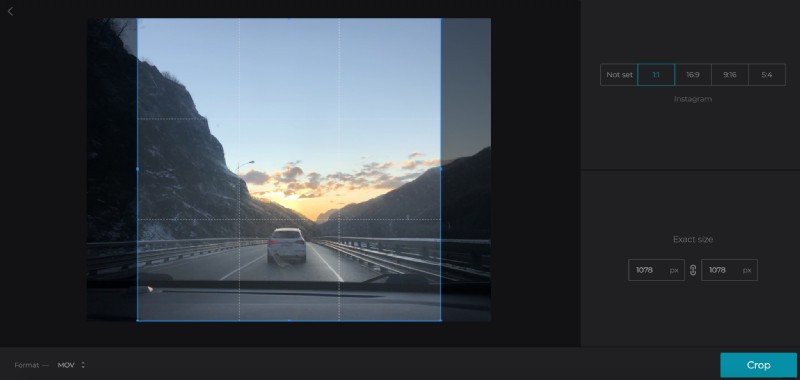
Now, navigate down to the left where you can choose the output file type - if you’re editing the video from your phone, we’d recommend converting it to the MP4 format.
Finally, if you’re ready to proceed, hit the ‘Crop’ button at the bottom right corner.
Step 3: Save the edit
Once processing has finished - you’ll be taken to the download page where you’re all done!
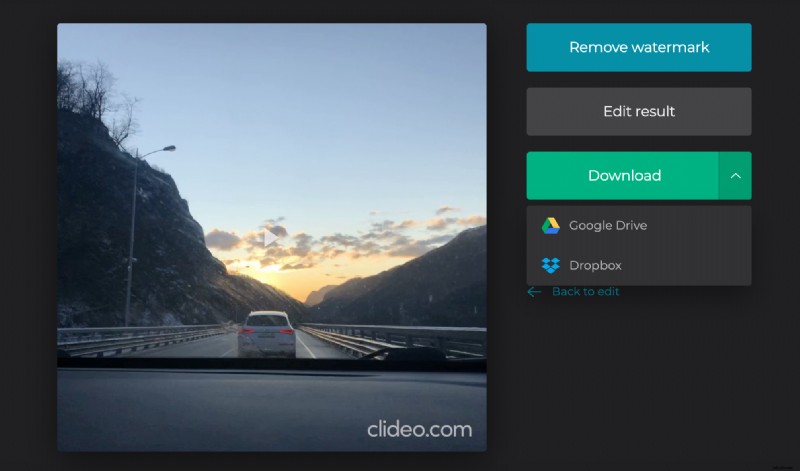
Here download your clip to your device or, again, to Google Drive or Dropbox. You can also give it a preview first and make sure you’re happy with the result - if not - simply tap the ‘Back to editor’ link to make some easy tweaks without starting all over.
Right on Instagram
This can only be done from a smartphone and will ultimately crop part of your video in the uploading process. Nevertheless, read on to find out how to do it...
Step 1: Select a video
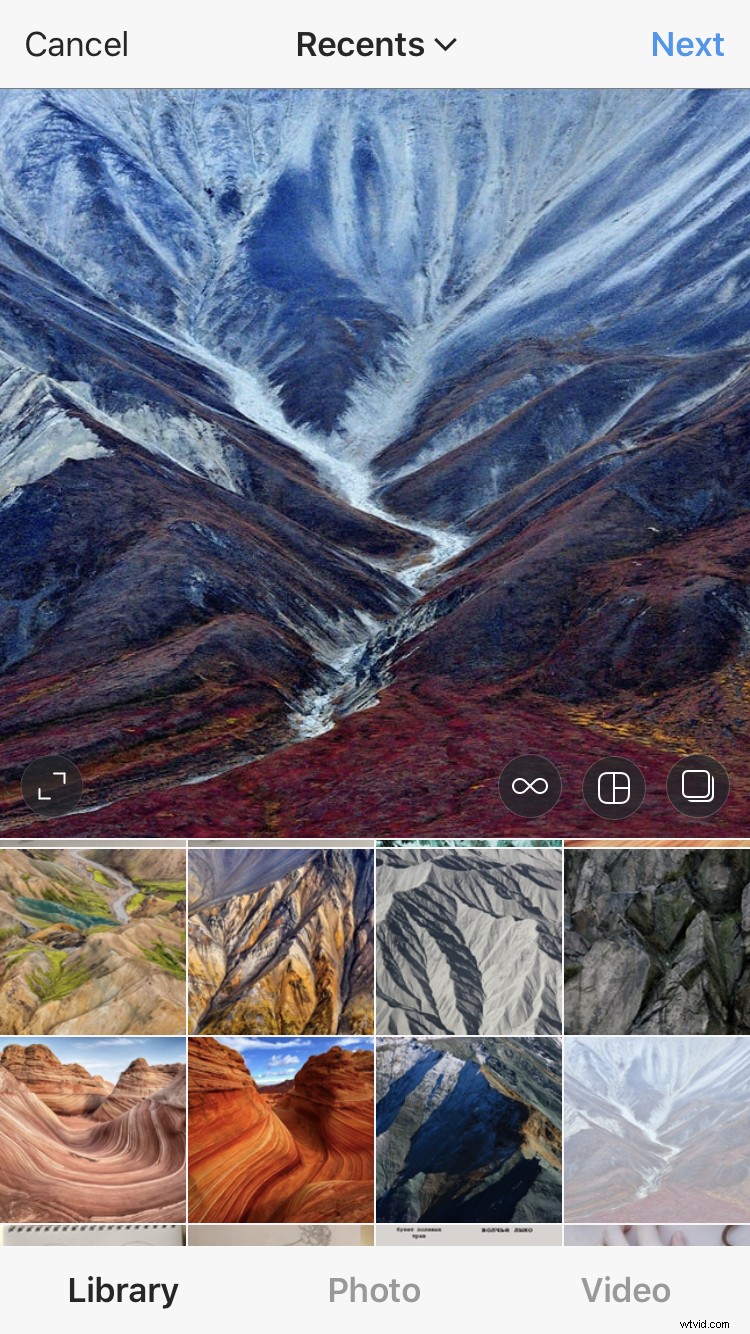
Open Instagram and tap the + icon in the bottom centre, a gallery will pop up allowing you to upload your desired video from your camera roll.
Step 2: Crop down
Once selected, your video will preview and a small circular icon with two diagonally-opposing arrows will display in the bottom left corner. Tap this to reveal more of the image to take it from a cropped square to its more original rectangular shape.
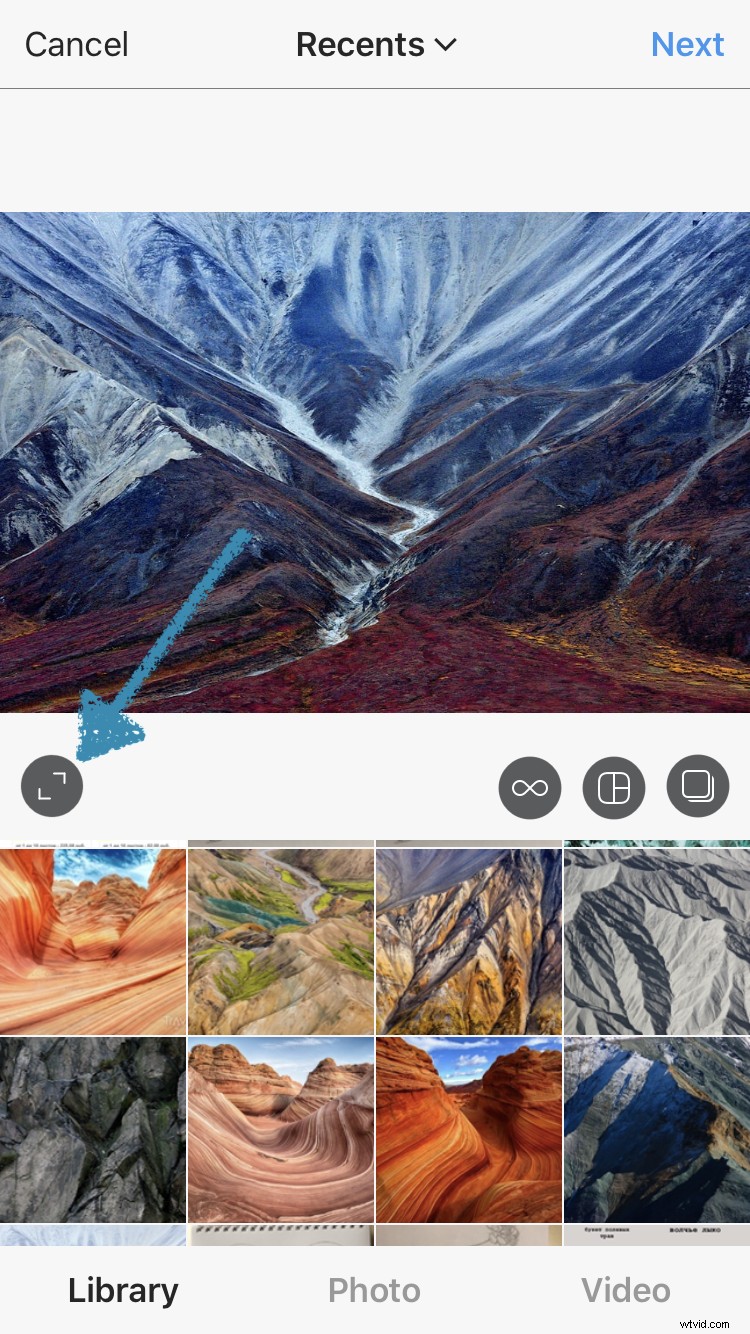
Alternatively, you can leave it as a square and move the image around the crop a different part of the recording.
Step 3: Post!
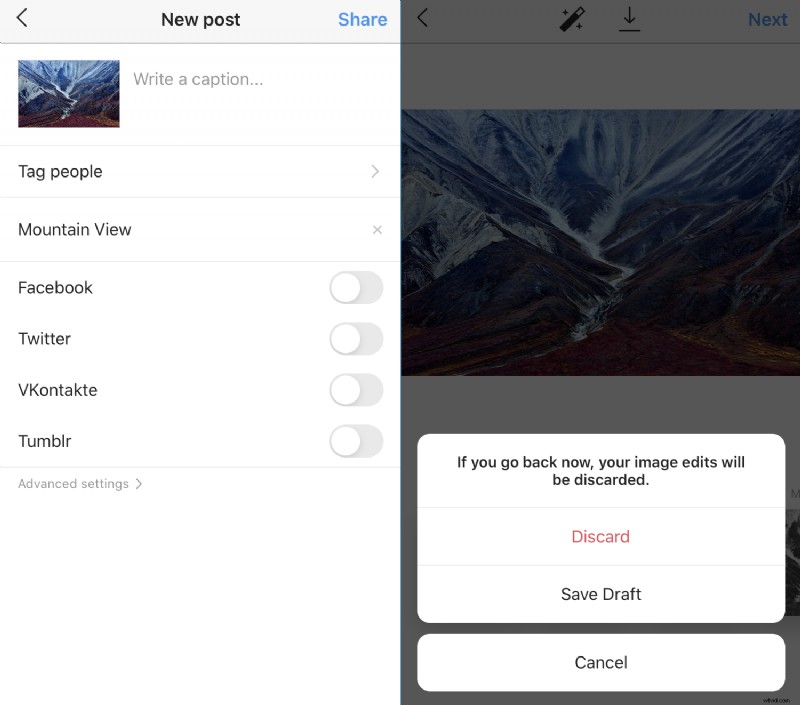
Finally, hit the ‘Next’ button, add your filters and you can either post your video as normal or save as a draft for later.