

With over 1.39 billion active monthly users, Facebook has become a popular platform to advertise a business, product or service. As eighty percent of Facebook usage comes from the mobile app, it is important to tailor your video ads to suit mobile viewing ratios.
Vertical MP4 videos will look the best when viewing on a mobile device and Facebook recommends a 9:16 aspect ratio, ensuring content falls in the 2:3 mask for mobile News Feeds.
If your video does not fall within the 2:3 ratio, Facebook will render as is up to 2:3, with masking to 2:3 for aspect ratios between 2:3 to 9:16.
So how do you crop videos for the purpose?
How to crop videos for Facebook ads
Our suggestion is to head over to clipchamp.com to crop your videos for Facebook ads. Within our video editor tools, you are able to crop your video to any custom ratio.
Our editor’s free account option includes access to all editing features. Here is how to use the cropping tool:
Step 1: Drag and drop your video into the Clipchamp dashboard
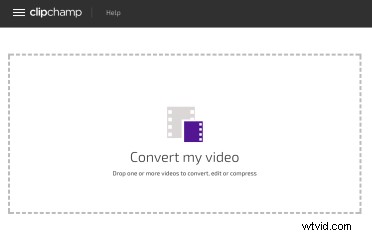
Either select or drag and drop your videos into the box.
Step 2: Click on Edit
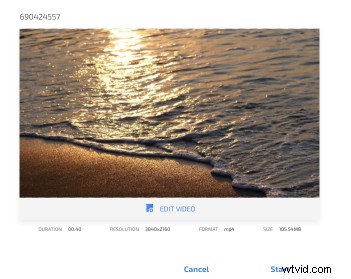
Click Edit Video to bring up the range of editing tools Clipchamp has to offer.
Step 3: Crop your video
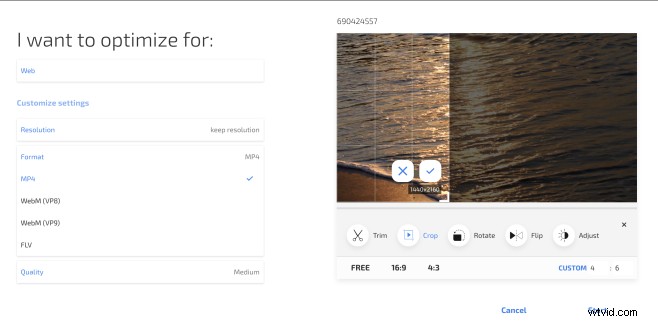
Select Crop to start cropping the file. You can choose a preset ratio of either 16:9 or 4:3, or Free crop by dragging the edges of the video inward. If you know your custom ratio, like 2:3 or 4:6 in this case – you can enter it in the Custom ratio box at the bottom right.
Here you can also customize the optimization settings for your video. We recommend to keep the Web preset as this will be best for Facebook ads. This will convert your video into MP4 if it isn’t in that format yet or it will retain the MP4 format if it is – MP4 is ideal for Facebook ads.
You can change the quality and resolution in the settings as well to ensure your video is of the highest quality visually.
(Hint: don’t change your resolution settings to more than what it was recorded as this can increase the video file size.)
Step 4: Click Start
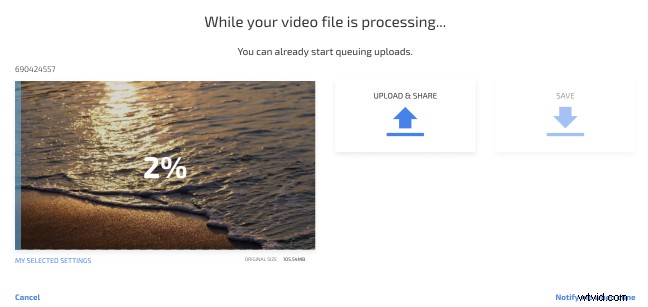
Once your video has started processing, you can already start initiating the upload to a number of destinations such as Google Drive, Vimeo, Facebook or YouTube, which will kick off as soon as the processing is finished. Or for the purpose of embedding the finished and cropped video into a Facebook ad, you can save it to your computer once it’s done and upload it afterwards to your Facebook ad account directly on business.facebook.com.
About our app
Clipchamp is the world’s first and only browser based video compressor and converter. Our unique technology allows you to easily and quickly share your videos online for free. It works best in the latest version of Google Chrome on a Windows, Mac or Linux computer and lets you crop videos for Facebook ads in a simple and painless user interface.