Embed a video for YouTube on Facebook in three steps
YouTube, Facebook, Instagram, TikTok, Snapchat, and other popular sites, have their own specs for video posts. Some of them are the same throughout all the networks, while there are also unique ones.
It is always a good idea to know the specifications to make sure your film looks perfect and no part of it is cropped. But do you need to record several videos, one for every post type?
Luckily, you can only make one and later change its aspect ratio and resolution to fit various social media requirements. You can do that in some special editing software, of course. However, you need to find, download, install, and then learn how to use it.
Clideo offers a faster and easier solution. Our service provides a range of online video editing tools. One of them can help you resize your work.
Let’s imagine you need to embed your video for YouTube on a Facebook post. All you need is your favorite browser — on computer or mobile. No need to register or pay anything if your file is up to 500 MB.
Go on reading to discover the three simple steps that will help prepare the proper film for your Facebook timeline.
Upload your YouTube creation
Go to Clideo’s Video Resizer.
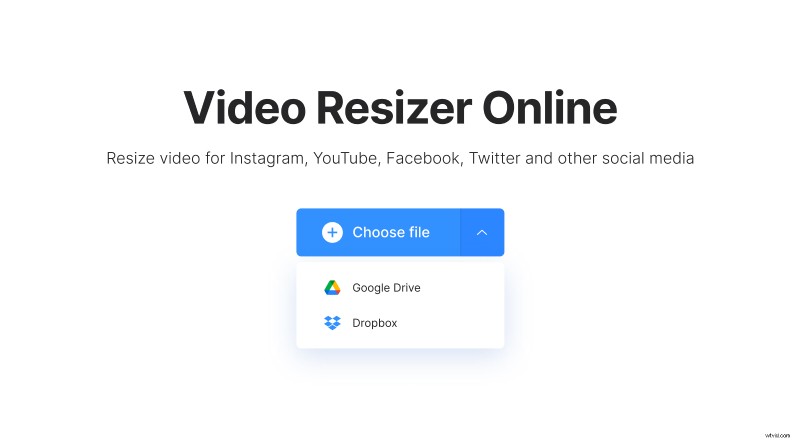
See that big blue “Choose file” button? Click it! Alternatively, you can select Google Drive or Dropbox storage accounts of yours to grab the file from over there.
Resize for the Facebook post
Once the process is over, you will see the preview of your creation and several editing options.
In the “Resize for” section, select Facebook. Then, it’s time to pick the post type below. You don’t need to know the exact post requirements as the tool has more than 20 Facebook presets to choose from. When the one you need is selected, you can immediately see the changes in the preview area.
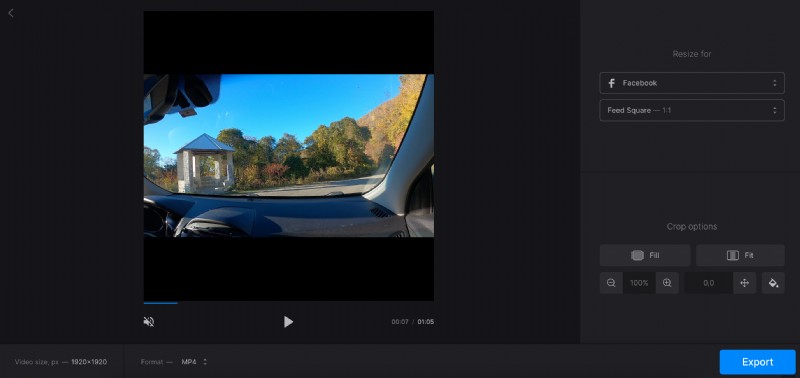
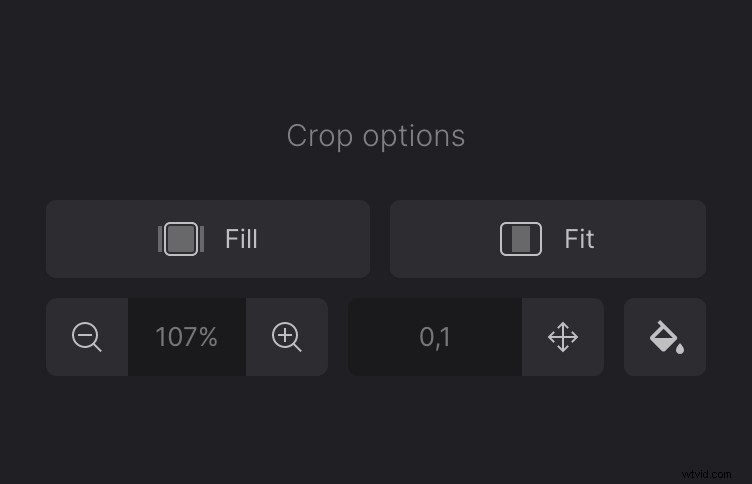
Go to the “Crop options” section to edit the bars settings if those were added. Click the “Fill” icon to hide them and make sure nothing important is cropped. If you select “Fit”, the bars will stay. You can make them look better, using the settings below — zoom in or zoom out, reposition the video, and pick the matching background color.
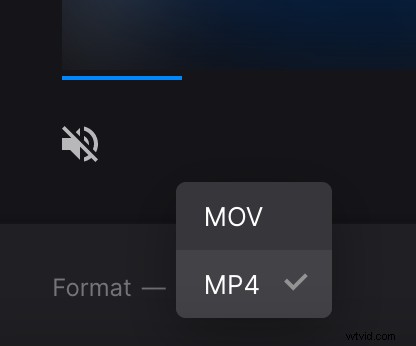
By the way, at the bottom panel, you can see the resolution and also use a menu for selecting a file format. It shows you only the formats that are accepted by Facebook.
When done, click the “Export” button.
Save your video
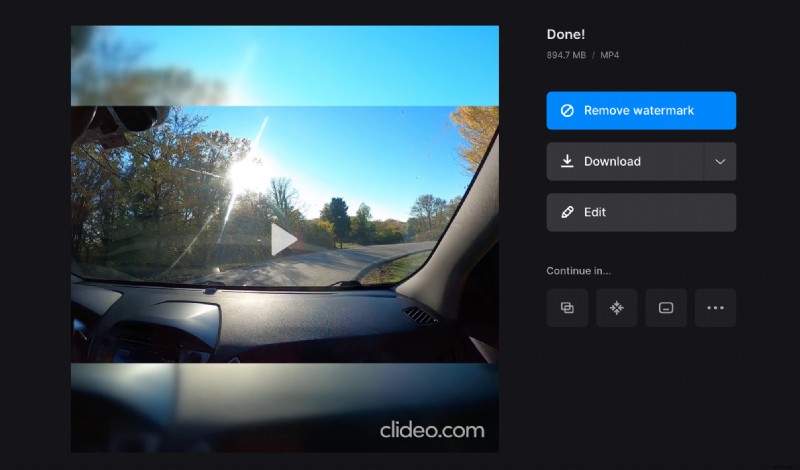
Finally, you will see the preview of your creation. If you like it, download it to your device or cloud storage. Click the “Edit” button to return to the previous screen if you want to make changes.