
- Slow Down Video for YouTube with Clideo
- Slow Down Right within YouTube
Slow down a video for YouTube with Clideo
The first way to slow down a clip for YouTube is by using video speed-changing tool, Clideo, which can turn just about any standard video into a slow motion masterpiece. It can also be done just in three simple steps.
Step 1: Upload a clip
To get going, open Clideo’s Video Speed Changer tool, which can be accessed easily from any web browser, and from any device (just as long as it has an internet connection!).
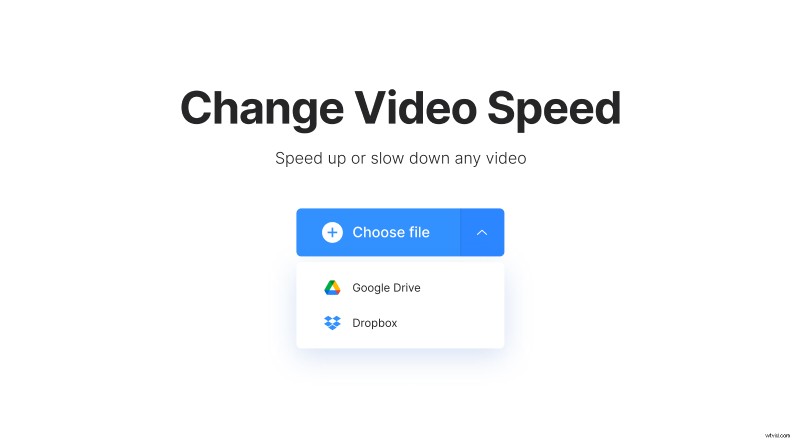
You’ll be welcomed by a home page where you can upload your file. Upload a video from your physical storage, or from cloud storage accounts Google Drive and Dropbox.
Step 2: Adjust the speed
Once your video has been uploaded and processed, you’ll be taken to the editing page, where you can easily slow it down (as well as speed it up, if you like).
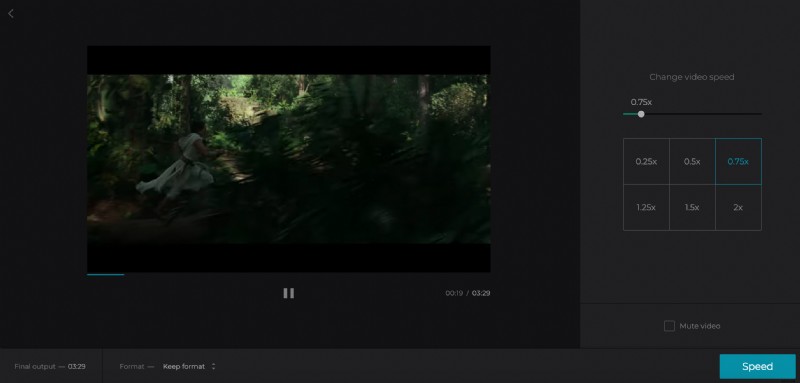
Just play around with the controls on the right-hand side until you have a speed that you’re happy with. Anything below 1.0x speed will slow it down whereas anything above will speed it up. Preview and if you like it, tap "Speed", your clip will be prepared for saving.
Step 3: Download to your device
Once processed, your video is ready to be downloaded, either back to the device you’re working from via the green Download button, or - again - to Google Drive or Dropbox via the drop-down menu.
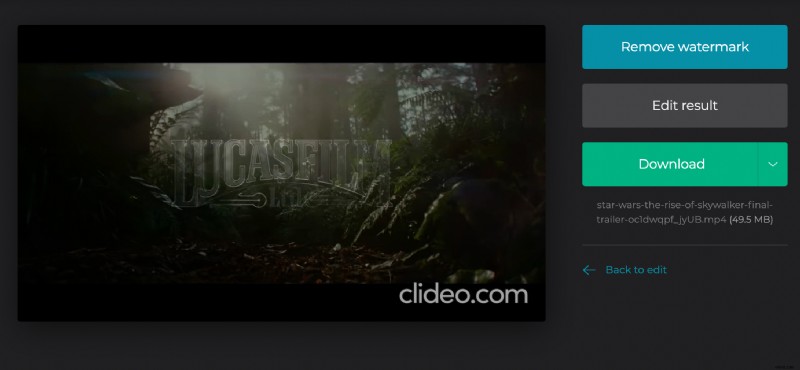
If you’re not 100% satisfied with what you have done, simply select the Back to edit option where you can alter the speed without starting from the beginning.
Right within YouTube
If you don’t want to save any videos to your device but are happy simply watching something in slow motion, YouTube has this functionality built into every video and is available on its platform. Here’s how to do it...
Step 1: Head over to YouTube
Visit the page of the video you want to see slowed down on YouTube and play the video as usual. Once it’s started playing, tap on the Setting cog on the bottom right of the video with your mouse cursor (or finger) until the playback control menu pops up.
This will work from any device - PC or mobile.

Step 2: Navigate to Speed settings
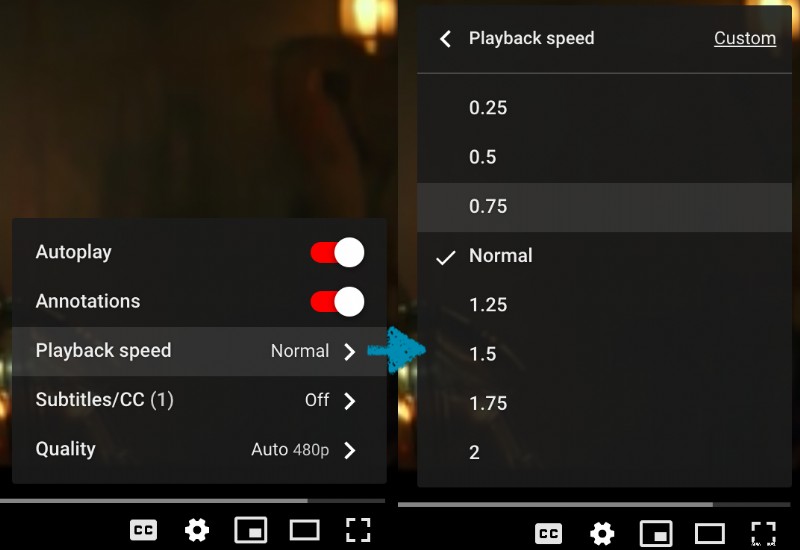
Next, tap on the Playback Speed option, this will bring up several options for playback speed.
Step 3: Slow it doowwwwnnnnn
To change playback speed on the YouTube video, simply opt for the speed of your choice. If you want to speed it up, choose 1.25x, 1.50x, or 2x, and if you want to slow it down, pick either 0.25x, 0.50x, or 0.75x, depending on how fast or slow you want the playback to be.