
Speeding up a video can help analyze any action that originally takes a long time to play in a fast track. Slowing down a very fast action can also minutely analyze any action that in its original speed is just too fast for the human eye to follow in detail. However, to edit the speed on your videos, you need professional video editor software like iMovie.
How to speed up and slow down video using iMovie alternative - Filmora
iMovie while extremely effective can also be a little challenging for beginners. The interface does seem intimidating for users trying the editing project for the first time. An optional choice can be Wondershare’s Filmora, which has much more user-friendly interface.
- Open the interface and click on the file option and then Import Media to bring the file you want to edit on to the main interface.
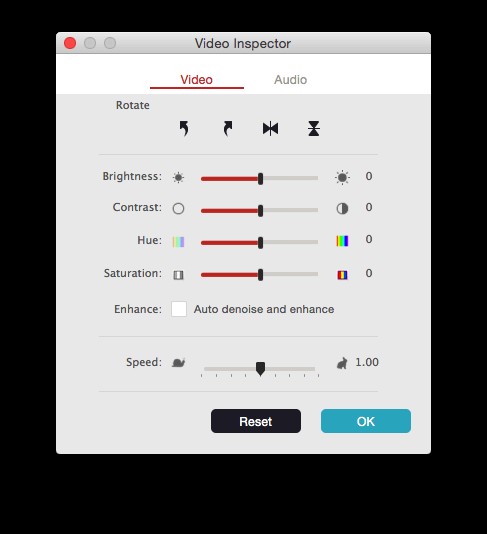
- Double click on the video clip to activate the panel for editing the video. Find the Speed option and you can edit the numbers in the speed panel to indicate how fast or slow you want to play the video clip. You can watch the video on the preview panel to judge the right speed effect for your video.
- Once you are satisfied with the effect, you can click on Export to save the video clip with the changed speed parameters in a new file format. This can be uploaded to YouTube or you can burn the file on to a new DVD.
How to speed up and slow down in iMovie
- Start by going to the file options and clicking on New Event under it. You can label the speed for the event.
- Click on the option to Import Media and select the movie file that you want to edit.
- Scrub the Playhead to the part of the video where you want to put in the slit for the clip. Right click on this position and choose the Split Clip option to separate the whole timeline in two separate parts.
- You can split the clip in the same fashion at all the areas where you want to put in the speed up and slow down effect.
- Now choose a split clip and click on the icon for Seed located just above the main viewer. Set the speed to fast or slow from the pull down menu, according to your preference.
- Click on the presets for speed to experiment with the look of the clip through different speed options.
If the steps above are not the one for your iMovie version, you can check the updated information about how to speed up and slow down video footage in iMovie here .