
In this article, we will demonstrate the following 3 sections for you.
- Part 1: An Easier Way to Edit iPhone Videos on PC/Mac
- Part 2: How to Use iMovie in iPhone
- Part 3: Top iMovie Alternatives for iPhone
Part 1: An Easier Way to Edit iPhone Videos on Mac/Windows
Though there are various competent alternatives to iMovie for iPhone, if you want to edit your video footage with more effects and cooler, you may need to use the desktop video editor.
One video editor which is available with unlimited features is the Wondershare Filmora for Mac and PC. Special effects like green screen, split screen, and face-off make the app very interesting to use. Multiple transitions, animated titles and motion graphics, and various features work towards making the videos stunning and beautiful.
You can watch the video about Filmora below and download the free version to check it out.
Learn More Details: Why Should I Use Filmora
Related: Best iMovie Alternatives for Mac
Part 2: How to Use iMovie for iPhone
Making videos with iMovie on the iPhone is a very simple task, which can be handled even by novices.
Before you make a video, first check the video storage available on your iPhone. You do not want all your hard work to be erased due to no storage. Follow the steps below to create a video with iMovie on your iPhone.
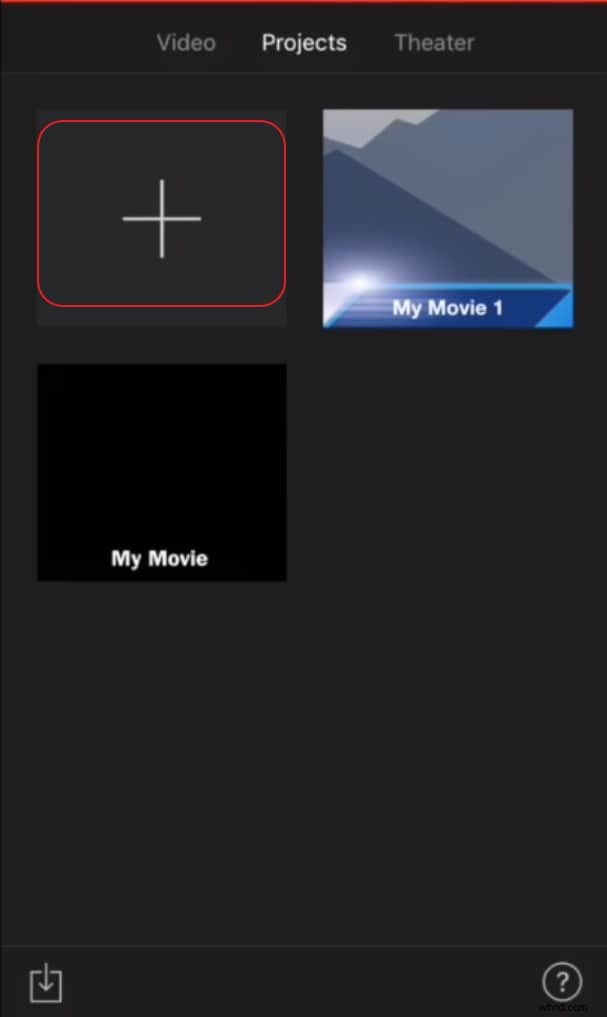
Step 1. Tap the + button and go to the video timeline and other tools.
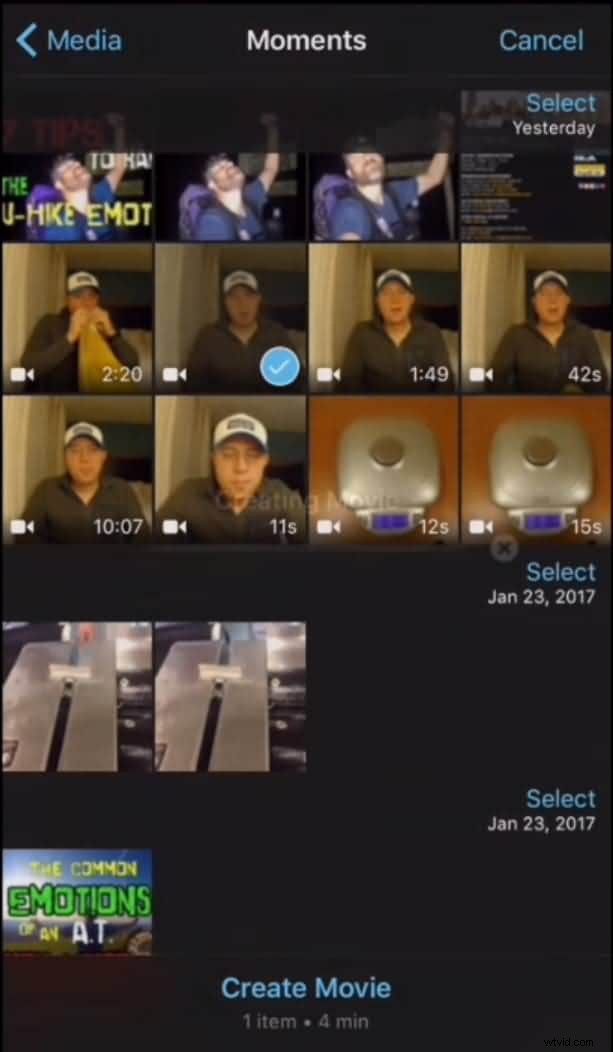
Step 2. Click on the Media button, which will bring up all the video clips on the camera roll. Select the clips you want to have on your video. You can add more than one clip, for better effects.
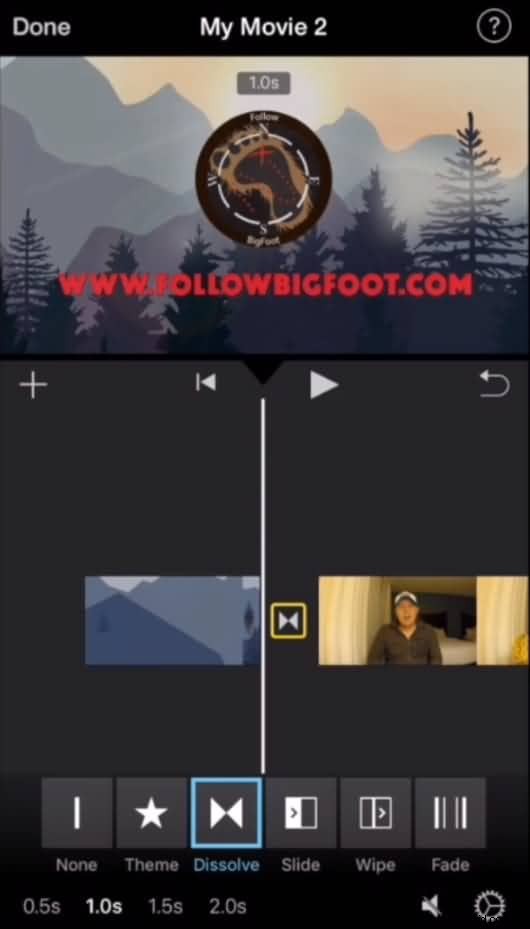
Step 3. Splice the clip by moving the red timeline marker to where you want to splice the clip.
A dissolve transition will immediately appear to where you have made the edit.
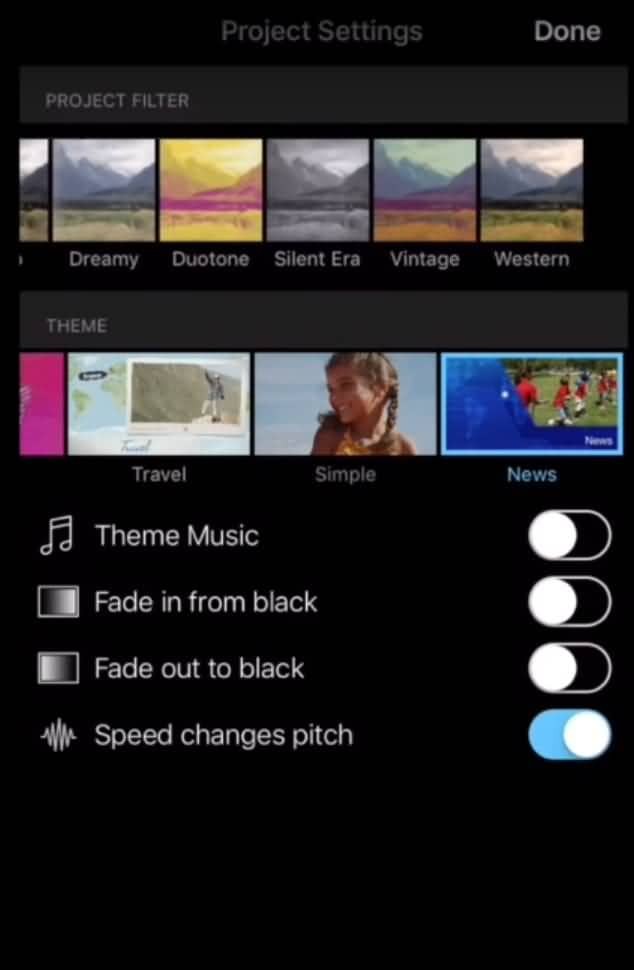
Step 4. Next, choose one of the eight themes available to work with. Each theme has its own background music, title, and transition style.
Related:
- How to Get More iMovie Themes
- How to Add Transitions between Video Clips in iMovie
Part 3: Top iMovie Alternatives for iPhone
If you are looking for an easier video editor for your iphone, below are some alternatives to iMovie for iPhone for your choice.
1. FilmoraGo
FilmoraGo is a free video editing app for iPad, iPhone, and Android devices. Using FilmoraGo, you can finish most editing work that needs to accomplish with a PC or Mac video editor.
FilmoraGo allows you to edit your video with some basic features such as trimming, cutting, splitting, and merging, and also, it allows you to add music, voice-over, transitions, filters, elements, effects, etc. to your video footage. You can also make some interesting effects like reversing and speeding up your video footage. Watch the video below to get more information about FilmoraGo.
2. Splice
This app is one of the most recommended apps by the experts as an alternative to iMovie for iPhone. If you are using it on your mobile device, then you will be surprised to see that it provides you with the same amount of features that a desktop does.
The interface has been optimized for use on the touch screen, which is a definite plus point. You can record your own audio tracks to be added to your movie, or import tracks from the iTunes library.
3. Magisto
Magisto promotes a smooth user experience. Unlike the other alternatives to iMovie for iPhone apps, Magisto has fewer options and filters. Nevertheless, these can create truly magical videos. Which is nothing but the automatic cutting and analyzing of videos and making them appear more professional.
It is a perfect app for those who don’t mind the control resting with the app and allowing it to create something exclusive.
4. VivaVideo
With around 30 million users around the world, VivaVideo appears to be one of the best superficial video editors available in the market.
The app offers, from among its many features, various filters, a high definition selfie camera, and a Picture in Picture effect. The alternative to iMovie for iPhone is both creative and fun to work with. VivaVideo lets you trim and merge the videos effectively, add music and filters, or dub the video with any voice.
To make your videos attractive and noticeable, the alternative for iMovie for iPhone provides amazing texts, stickers, FX, and transitions.
Comparison of the 4 Best iMovie Alternatives for iPhone
| SOFTWARE | IN-APP PURCHASE | PRICE |
|---|---|---|
If you are not happy with the above video editors, you can check more alternatives in the Top 10 Best Video Editors for iPad, iPhone, iPod Touch.
Learn More:
- The Best iMovie Alternatives for Android
- Top 5 iMovie Alternatives for iPad